You can use the device details API to retrieve information about
all Toast POS devices at a location. You can send a GET
request to the /device-details/v1/device-info endpoint to
retrieve an array of devices and their device information at a single
location.
The device details API requires the
device-details.info:read scope. For more information about
scopes, see Scopes.
When you retrieve device information, the details are returned in
an array containing Device objects. Each
Device object includes the following values:
-
serialNumber: The unique code assigned by the manufacturer to track the individual device. -
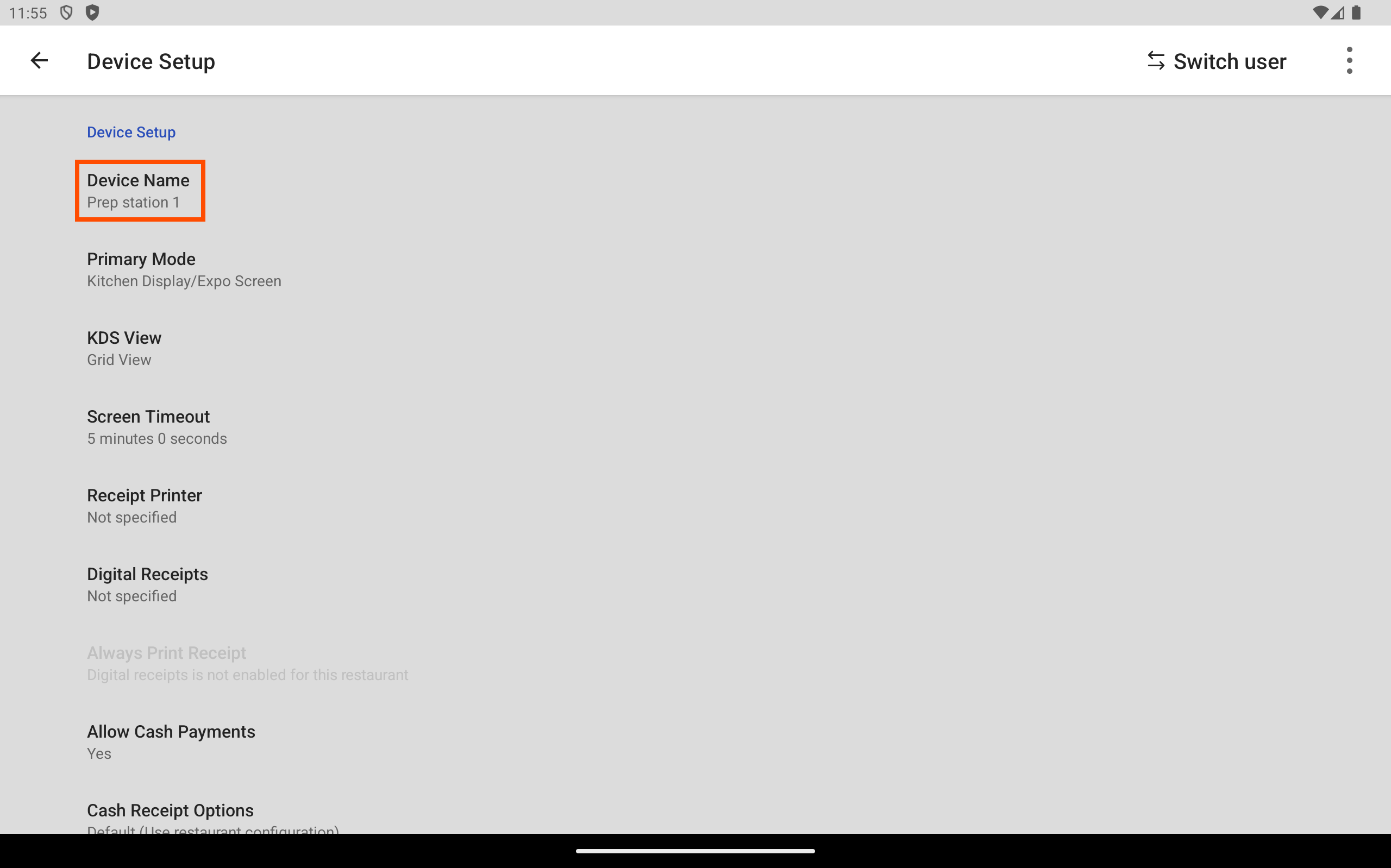
deviceName: The custom name assigned to the hardware device when initially setting up the Toast POS device. -
deviceModel: The hardware model of the device. This is determined by the device itself. -
deviceId: The identifier assigned by the Toast platform to the hardware device. -
posAppVersion: This is the version of the Toast POS app running on the hardware device.
You can look up device information for a device using the Toast POS app.
To find the device serial number, device model, device ID, and the Toast POS app version
-
Access the Toast POS app.
-
Enter your passcode and log in.
-
Select the overflow menu, the ⋮ icon, on the top right. The overflow menu opens.
-
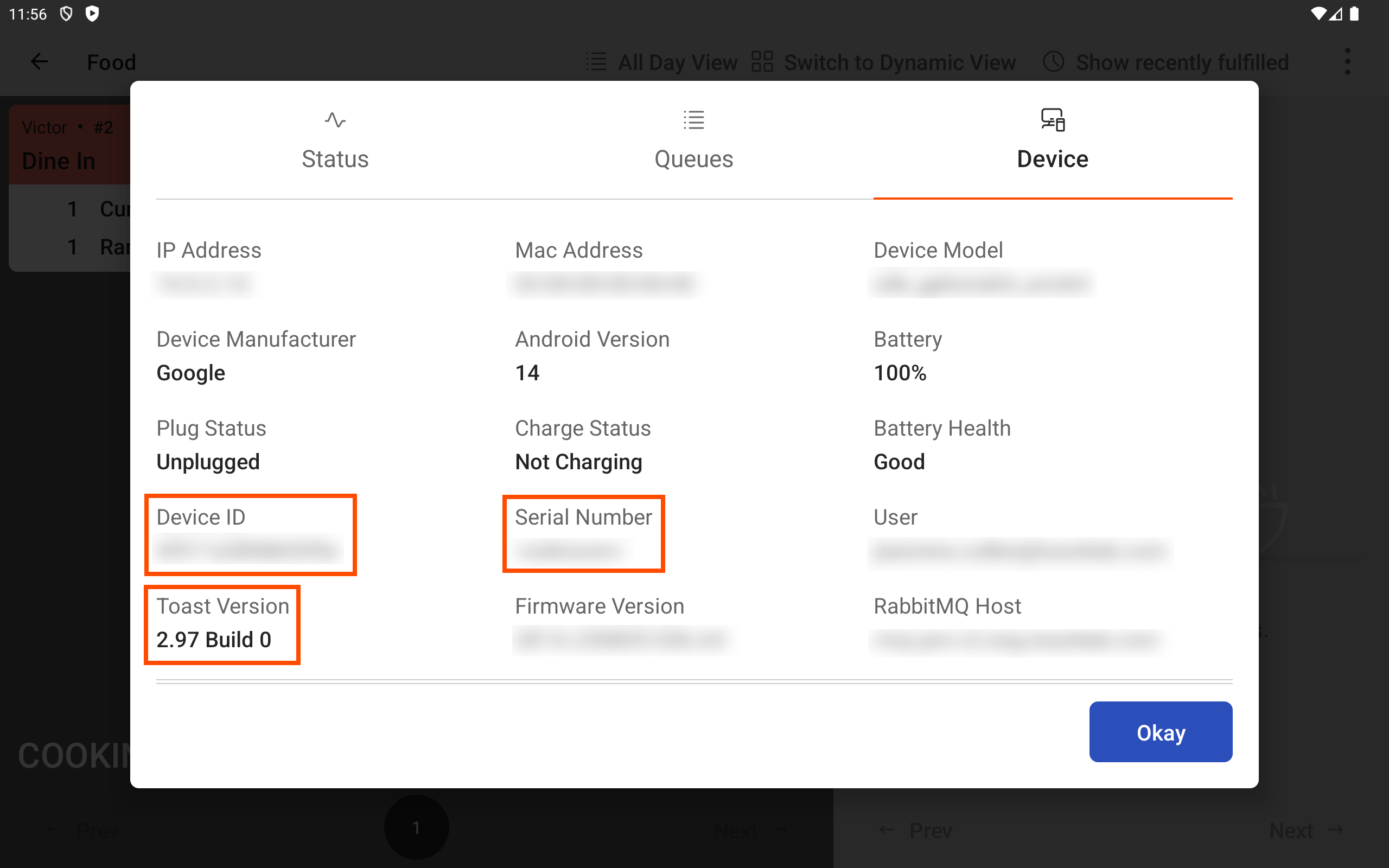
Select Device status. A dialog opens.
-
On the top of the dialog box, select Device.
-
To find the:
-
Serial number: Look at the Serial Number value.
-
Device model: Look at the Device Model value.
-
Device ID: Look at the Device ID value.
-
Toast POS app version: Look at the Toast Version value.
-