This section provides information about building a promotions integration between the Toast POS system and your promotions service.
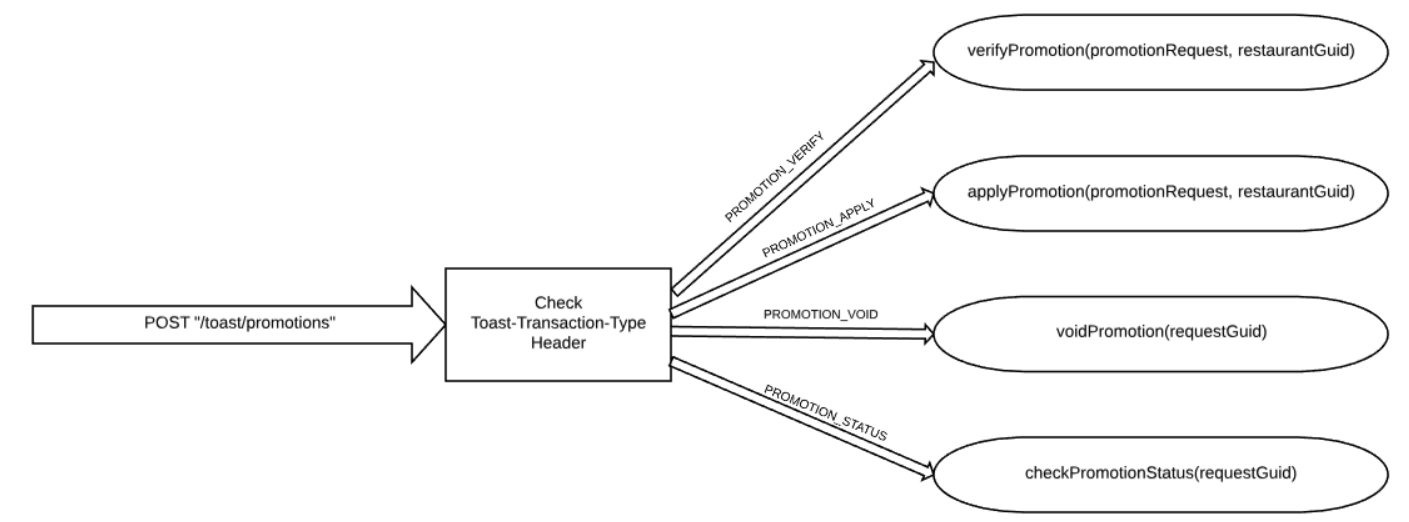
You can integrate your promotions service with a restaurant's Toast POS system by implementing an API that can handle REST HTTP requests that the Toast POS system sends to it. The Toast promotions integration API specification describes the required functionality of a REST web service that will handle Toast POS system promotions transactions. For more information, see reference documentation in Promotions API reference documentation.
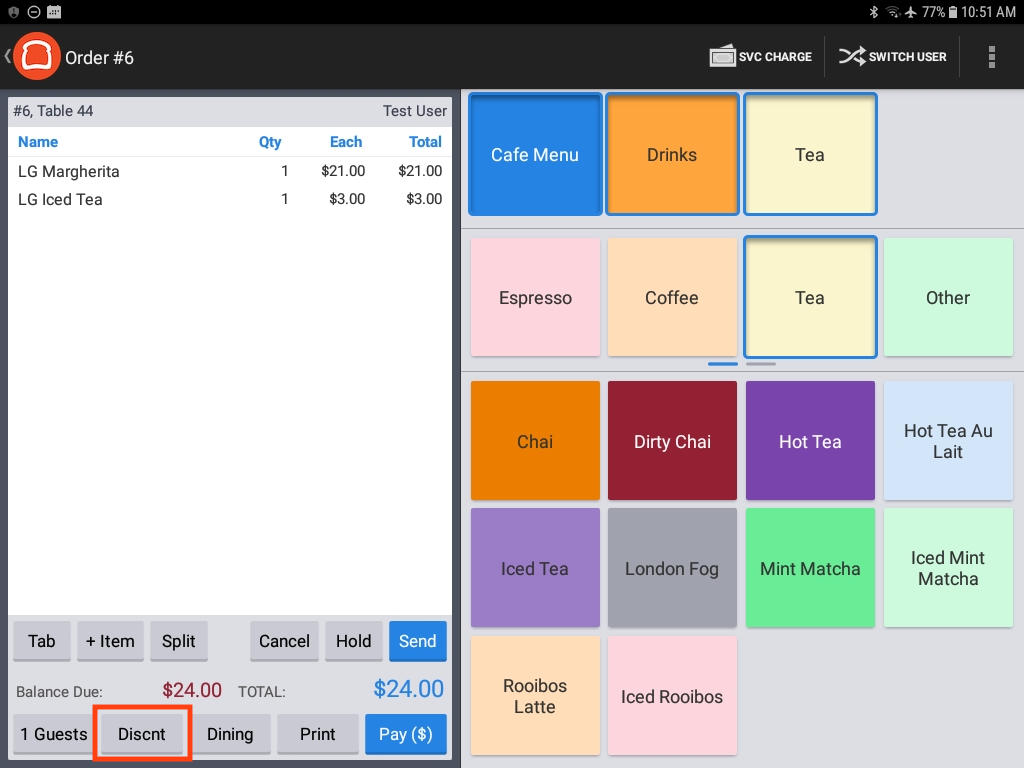
When a Toast POS system restaurant employee handles a sale transaction, the employee can click a Discnts button to access the promotions dialog and enter the promotion code. The Toast POS system sends a request to the provider to verify that the promotion can be applied to the check. If the provider verifies that the promotion is valid, the promotion is applied to the order. During the payment phase, the provider redeems the promotion and the redeemed promotion is applied to the Toast POS payment. For information about the web services requests that the Toast POS system sends for promotions transactions, see Transaction Types.
In your implementation of the Toast promotions integration API, you
use a single HTTPS REST endpoint. You can name the endpoint in any way you
choose. For example, you might create an endpoint named
/promotion. The Toast POS system sends requests to that
endpoint for all promotions transactions. You can identify the requests for
specific transaction types using the
Toast-Transaction-Type HTTP header parameter for each
request that you receive.
The following sections provide more information about building a promotions integration for the Toast POS system.
Toast restaurant employees can create Toast discounts with the Payments > Discounts page in Toast Web. However, the promotion discounts used with the promotions API are created by the promotions provider, and thus do not appear on the Discounts page.
You, as the promotions provider, will collaborate closely with the Toast restaurant staff to define the promotions, such as the discount amount. The restaurant staff must also be aware of the promo codes used for the promotions, as those promo codes are entered on the Toast POS devices by restaurant employees when they apply a promotions to a check.
The following rules apply to promotions:
-
Promotions are applied as discounts to an order.
-
Promotions can only be applied as check-level fixed-currency discounts. If a promotion is advertised or configured by the promotions provider as a different type of discount (for example, combo or BOGO), that promotion will still be applied as a check-level fixed-currency discount in the Toast POS device.
-
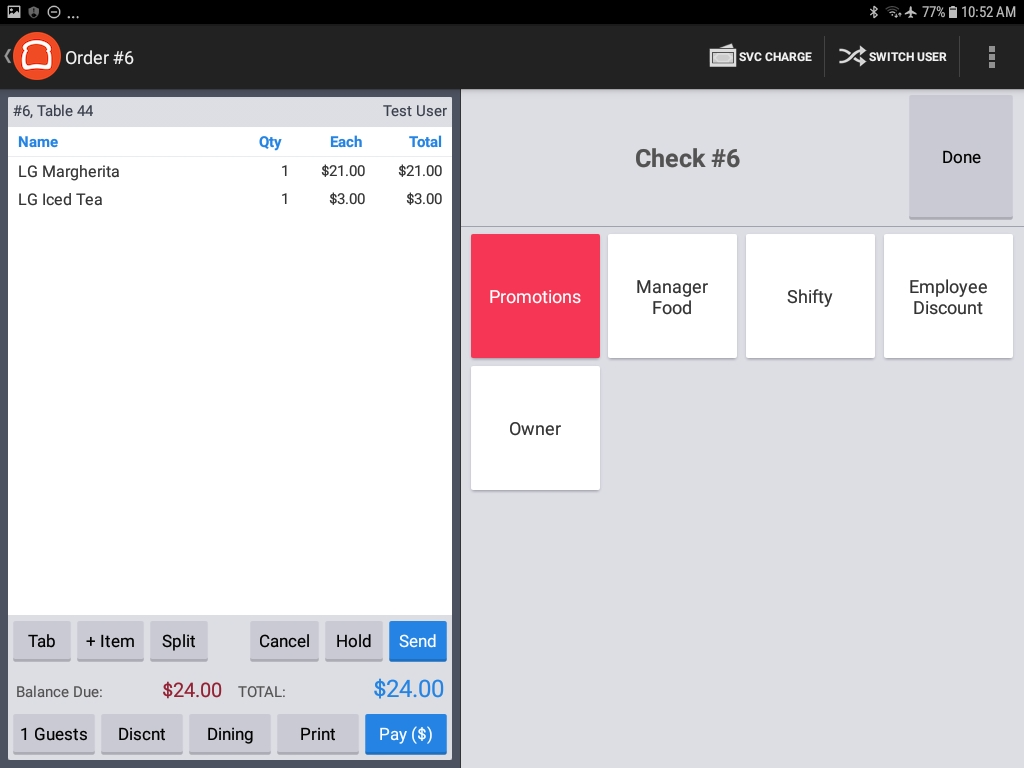
For Toast POS users, applying promotions is done by referencing their promo codes. That is, the names of promotions discounts are not shown on the Toast POS device before the discount is applied; instead, the user enters the promo code of the promotion on the Please Type or Scan Promo Code dialog. After the discount is applied, the discount name displays on the discount area of the order screen, so you can remove the discount.
-
Promo codes are alphanumeric.
-
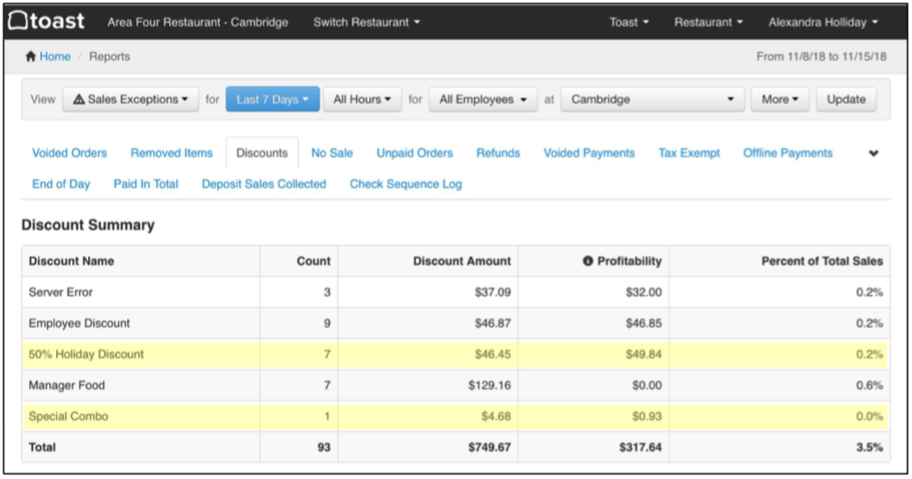
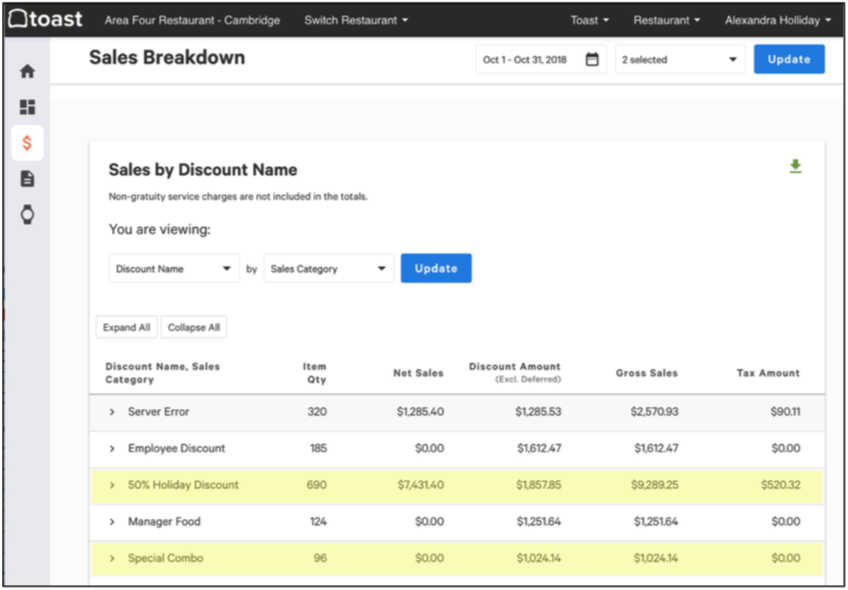
All promotions applied via the Toast POS through the Promotions API are reported in the Sales Exceptions (Toast Reporting) report and the Sales Breakdown (Toast Analytics) report.
Keep in mind that only one promotions partner can be leveraged at a single restaurant (for example, a restaurant cannot leverage both Punchh and Sparkfly for promotions and have offers from both of these providers applied via the Toast POS).
The Promotions API product module must be enabled for a restaurant before it can use the Toast promotions integration API. Partners can work with the Toast Integrations Support team to have the module enabled. After the module is enabled, you can use the Payments > Promotions Configuration page to configure the 3rd-party promotions feature for Toast POS device users.
The following sections describe how to use the Promotions Configuration page for non-enterprise and enterprise locations.
These configuration instructions apply to enterprise restaurant groups that have Master Menu Management enabled at their locations. This allows promotions to be configured at some or all locations in a restaurant group without having to visit each individual restaurant's Promotions Configuration page.
-
From Toast Web, select Payments > Promotion Configuration.
The Promotions Configuration page displays.
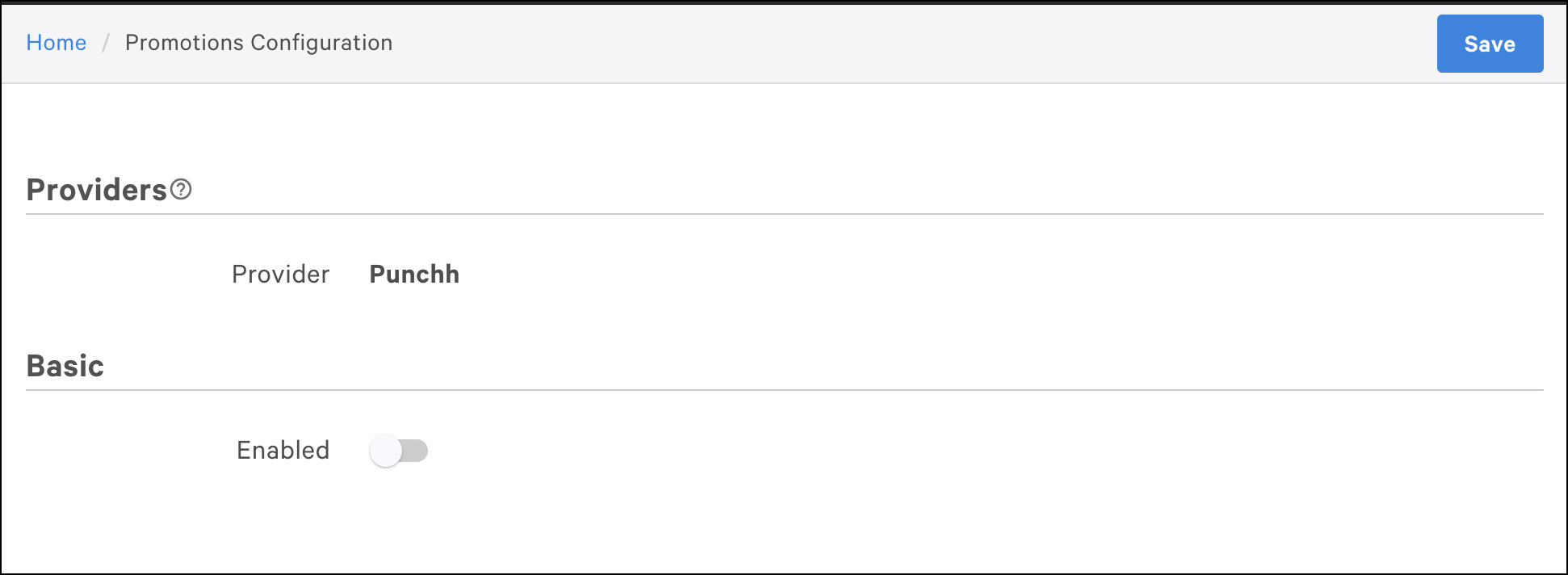
Note that the Provider field is configured by Toast support prior to the enablement of the Toast Promotions integration.
-
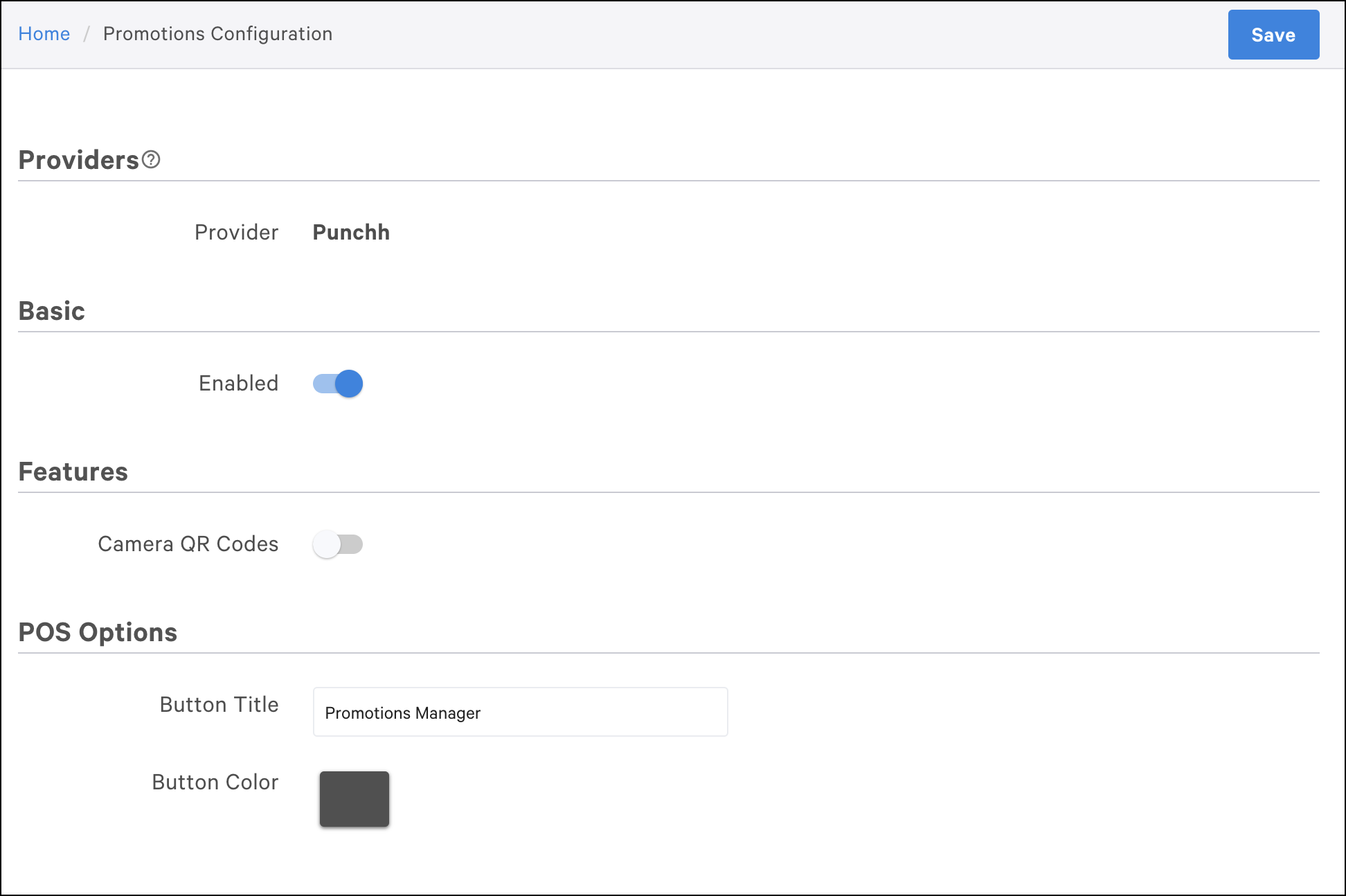
In the Basic section, enable the ability to apply 3rd-party promotions on the Toast POS device by toggling the Enabled switch to the right (the on position). A blue dot displays to indicate the option is enabled.
The Features and POS Options sections display. The Promotions Configuration page should now look similar to this example.
-
In the Features section, enable Camera QR Codes (if applicable) to allow use of the Toast POS camera to scan QR codes to apply promotions.
-
In the POS Options section, configure the appearance of the promotions button on the Toast POS device:
-
In the Button Title field, enter the text to be displayed on the promotions button.
-
In the Button Color field, select the default color of the promotions button by clicking the color square and selecting a color.
-
-
Save and publish your changes.
This section describes how to configure promotions API usage for restaurants that have the enterprise (MMM) product module enabled.
-
From Toast Web, select Payments > Promotion Configuration.
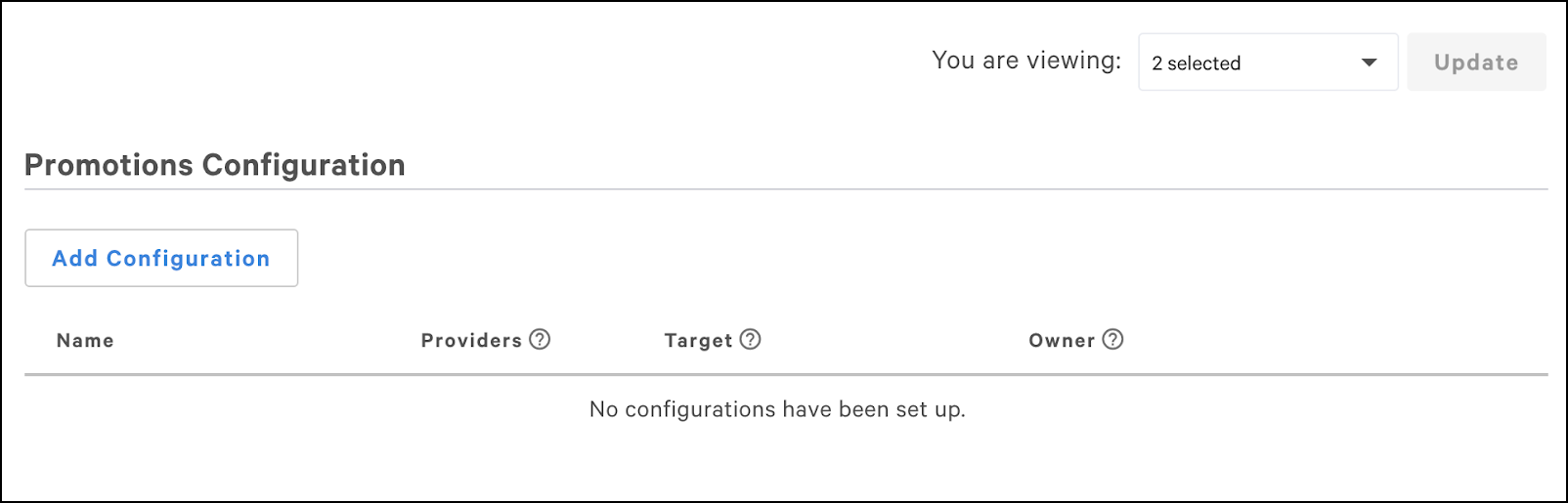
The Promotions Configuration page displays. This screen example assumes that no promotions configurations have been created.
-
On the Promotion Configuration page, click Add Configuration and fill in the fields:
-
Configuration Name: enter the name of the configuration (for example,
Promotions
                                                                   Corporate
). -
MMM Targeting: enter the target and owner.
-
Basic: enable the ability to apply 3rd-party promotions on the Toast POS device.
-
Features: enable Camera QR Codes (if applicable) to allow use of the Toast POS camera to scan QR codes to apply promotions.
-
POS Options: the Button Title field, enter the text to be displayed on the promotions button; in the Button Color field, select the default color of the promotions button by clicking the color square and selecting a color.
-
Save and publish your changes.
-
-
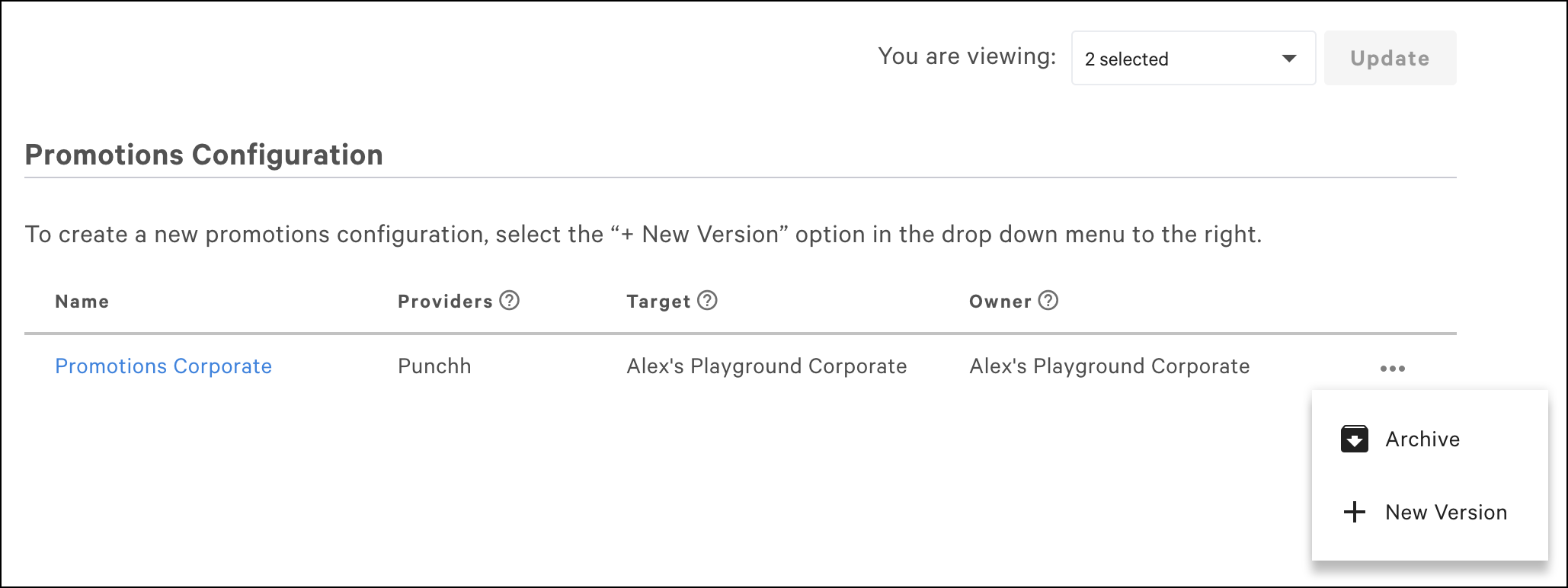
To create a new promotions configuration for a specific location, first select the + New Version option (in the overflow menu to the right of an existing configuration):
-
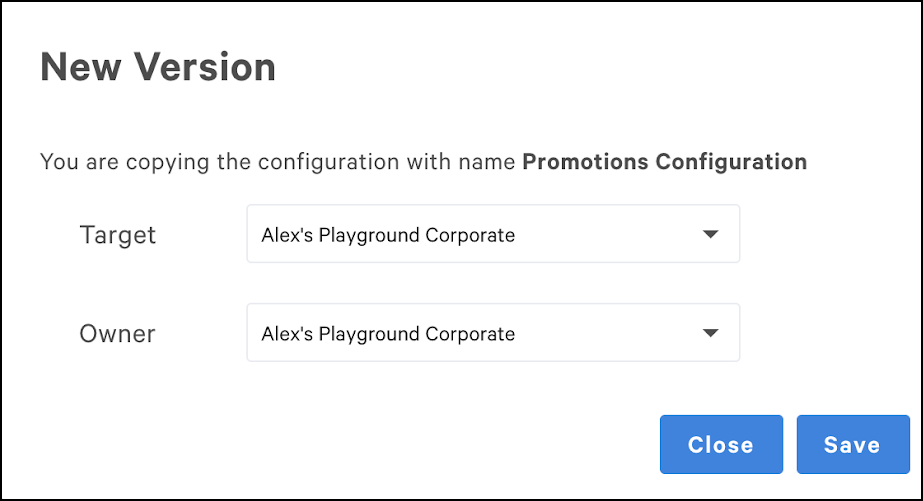
In the New Version dialog, select the Target and Owner for this new configuration. Then click Save to save your changes.
-
To edit the new location-specific configuration, begin by clicking on the Name of promotions configuration that you want to change.
In this example, you might select the
Promotions
                                                    Corporate
name of the configuration with aBoston, MAtarget .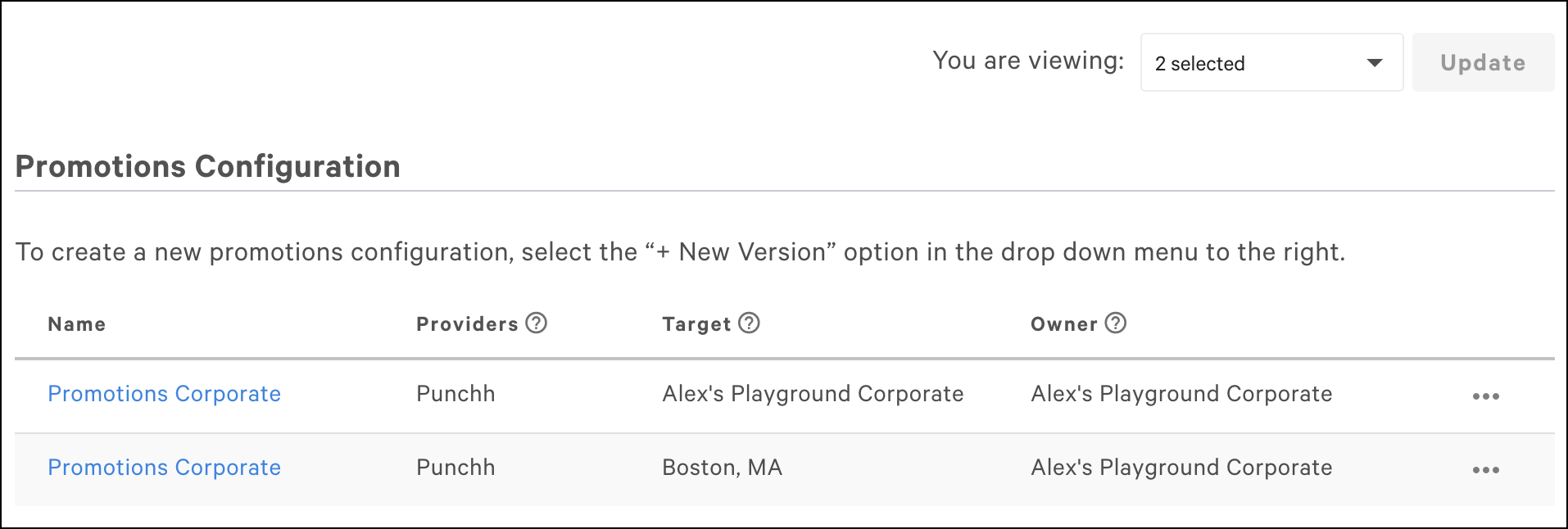
-
In the Configuration Name section, you can enter another name for this specific configuration. Note that the Provider field is configured by Toast support prior to the enablement of the Toast Promotions integration.
-
In the Basic section, enable the ability to apply 3rd-party promotions on the Toast POS device.
-
In the Features section, enable Camera QR Codes (if applicable) to allow use of the Toast POS camera to scan QR codes to apply promotions.
-
In the POS Options section, configure the appearance of the promotions button on the Toast POS device:
-
In the Button Title field, enter the text to be displayed on the promotions button.
-
In the Button Color field, select the default color of the promotions button by clicking the color square and selecting a color.
-
-
Save and publish your changes.
This section provides information about the way the Toast promotions integration API transactions correspond to Toast POS system transactions.
The Toast POS system sends requests to your integration API when
restaurant employees perform promotion transactions at a restaurant. You
can identify the transaction type for each request using the
Toast-Transaction-Type HTTP header parameter. The
information that you receive in the request body depends on the
transaction type. Your integration service must return response data
synchronously.
The promotions integration API supports the following transaction types:
-
PROMOTION_VERIFY- verify if a promo code is applicable to a check. -
PROMOTION_REVALIDATE- verify if promotions are still applicable to a check. -
PROMOTION_APPLY- commit a promo code on a check. -
PROMOTION_STATUS- return status information of the transaction. Used for debugging. -
PROMOTION_VOID-void a promotion on a check.
The following sections provide information about Toast promotions integration transaction types.
PROMOTION_VERIFY verifies if a given promo code is
applicable to a check. Checks if promo code is available for use, the
check meets the criteria of the promotion, and is not in conflict with
other applied promotions or discounts.
Each unique PROMOTION_VERIFY request will have a
unique GUID. Providers may wish to cache a response based on a
transaction-guid.
If the request is valid (it is properly formatted and the promo
code can be applied), then the API shall return a corresponding
PromotionObject that is applicable to the check provided in
the PromotionRequest. This PromotionObject
contains the proper state of the promotion, including the amount to be
taken off the check (as calculated by the provider), the name for the
promotion, and the appliedDate. It is recommended that the
provider use the appliedDate provided by the
VerifyPromotionRequest.
This operation must idempotent, such that the same request must
always get the same response (barring any separate apply/void requests).
The provider can reserve a promo code based on a
PROMOTION_VERIFY response, and might wish to use a
composite key of (check.guid, restaurant-external-guid).
Providers should use the transaction-guid to prevent replayed requests
from reserving the promotion more than once. Additionally, this
transaction-guid will act as an identifier for the promotion in future
requests.
The average response time for a promotion verify request (from the time the request is sent by the Toast POS system until the Toast POS system receives a response) should be 500ms, with the maximum response time being 2s.
PROMOTION_REVALIDATE revalidates that each
AppliedPromotion of a PromotionRequest is
still applicable to the provided check.
If the PROMOTION_REVALIDATE request is valid (it is
properly formatted and the promo code can be applied), then the API
shall return a 200 response with a list of all
AppliedPromotion objects with up-to-date (if the total
discount of a promotion is different than what was provided, the
corresponding response AppliedPromotion should have this
new value).
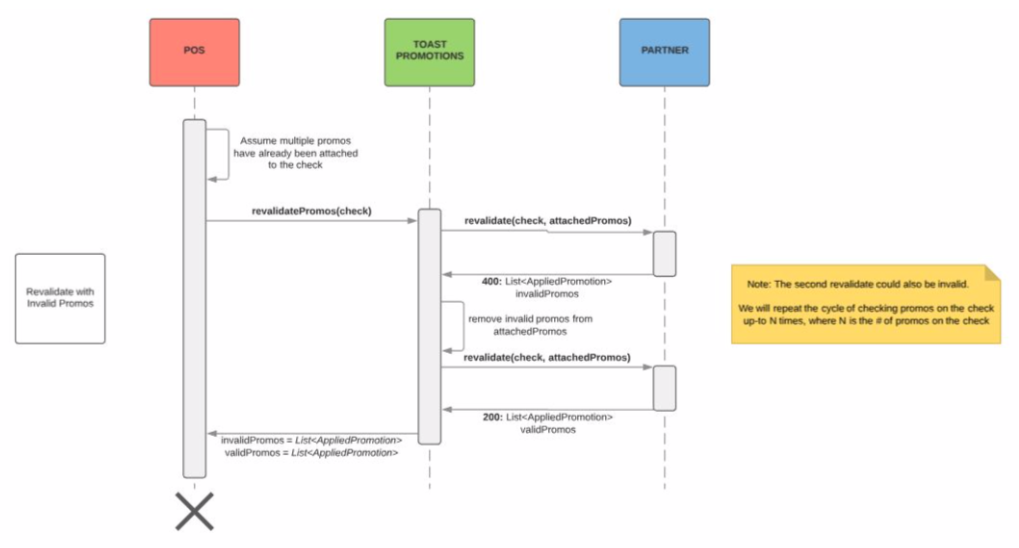
If there are any promotions that are invalid, the API shall return
a 400 response with an ErrorResponse object. The
ErrorResponse should contain all invalid promotions. Toast
will hit the revalidate endpoint again after removing all invalidated
promotions.
This operation must idempotent, such that the same request must always get the same response (barring any separate apply/void requests). If promotions are locked, their unlocking time should be refreshed upon this request. If promotions locks have expired, they should acquire a new lock.
The average response time for a revalidate request should be 500ms, with the maximum response time being 2s.
PROMOTION_APPLY redeems each
AppliedPromotion provided on an
ApplyPromotionsRequest (in the
promotionsToActOn field). If the redemption is successful,
the API shall commit the transaction and return a 200 response.
Each unique PROMOTION_APPLY request will have a
unique GUID, which will be referenced later to grab the state of a promo
code, and to void a previously-applied promo code. If the request
contains a transaction GUID that has already been committed or voided
for a different check GUID, the API provider must return a 400 response
with the appropriate ErrorResponse object. If there are any
issues applying promotions, the API provider must return a 400 response,
and we will revalidate our existing promotions.
If the request is valid (it is properly formatted and the promo
code can be applied), then the API shall return a a list of
AppliedPromotion objects that are applicable to the check
provided in the PromotionRequest. The
AppliedPromotion objects each contain the proper state of
the promotion, including the amount to be taken off the check (as
calculated by the provider).
This operation must be considered idempotent for multiple requests with the same transaction GUID AND the same check GUID, for a 24 hour period (i.e., should apply once and only once).
The average response time for an apply-promotion request should be 500ms, with the maximum response time being 2s.
PROMOTION_STATUS responds with the
PromotionObject or ErrorMessage that is
associated with the provided transaction GUID, as well as the status of
the redemption (either "VERIFIED", "VOIDED", or "APPLIED"). If
transaction GUID is not associated with a promotion that was VERIFIED,
the response code shall be 400.
The average response time for an apply-promotion request should be 500ms, with the maximum response time being 2s.
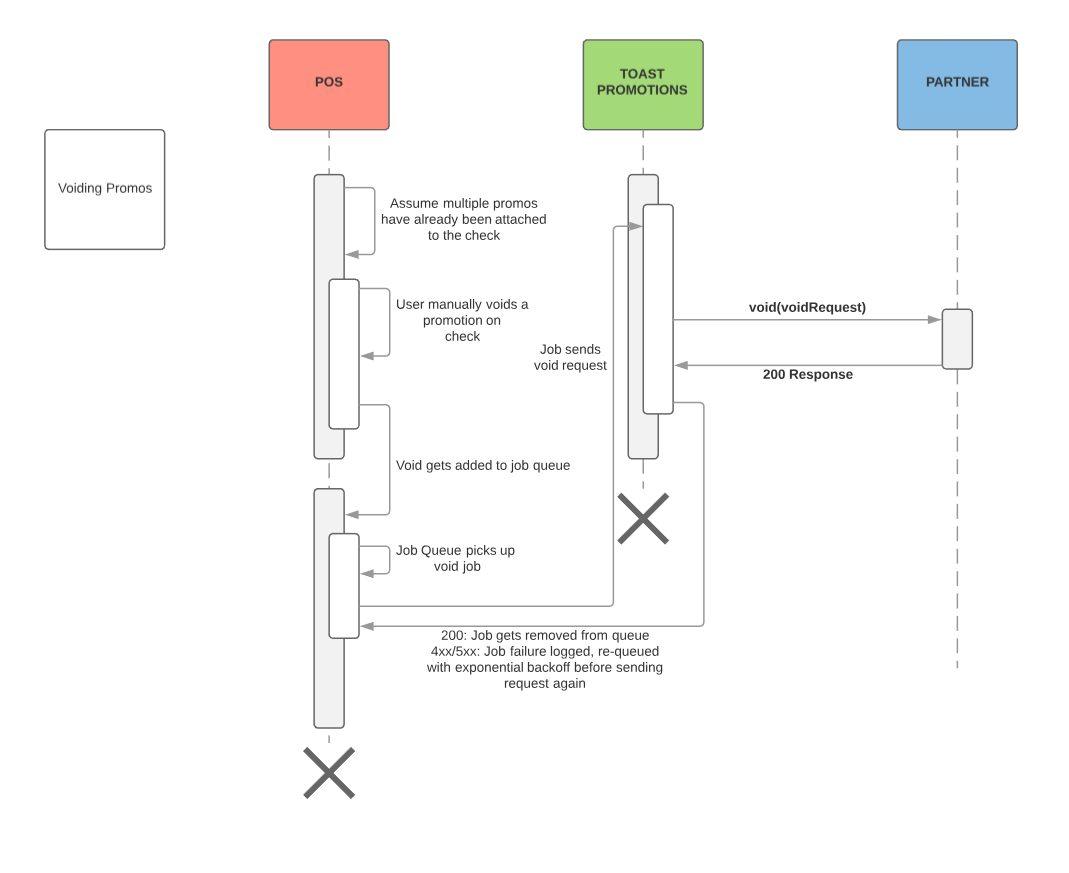
PROMOTION_VOID voids supplied promotions from a
VoidPromotionsRequestObject (in the
appliedPromotions field). This endpoint is called when the
entire check is voided, or the promotion is removed from the check. This
will be called on promotions that are verified as well as committed. If
called on a non-committed promotion AND there is a lock placed on the
promotion, the lock should be lifted - allowing another user to
potentially use the promo code. If the promotions have already been
voided, then nothing should change for those.
This call must be idempotent for multiple requests with the same transaction GUID. The transaction GUID may be used to cache a response, and to prevent a replay attack.
The average response time for an apply-promotion request should be 500ms, with the maximum response time being 2s.
The following sections show a workflow where the promotion is valid, and workflows where the promotion is invalid, removed, or ineligible.
Keep in mind that the promotion discounts are not created with the Payments > Discounts page in Toast Web. Instead, promotion discounts that are applied via these workflows are configured by the third-party promotions provider.
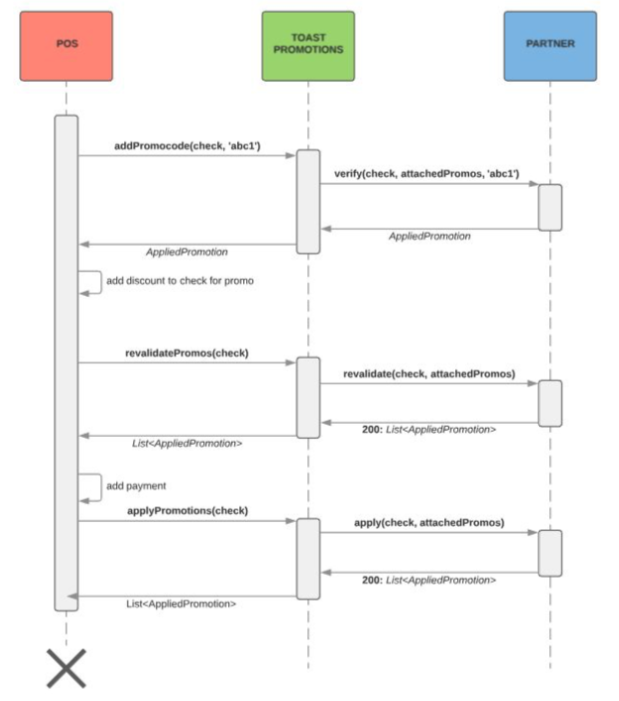
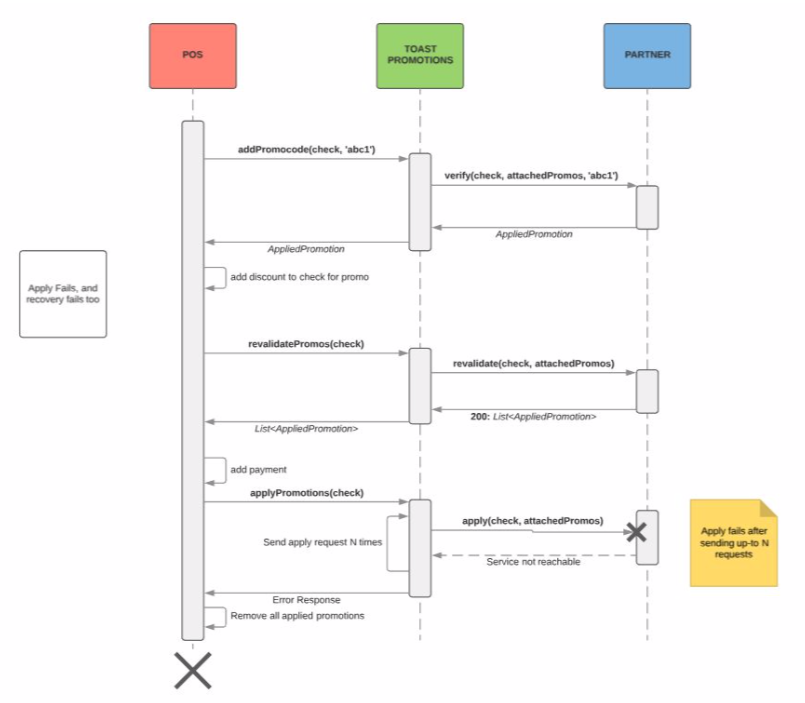
The following is the workflow for a promotion that is successfully applied and redeemed by the provider.
-
After adding items to the check, the server selects the Discnt button at the bottom of the Order screen.
-
The server selects the configured Promotions button.
-
In the Please Type or Scan Promo Code dialog, the server enters a valid promotion code and clicks the Apply Code button.
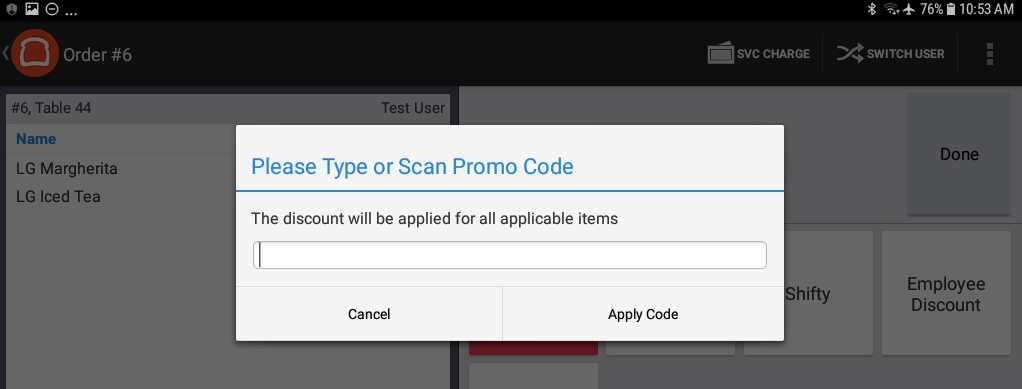
This action sends a
PROMOTION_VERIFYrequest via the promotions API to the provider. If the request is valid, the API will return aPromotionObjectobject. -
The promotion is revalidated before payment:
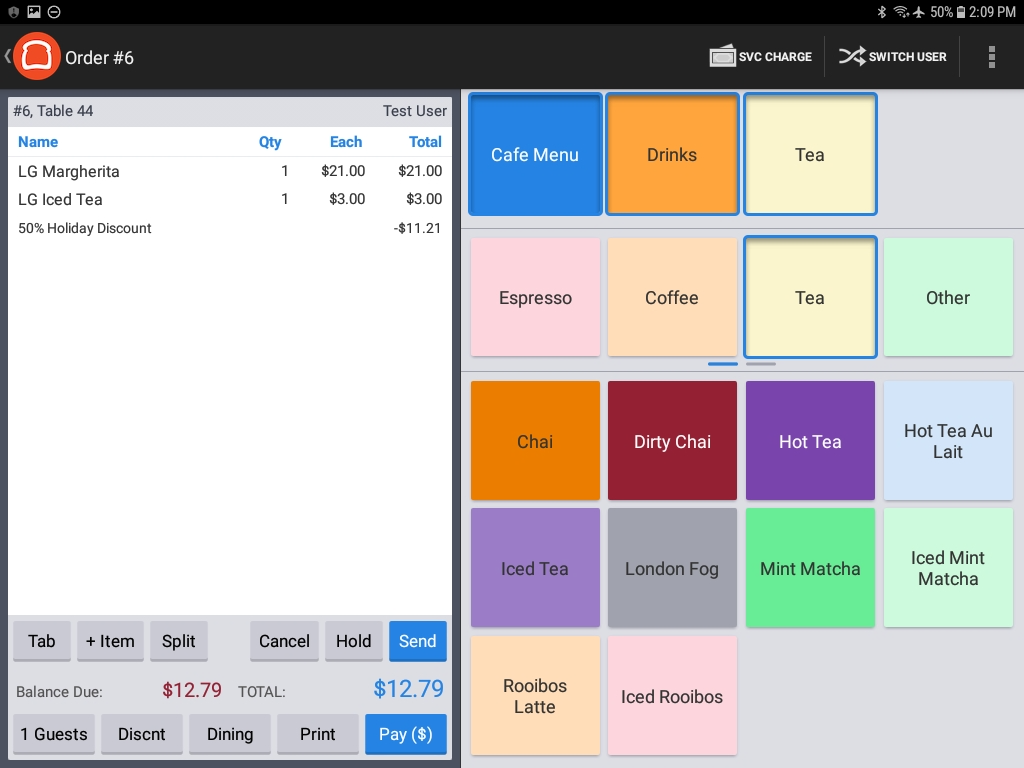
Toast verifies that the promotion is still eligible when the server selects the Send, Stay, Hold, or Pay button on the Order screen. The Toast POS system indicates this action by displaying a progress spinner and a
Validating Discountsmessage to the Toast POS user. In this example, the50% Holiday Discountpromotion is validated.This action sends a
PROMOTION_REVALIDATErequest via the promotions API to the provider. If the promotion is still valid, the API will return a200 responseand a list ofAppliedPromotionobjects. -
The check with the promotion is paid.
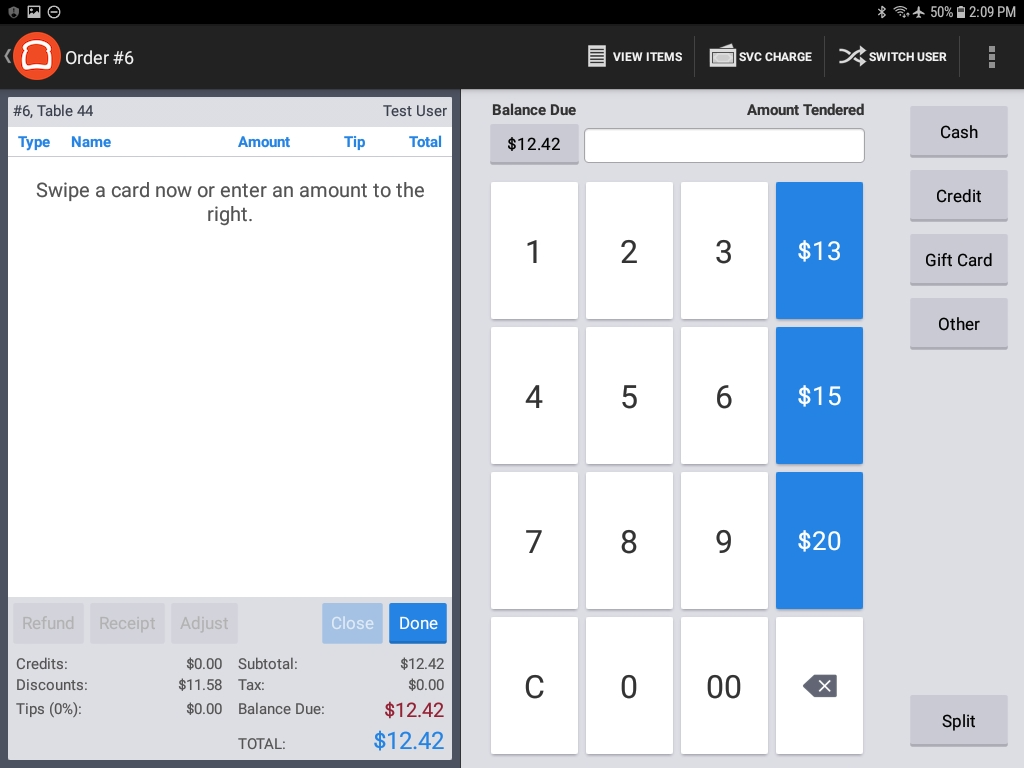
Upon the completion of payment, the promotion is redeemed by the provider.
This action sends a
PROMOTION_APPLYrequest via the promotions API to the provider. If the promotion is successfully redeemed by the provider, the API will send a200 responseand a list ofAppliedPromotionobjects. If the promotion fails to be redeemed for whatever reason, the API will return a400 responseand the appropriateErrorResponseobject.
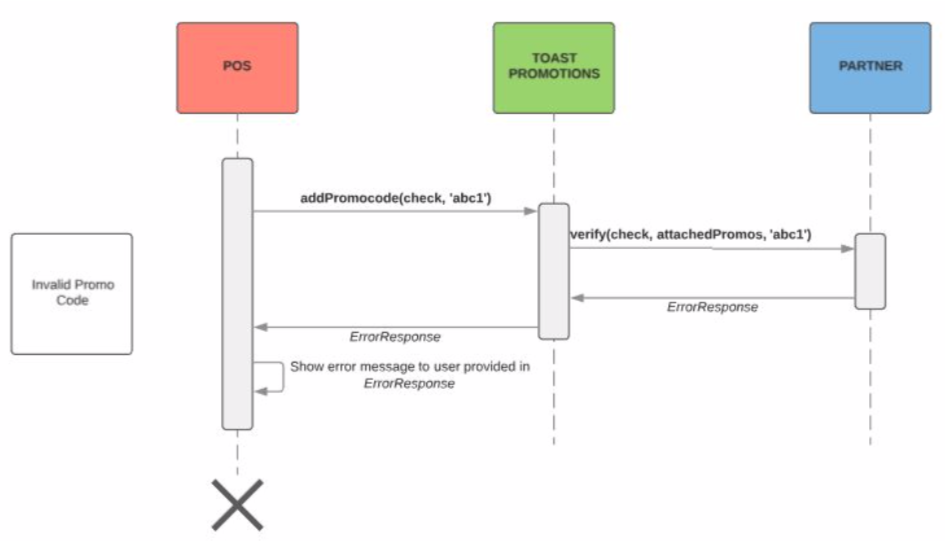
The following is the workflow for a promotion that is invalid and therefore cannot be applied to the check.
-
After adding items to the check, the server selects the Discnt button at the bottom of the Order screen and then selects the configured Promotions button.
-
In the Please Type or Scan Promo Code dialog, the server enters an invalid promotion code (
911in this example) and clicks the Apply Code button.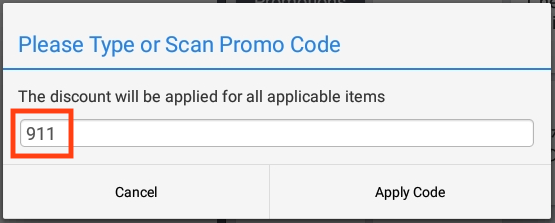
This action sends a
PROMOTION_VERIFYrequest via the promotions API to the provider. In case of an invalid promotion, the API will return a400 responsewith an appropriateErrorResponseobject. This contains aPromotionErrorobject where anErrorTypecan be specified as well as auserErrorMessageto be displayed for the Toast POS user. -
Because the promotion code is not valid, an error message (
This promotion code is invalid) displays on the Toast POS.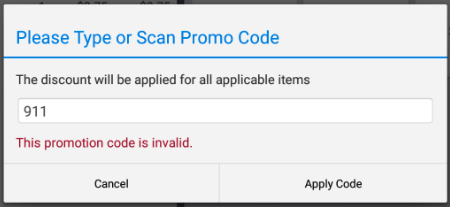
At this point, the Toast POS user must either enter a valid promotion code or cancel the operation.
The following is the workflow that removes an applied promotion discount from a check. After the promotion discount has been applied, the server manually removes it from the check.
Note that removing and voiding a promotion requires the same
workflow. However, if a promotion is removed after the check it is on
has already been sent, this is technically a void and will send a
PROMOTION_VOID request to the partner via the promotions
API to indicate that the promotion is no longer being used.
-
After adding items to the check, the server selects the Discnt button at the bottom of the Order screen and then selects the configured Promotions button.
-
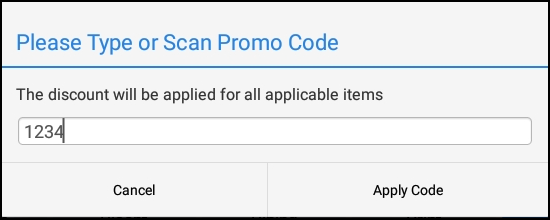
In the Please Type or Scan Promo Code dialog, the server enters a valid promotion code and clicks the Apply Code button.
-
To remove a promotion (regardless of whether it has been redeemed yet or not), the server does the following:
-
Highlights the promotion name (
50% Holiday
                                                                 Discount
in this example) in the Order screen. -
Deselects the discount by tapping the discount button that displays the name of the promotion.
-
Taps Done.
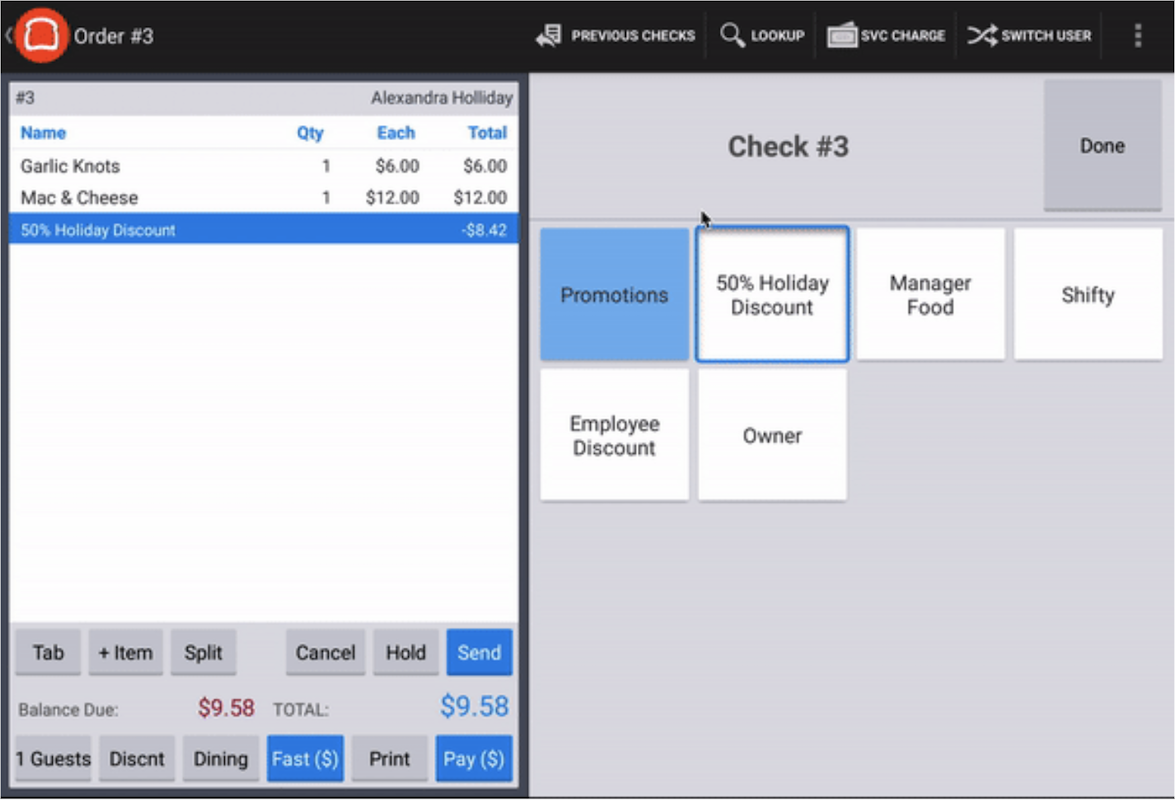
Once the promotion is removed and the server has navigated away from the discounts screen, the button of the removed promotion will no longer appear.
This action sends a
PROMOTION_VOIDrequest via the promotions API to the promotions provider. -
The following is the workflow for a promotion that is removed when the promotion is revalidated when the server taps the Pay button.
-
After adding items to the check, the server selects the Discnt button at the bottom of the Order screen and then selects the configured Promotions button.
-
In the Please Type or Scan Promo Code dialog, the server enters a valid promotion code and clicks the Apply Code button.
The promotion discount is validated and applied to the check.
-
The promotion is revalidated before payment. The promotion is revalidated when the server selects the Pay button. The Toast POS system indicates this action by displaying a progress spinner and a
Validating Discountsmessage to the Toast POS user. If the promotion is not valid, an error message (such asA discount was removed from check 2) displays on the Toast POS, as in this example: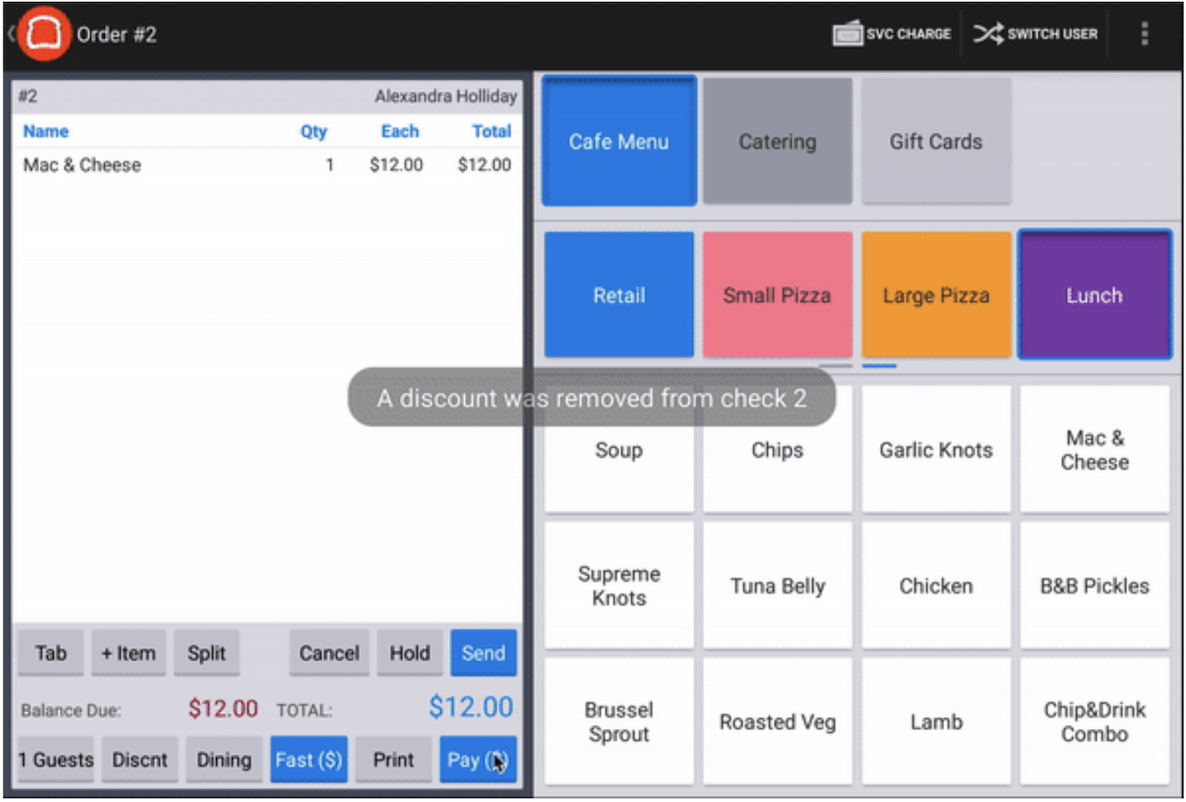
This action sends a
PROMOTION_REVALIDATErequest via the promotions API to the provider. If the promotion is invalid based on the new state of the check, the API will return a400 responseand the appropriateErrorResponseobject.
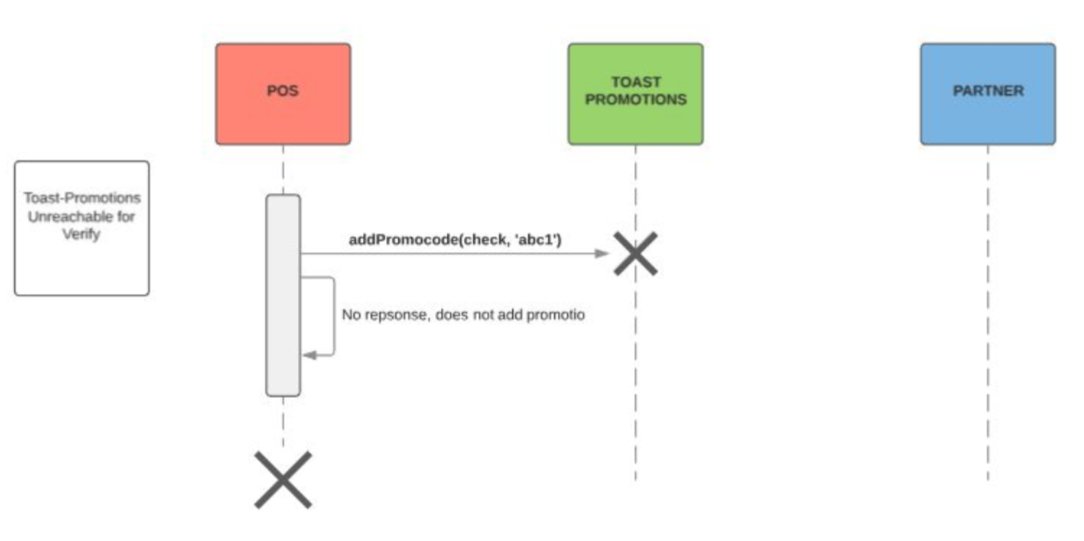
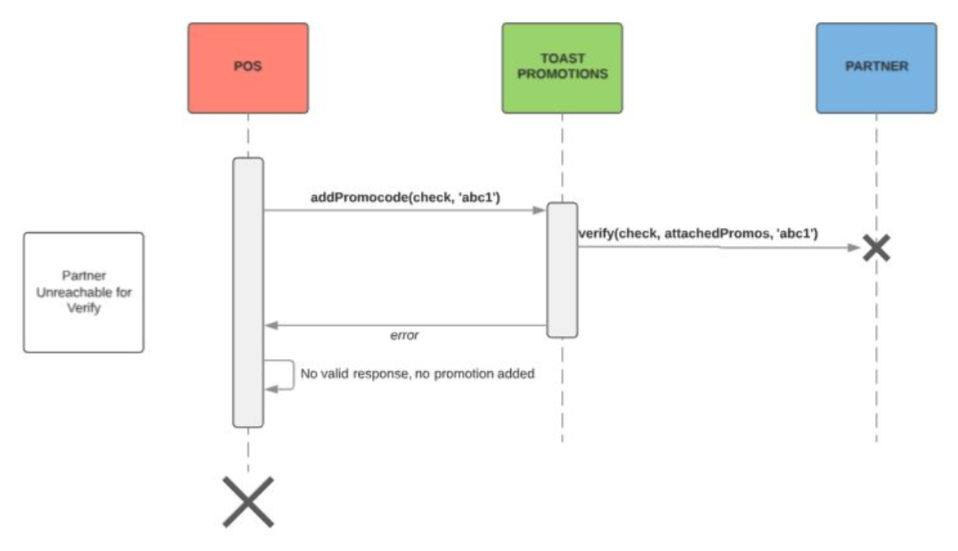
These diagrams illustrate the different types of promotion workflows.
The Toast POS system promotions integration interface implementation must return the following HTTP responses:
200 means OK:
-
PROMOTION_VERIFYandPROMOTION_APPLYrequests that were processed successfully by the promotions service provider return aPromotionObjectrepresenting the response. -
PROMOTION_VOIDrequests that were processed successfully by the promotions service provider return the 200 response.
400 returns an ErrorResponse object with one of the
following predefined errors:
-
INVALID_REQUEST- The request is not valid because it does not contain the proper parameters or is otherwise malformed. -
CODE_ALREADY_USED- The promo code has been used the maximum number of times. -
CODE_NOT_EXIST- The promo code does not exist. -
CODE_NOT_APPLY- The promo code does not apply to the given check. -
CODE_INACTIVE- The promo code was never activated for use or was otherwise deactivated. -
OTHER- The error does not fall under the above categories.
401 not authorized to make the request
500 unexpected error
You can verify that promotion transaction requests are from the
Toast POS system by validating the JSON Web Token (JWT) in the header of
every request. Each promotion transaction request includes a JWT in the
Authorization header field.
You can validate the JWT for a request with a public key that you get from the Toast API user management service.
You use the public key that matches the Toast environment that you are integrating with. For information about Toast API environments, see Environments.
-
For the production environment (real transactions) send a
GETrequest to the following endpoint.https://
[toast-production-api-hostname]/usermgmt/v1/oauth/token_key -
For the sandbox environment (testing transactions) send a
GETrequest to the following endpoint.https://
[toast-sandbox-api-hostname]/usermgmt/v1/oauth/token_key
|
Note |
|
The Toast technical partnership team supplies the host names for Toast API environments during your integration process. |
A Toast public key for partner API authentication is an X.509 Public Key encoded in DER in PEM format.
The following example shows the public key string in the JSON
response from the /usermgmt/v1/oauth/token_key endpoint. The
JSON value named value contains the public key string. The
key string in this example is not functional.
Example Public Key for Partner API Authentication
{ "alg":"SHA256withRSA",
 "value":"-----BEGIN PUBLIC KEY-----\nnub\nvwIDAhqhkiG9w0BAQEJ9tKko/3jXqdzI/NO4n
 sAt0WZjpyovan2xPIkCv2z\nuaBBVUrOiJ6JeoJ9tKko/3jXqdzI/NO4nsLW5wq5UrPXsvbdXLZzMhu3b3
sNmFJ9tKko/3jX5AEBaf5vXZCOfBVFnWnhLX61/KkI2dxwhS7fkxnjQ8wlfrh4tp3fKjDkI\nMgxTk1teh
fWY0O3mKyKtnYvqvDSRvsZ03URzyEPddVYDYZjpyovan2xPypKRvBlxz\nxhM74p8dOhEp6zAh4pENVNyp
o+xVj/7Ko9Ie3fKjDkI\nMgxTk1tehCcNP1G/8UK\nE6oPta6r3e1Fi77K\nE6oPta66HP5KCur3mf3jQ6
Qc99xVQ8wlfrh4tp56yjRnub\nvwIDAQAB\n-----END PUBLIC KEY-----\n"
}
sAt0WZjpyovan2xPIkCv2z\nuaBBVUrOiJ6JeoJ9tKko/3jXqdzI/NO4nsLW5wq5UrPXsvbdXLZzMhu3b3
sNmFJ9tKko/3jX5AEBaf5vXZCOfBVFnWnhLX61/KkI2dxwhS7fkxnjQ8wlfrh4tp3fKjDkI\nMgxTk1teh
fWY0O3mKyKtnYvqvDSRvsZ03URzyEPddVYDYZjpyovan2xPypKRvBlxz\nxhM74p8dOhEp6zAh4pENVNyp
o+xVj/7Ko9Ie3fKjDkI\nMgxTk1tehCcNP1G/8UK\nE6oPta6r3e1Fi77K\nE6oPta66HP5KCur3mf3jQ6
Qc99xVQ8wlfrh4tp56yjRnub\nvwIDAQAB\n-----END PUBLIC KEY-----\n"
}|
The |
|
|
The |
|
|
The |
You can validate JSON Web Tokens (JWTs) using several libraries for common programming languages. For more information about working with JWTs, see https://jwt.io/. The JWT web site also includes a tool that you can use to verify a token manually.
Typically, the Toast technical partnership team does not change the key pair used to sign JWTs. You can cache the public key that you get from the Toast API user management service. You do not need to get a new copy of the public key every time you verify an incoming request.
To maintain security, the technical partnership team may replace the key pair at any time. When the key pair changes, you must get a new public key from the user management service.
To make your integration more flexible when the technical partnership team replaces the key pair, get and cache a new copy of the public key each time you start your service. When the technical partnership team replaces the key pair, you can stop and restart your service to refresh the public key.
Promotions that are applied to an order via the promotions API
appear in the appliedDiscount object in the order response.
The following is an example of the order JSON for promotions.
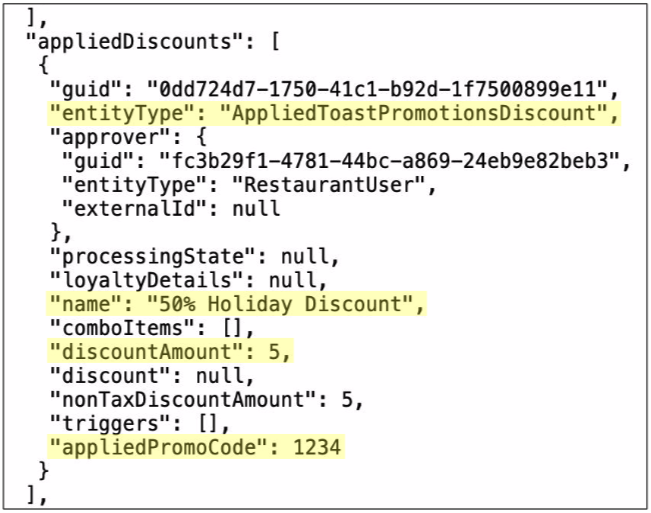
The meanings of the highlighted values are as follows:
-
entryType- the entityType for a promotion isAppliedToastPromotionDiscount. -
name- the name of the applied discount. The name is displayed on the Toast POS order screen if the promotion discount is successfully applied on the check. -
discountAmount- the discount amount in US dollars. This amount will be subtracted from the check. -
appliedPromoCode- the promo code that was applied for this discount.
Toast provides two modules that give you information about promotions usage.
In the Toast Reporting module, promotions appear in the Discounts tab of the Sales Exceptions report. Promotions are displayed with the name they are configured with by the provider.
You can download a ZIP file that contains JSON sample requests and responses for the promotions API. The following sets of promotion workflow requests are included:
-
A request suite that adds, revalidates, and applies a promotion discount on a check.
-
A request suite that fails on revalidation.
-
A request suite that fails on verification.
-
A request suite that voids a promotion discount.
You can modify the requests to serve the needs of your promotions integration.