To bulk import employees:
-
Go to Employees > Employee > Employee management to open the Employees page.
-
Select the Import employees button. This opens the Bulk import employees page.
-
On the Bulk import employees page, read the instructions on how to bulk import employees.
-
Choose an import template. Choose one of the following:
-
Basic template: Add employees to one or multiple locations.
-
Advanced template: Use an export of employee information to upload to another location.
Note
You also can choose to use an export of employee information and change the Toast location GUID to the new location GUID, and include applicable employee job GUIDs, and then re-import the file.
-
Third-party template: Add employees to one or multiple locations that use an SSO provider.
-
-
Download and make a copy of the import file.
-
Complete the import file. Depending on the import file type, you can add additional information. For more information, see Filling out a bulk import spreadsheet .
Note
If you want to add an employee to multiple locations, you need to add a new row per location with the same employee information in each row. There is a limit of 500 rows per CSV file.
-
Select the Start new import button. This opens the Upload template page.
-
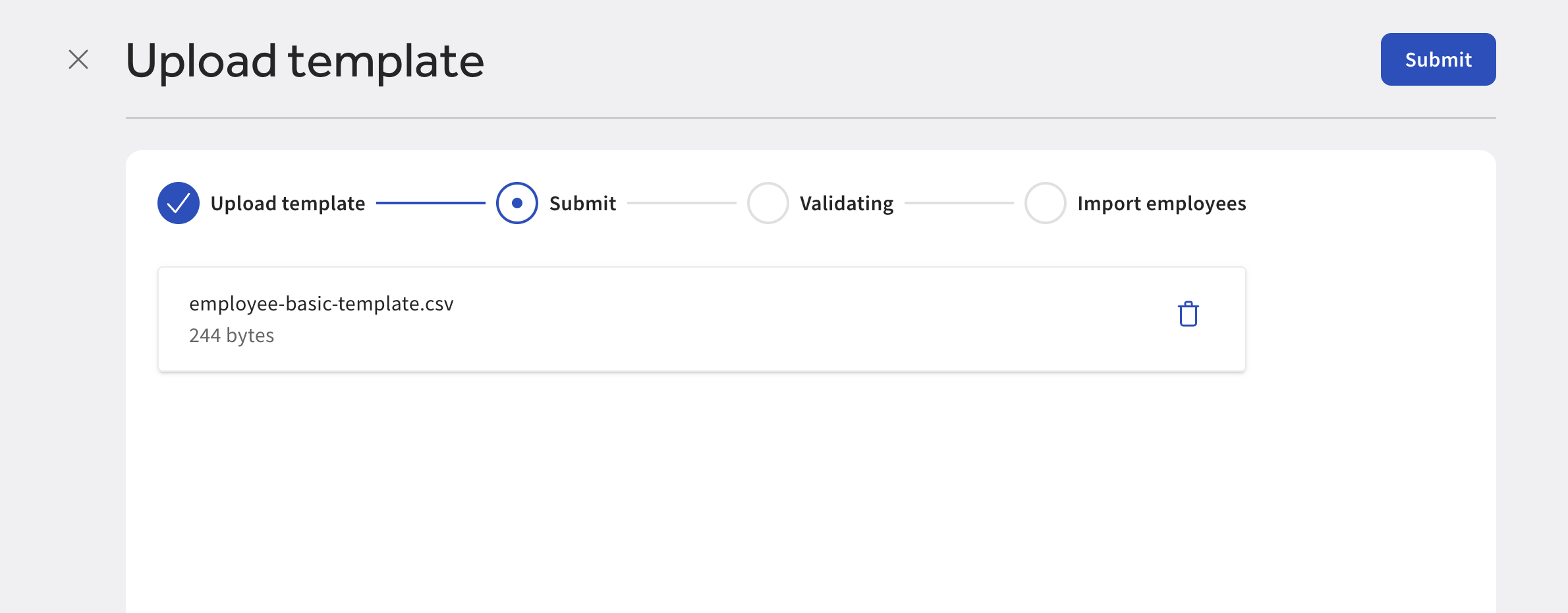
On the Upload template page, select the + Upload file button to upload the import template. You can also drag and drop the template. A progress bar shows the progress of importing employees from the template.
If the import template is successfully uploaded, the progress bar displays a checkmark next to the Upload template step.
-
Select the Submit button to proceed to the next step of validating the template. The Toast platform validates the data in the import file to make sure it conforms to the acceptance criteria. If any of the rows in the template fails this validation step, the page displays an error message with instructions on how to retry the import. To resolve template errors, see Resolving template errors.
If the validation is successful, the Import details page shows a success message with the following details:
-
Import date and time.
-
Import ID. This is the identifier of the import.
-
The number of successful operations. This is the number of employees successfully imported.
-
A link to download a report of the import with any error messages.
Your employee is sent an email with an invitation to set up their Toast account. Employees receive an invitation for every Toast location they are added to. Employees who were imported using the third-party template do not receive an invitation email. They are automatically added to each location.
-
-
Select the X at the top left of the Import details page to close the page and return to the Bulk import employees page.
All columns are required when bulk importing employees using the basic template.
| Column name | Description | ||
|---|---|---|---|
|
First name |
The first name of the employee. |
||
|
Last name |
The last name of the employee. | ||
|
|
A unique email address for the employee. |
||
|
Location |
The Toast GUID for the location that the employee should be added to.
|
All columns are required except for the External ID, POS passcode, and Jobs columns when bulk importing employees using the advanced template.
|
Note |
|
Adding new information does not override existing information. For example, adding another passcode does not override the existing passcode. |
| Column name | Description | ||
|---|---|---|---|
|
External ID |
The SSO identifier for the employee. |
||
|
First name |
The first name of the employee. |
||
|
Last name |
The last name of the employee. |
||
|
|
A unique email address for the employee. |
||
|
Location |
The Toast GUID for the location that the employee should be added to.
|
||
|
POS passcode |
A four to eight numeric access code used by the employee to log in to a Toast POS device. |
||
|
Jobs |
The Toast GUID for the job assigned to the employee. Multiple jobs can be assigned by separating jobs with a semicolon. The GUID is found on the Job page in Toast Web. Go to Employees > Employee management > Jobs > and select a job title to open the Job page.
|
All columns are required except for the External ID, POS passcode, and Jobs columns when bulk importing employees using the third-party template.
|
Note |
|
Adding new information does not override existing information. For example, adding another passcode does not override the existing passcode. |
| Column name | Description | ||
|---|---|---|---|
|
External ID |
The SSO identifier for the employee. |
||
|
First name |
The first name of the employee. |
||
|
Last name |
The last name of the employee. |
||
|
|
A unique email address for the employee. |
||
|
Location |
The Toast GUID for the location that the employee should be added to. | ||
|
POS passcode |
A four to eight numeric access code used by the employee to login to a Toast POS device. |
||
|
Jobs |
The Toast GUID for the job assigned to the employee. Multiple jobs can be assigned by separating jobs with a semicolon. The GUID is found on the Job page in Toast Web. Go to Employees > Employee management > Jobs > and select a job title to open the Job page.
|
||
|
SSO Organization |
The identifier of the SSO provider used by the employee to log in to a Toast POS device or Toast Web. |