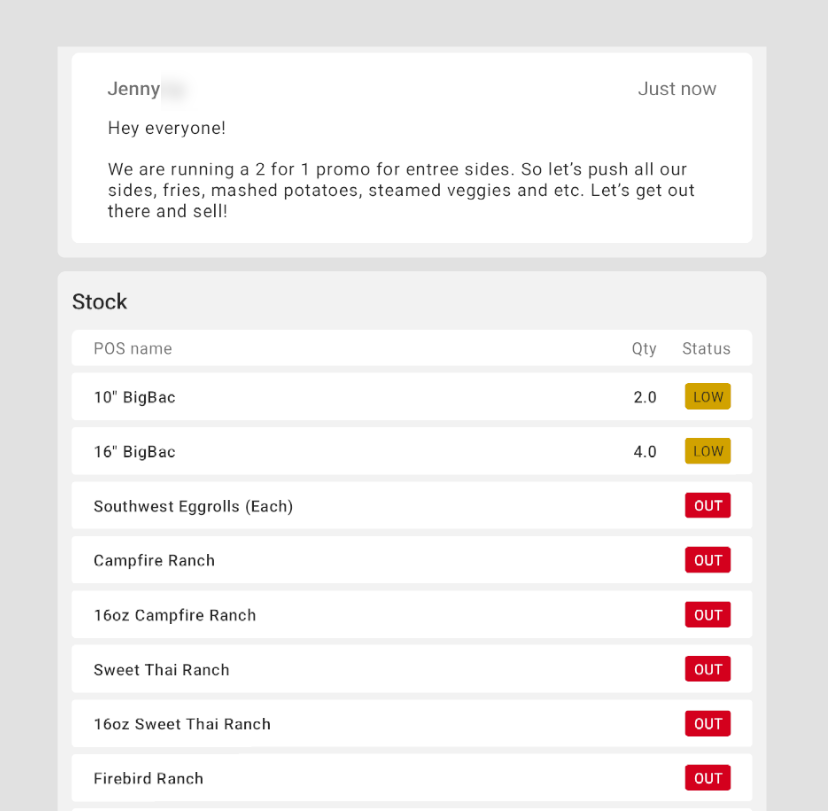
The Pre-shift notes screen allows staff to easily view the inventory status of menu items. When your employee clocks in for their shift, the Pre-shift notes screen opens to display all out-of-stock and low-stock items. When a menu item is marked out of stock or shows low inventory (an inventory count of less than five) on either the Toast Now app or on the Toast POS, the item’s inventory status is updated on the Pre-shift notes screen on the Toast POS device.
You can access the Pre-shift notes screen on the Toast POS app by navigating to My Account > Pre-shift notes or through the overflow menu on the following screens: Table Service, Quick Order, Fast Service, Payment Terminal, and Orders Hub.
|
Note |
|
If the Pre-shift notes screen is open on the POS device, you must close and reopen the screen to see the latest stock updates. |
To change a menu item’s inventory status on Toast Web, see Menu item inventory overview. You can change a menu item’s inventory from the menu item’s details page, or by entering the Quick Edit mode on any order screen on the Toast POS.