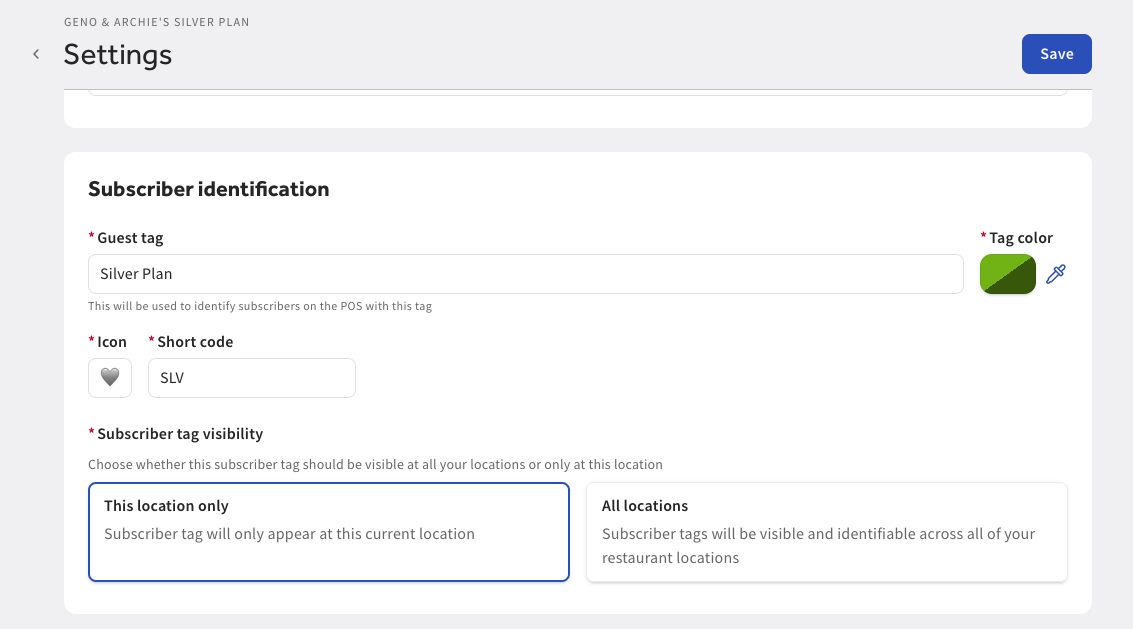
To identify active subscribers on the POS, you add subscriber identification, such as guest tags, colors, icons, and short codes to your subscription plans. When you search for a guest using the Guest search screen on the POS, applicable guest tags appear in the guest profile.
|
Note |
|
Pending and inactive subscribers do not appear in the search results. |
To view guest tags on the POS, you must add a guest tag and tag color on the Settings page in Toast Web or during the setup process. For more information, see Creating a subscription plan.
To search and add a guest profile to an order
-
On the Toast POS home screen, select an order screen.
-
On the order screen, select the overflow menu.
-
From the overflow menu, select the Customer info button. This opens the Guest search screen.
-
On the Guest search screen, you can search for a guest by one of the following options:
-
Phone
-
Name
-
Email
-
House account
-
-
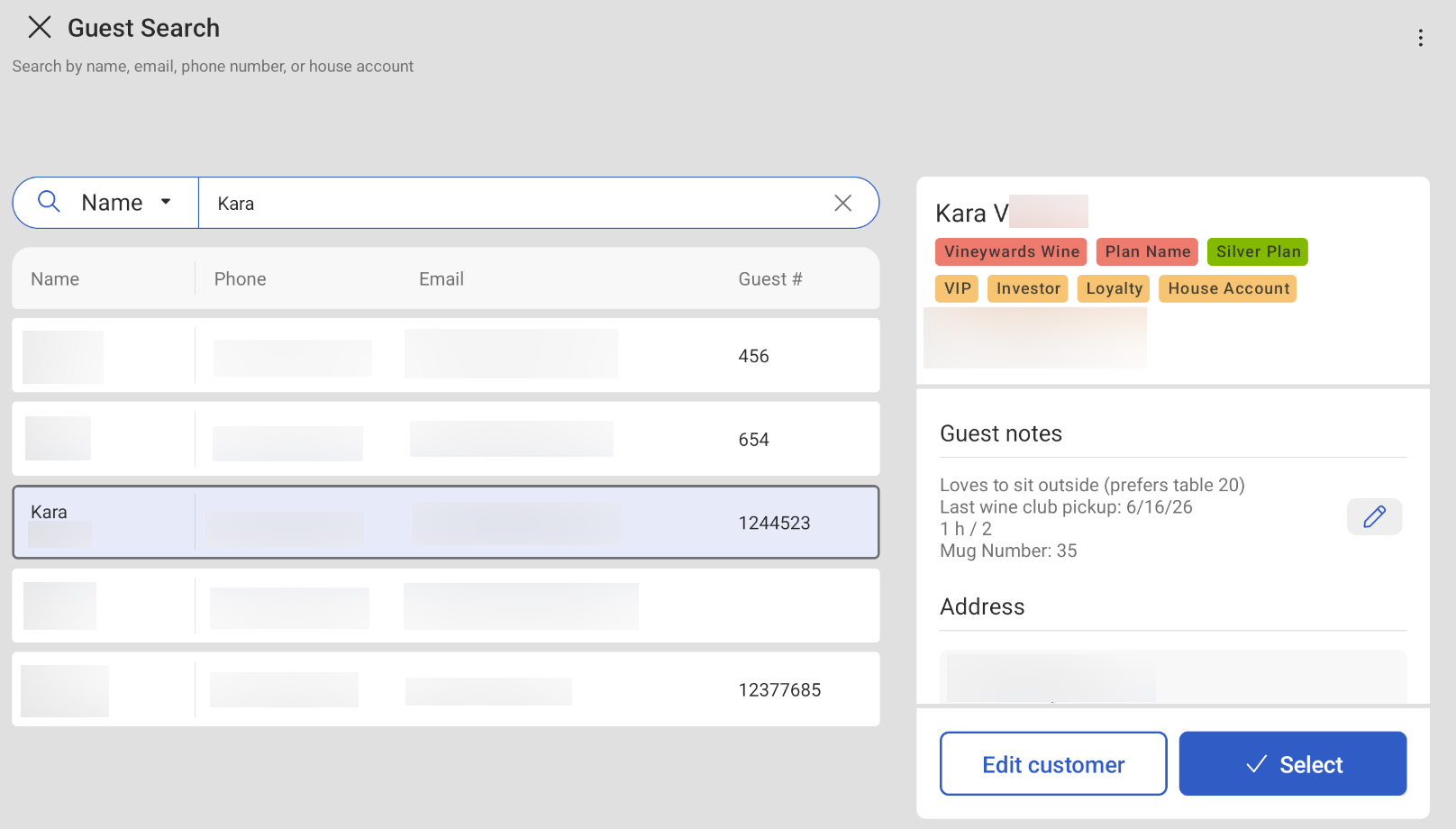
Search for the guest. Select the search result to display the guest profile. The guest profile pane displays the following:
-
Subscription plan tags
-
Subscriber phone number
-
Subscriber email
-
Guest notes
-
Subscriber address
-
Order history
-
Order summary
-
Edit customer button
-
Select button
-
-
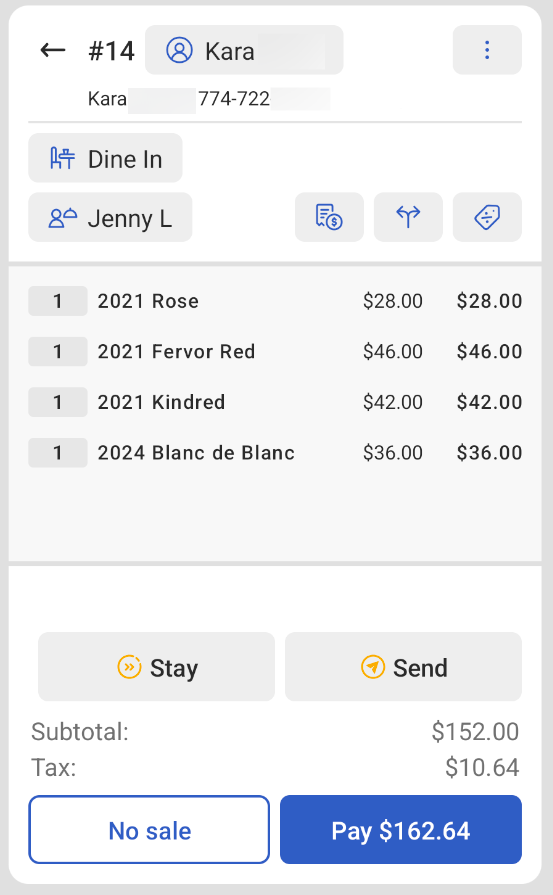
To attach a guest profile to an order, select the Select button. The guest profile is attached to the order and guest details appear on the order details pane.