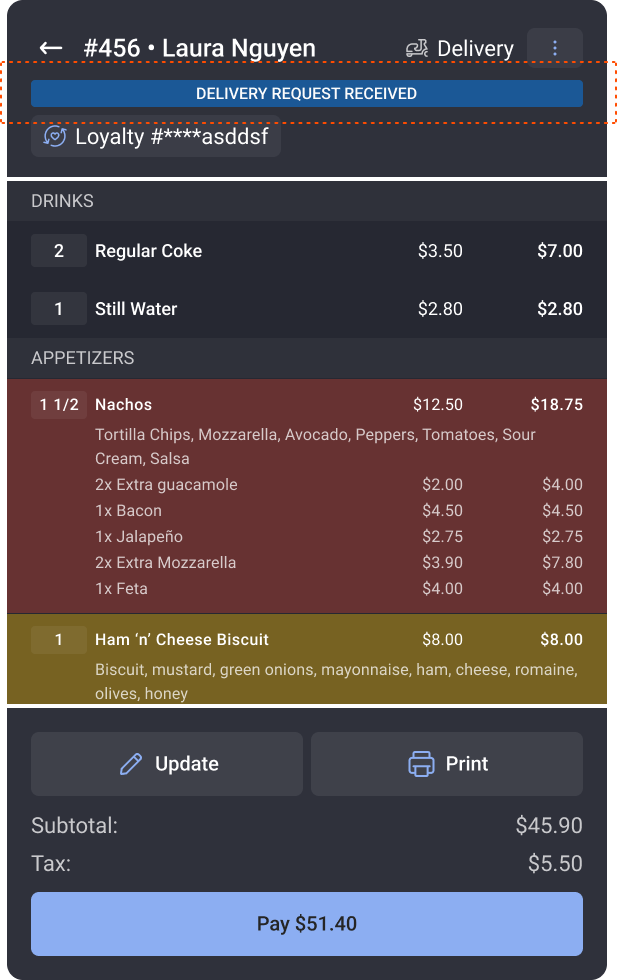
Each column of the table view represents a different piece of information about a check or order. This section explains each column and what you see in it. In most cases, the information has not changed from the previous order view.

Example of an order with each column heading
The check column displays the automatically-generated check number assigned to each new order. This information has not changed from the previous order view.
The Type column indicates the dining behavior for an order. The type column communicates the type of an order is being shown so employees know what information is required and what to expect when fulfilling the order.
The table view always displays the dining behavior configured to a dining option for each order. This does not replace dining options or the ability to set a dining option for an order.
For more information about dining options and dining behaviors, see this Toast Support article.
|
Type column content |
When you'll see it |
Notes |
|---|---|---|
|
|
The check is a table order and the order has a table assigned. |
|
|
|
Dining behavior (Type) is delivery |
|
|
|
Dining behavior (Type) is take out. |
|
|
|
Dining behavior (Type) is curbside. |
|
|
|
Dining behavior (Type) is dine in, and the order is not assigned to a table |
|
|
|
The order has a type of drive-thru |
This dining behavior supports future functionality. |
|
Blank |
No dining option is configured, or it does not match supported types above |
Column is empty |




The source column indicates the origin of an order at a glance.
|
Important |
|
The source of an order is fixed and is determined by the way an order is created in the POS. |
|
Source |
What shows in Table View |
When you'll see this |
|---|---|---|
|
In store (any dining option) |
|
An order is entered on the POS. |
|
Online |
|
An order has come through a Toast online ordering channel (Order with Google®, Local by Toast, Toast Pickup App, Branded Online Ordering, or Branded Mobile app). |
|
API |
|
An order has come through an integration with a third-party service. |
|
Uber Eats |
|
An order has come through your integration with Uber Eats™. |
|
DoorDash |
|
An order has come through your integration with DoorDash™. |
|
GrubHub |
|
An order has come through your integration with Grubhub™. |
|
Kiosk |
|
An order was placed at a kiosk device. |
|
Invoice |
|
Invoice. |
|
Order & Pay |
|
An order was placed using a guest's phone after they scanned a QR code at the table. |
|
Catering |
|
Catering orders submitted through online ordering or the catering marketplace. |
|
Toast Tables |
|
An order created by Toast Tables (such as ordering ahead). |
|
e-commerce online ordering |
|
Purchases made via e-commerce channels. |





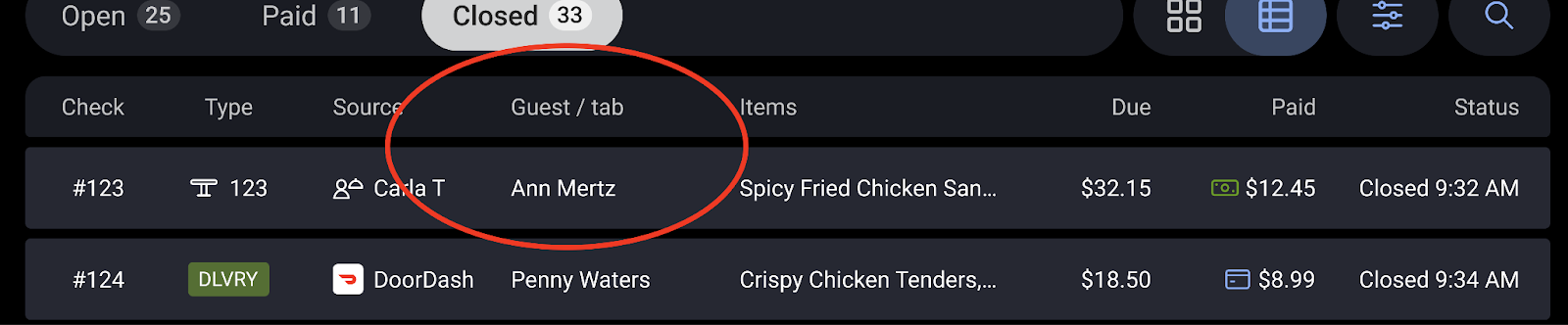
The Guest / tab column displays the tab name or the guest's name depending on which one is set for the order. The tab name takes priority over the guest's name.
The Toast platform checks the order in this sequence and stops at the first match:
-
Tab name exists? → Display the tab name
-
Guest name exists? → Display the guest's name
-
No data available → Column remains empty
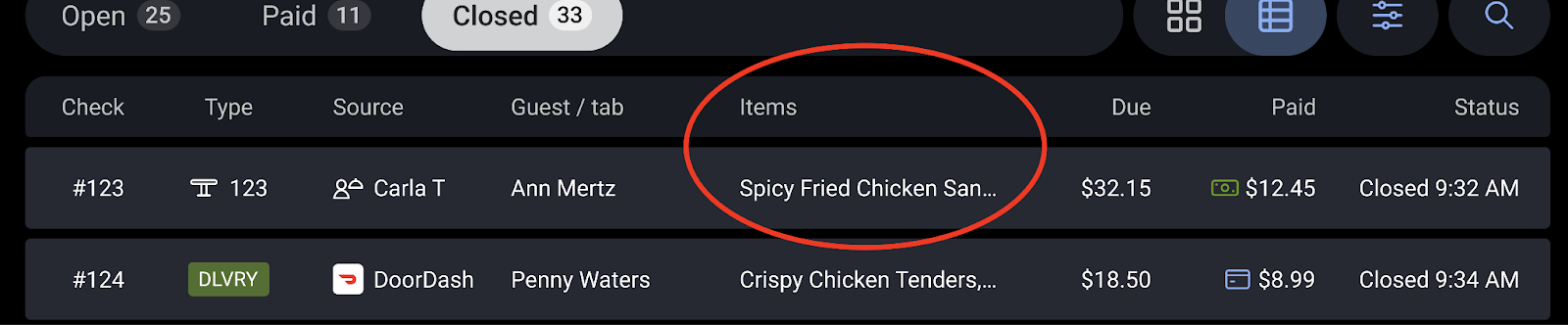
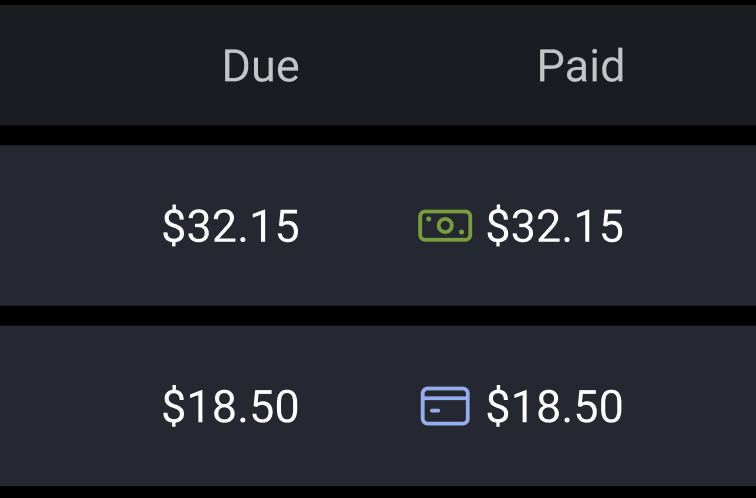
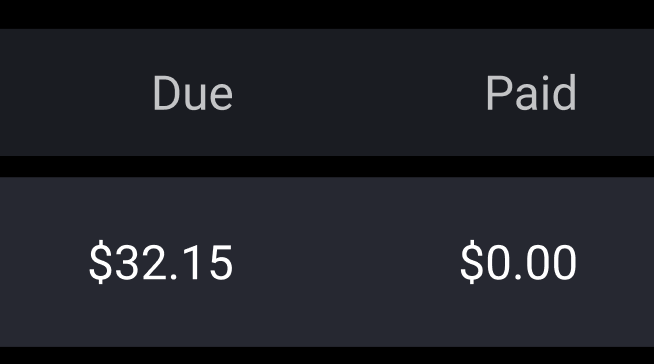
The due and paid columns refer to the order amount that is due, and whether or not the full amount has been paid. An icon will indicate whether the tab was paid with cash or card.
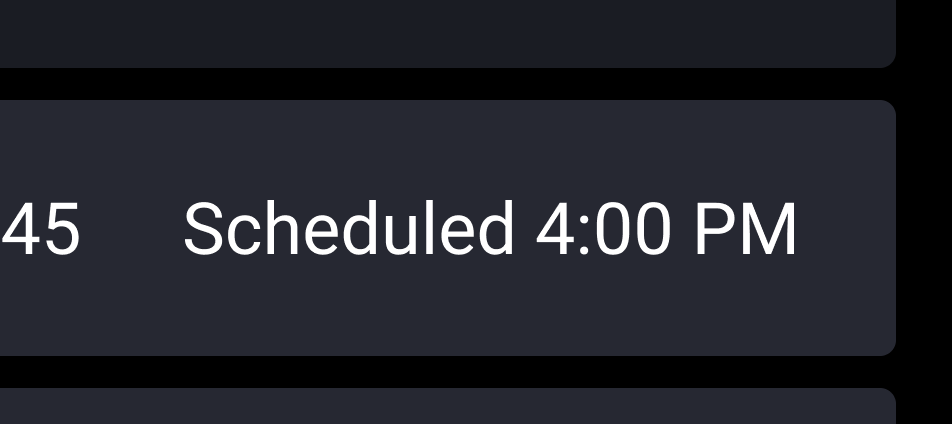
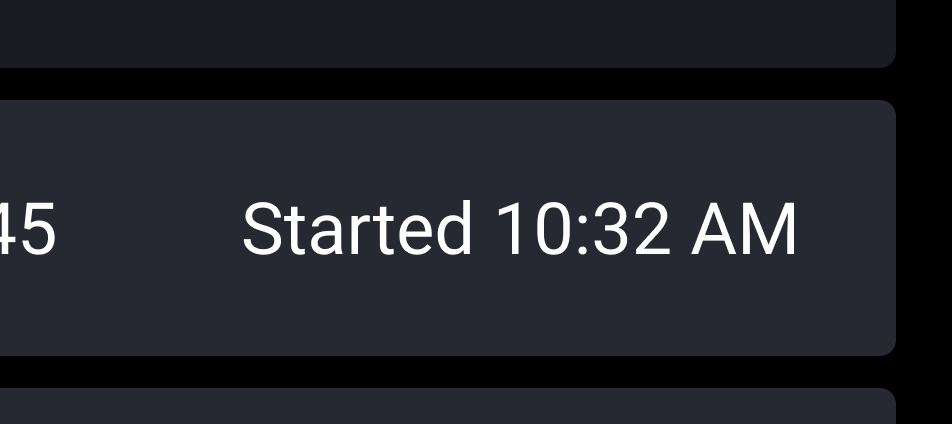
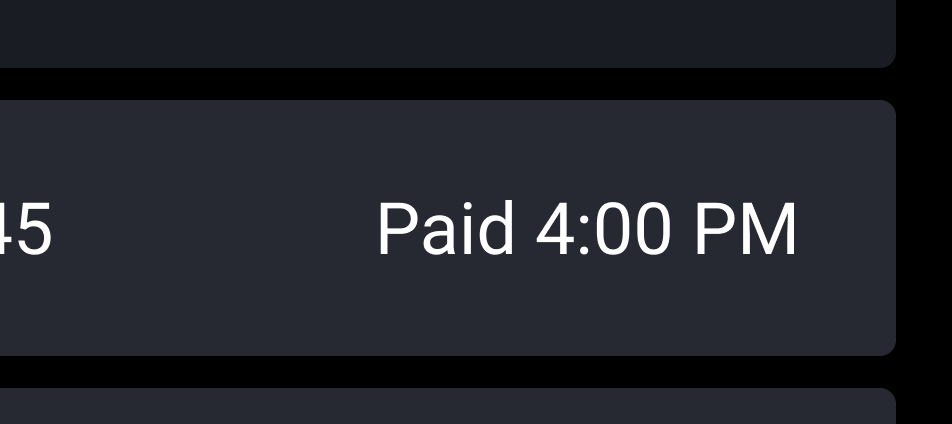
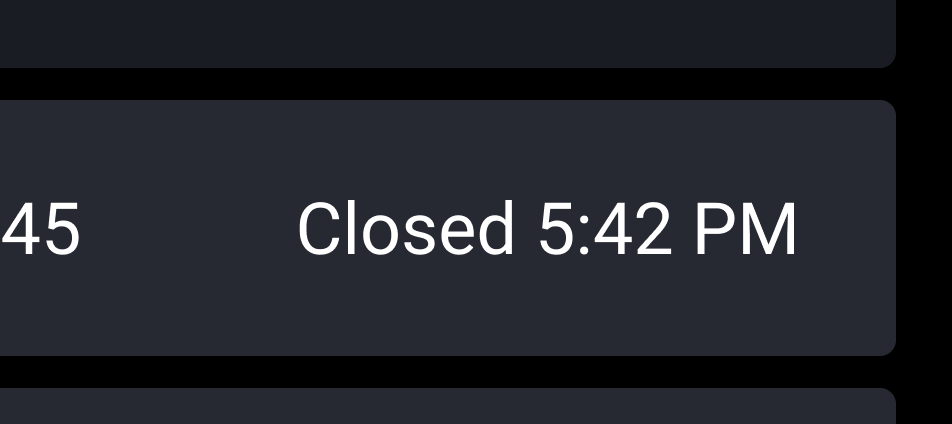
The status area indicates whether the order has been fired to the kitchen and if the check has been paid and closed. These statuses have not changed from the previous order view.
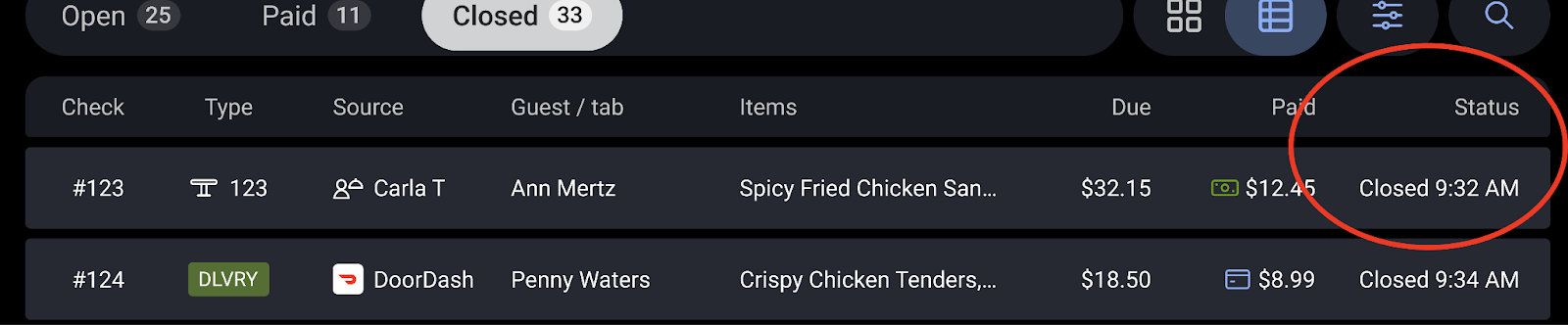
The following table shows the statuses of an order and examples of the way they appear in table view.
|
Status |
Example |
|---|---|
|
Scheduled |
|
|
Started |
|
|
Paid |
|
|
Closed |
|