-
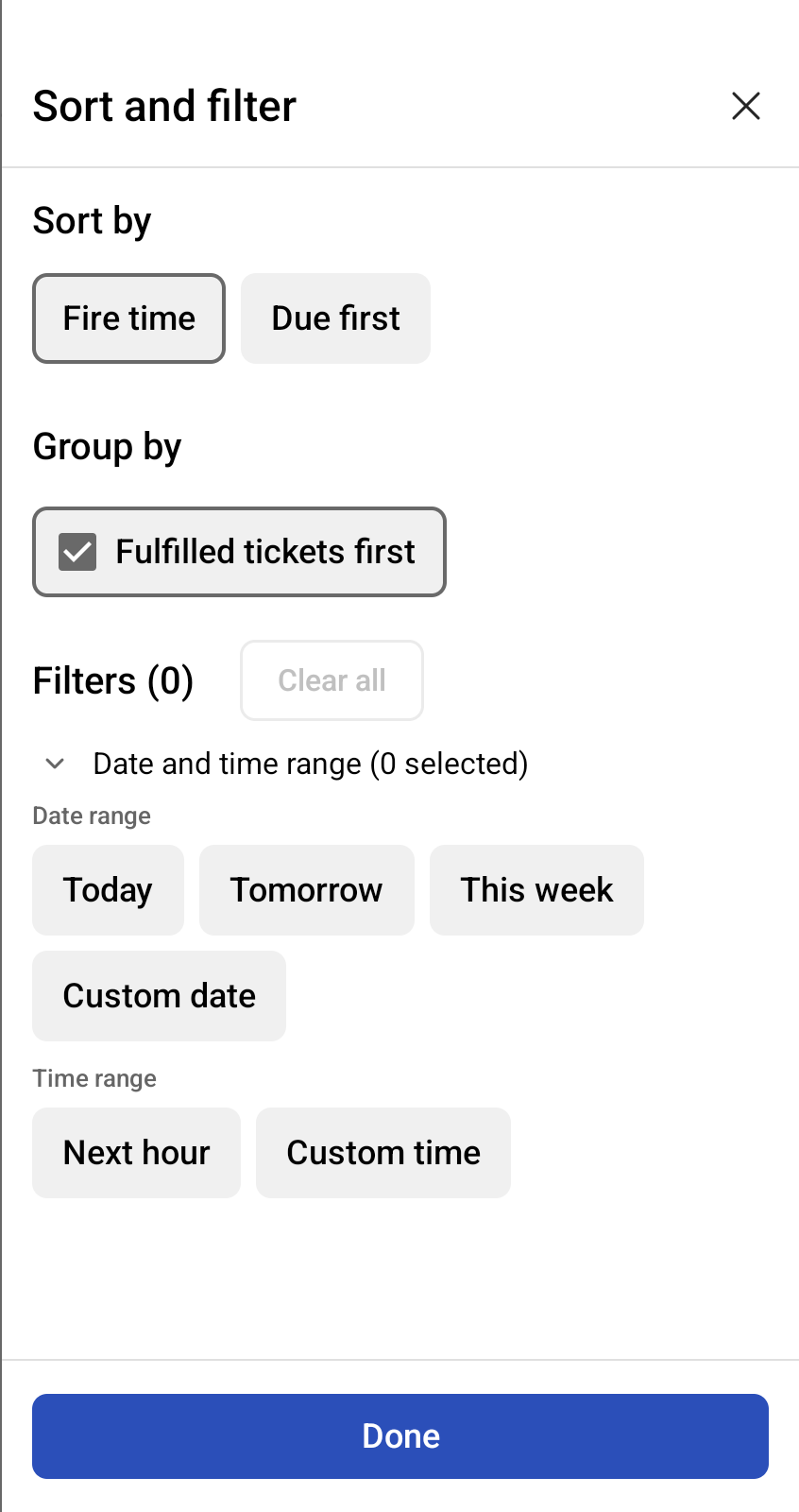
On the KDS device, select the Sort and filter button on the bottom left. The Sort and filter pane opens.
Note
The Group by section is only available on expediter KDS devices.
-
Select your sort and filter options.
-
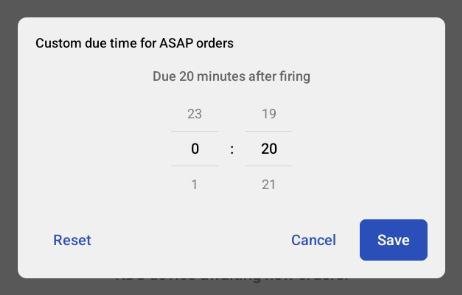
Optionally, if you select Due first or Due last under the Sort by category, and choose the Custom time strategy for ASAP orders, the Custom due time for ASAP orders dialog opens. You must select an hour and minute value, then select Save. The Custom due time for ASAP orders dialog closes.
-
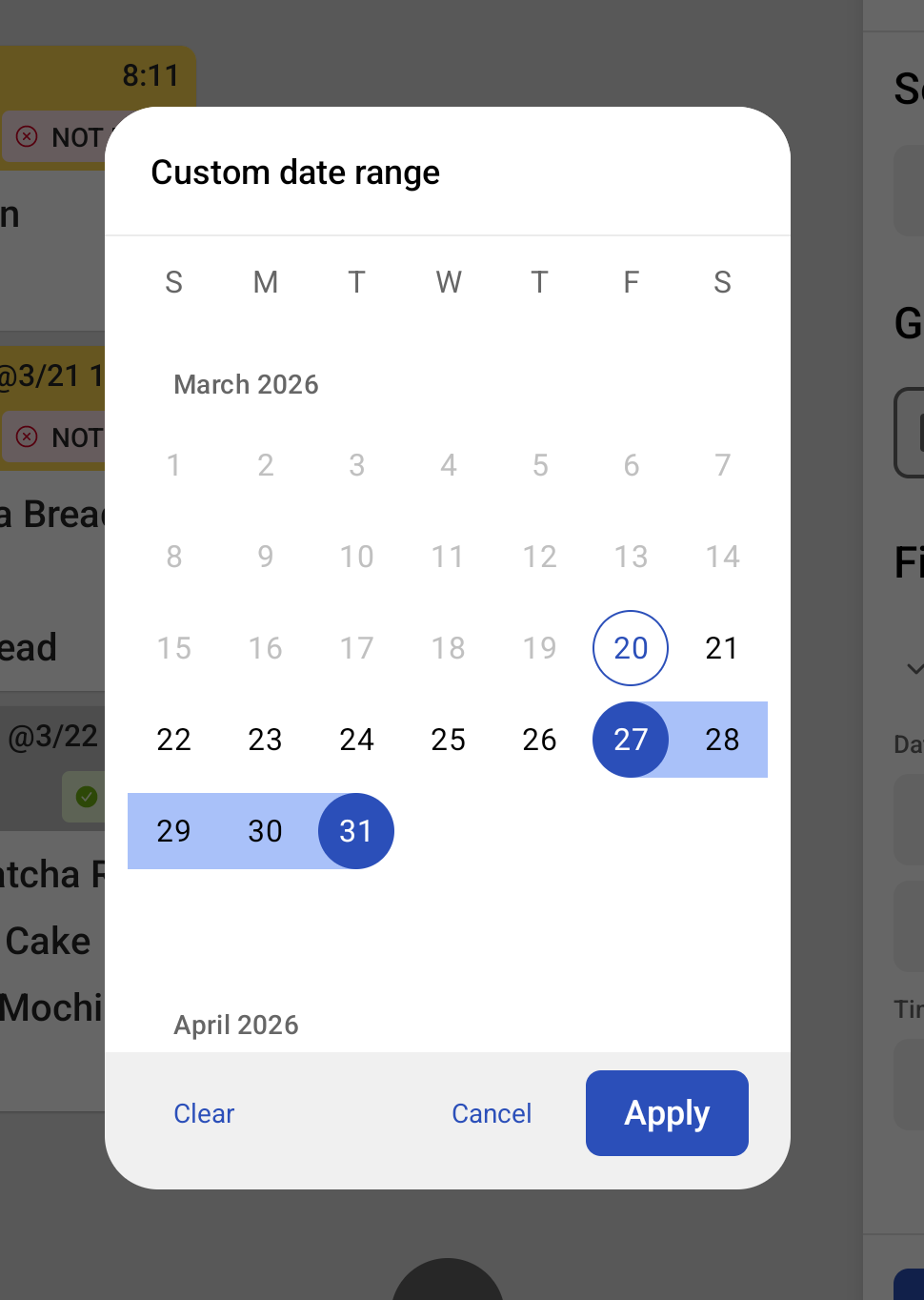
Optionally, if you select the Custom date option under the Filters category, the Custom date range dialog opens. You must select the start and end dates and then select Apply. The Custom date range dialog closes.
-
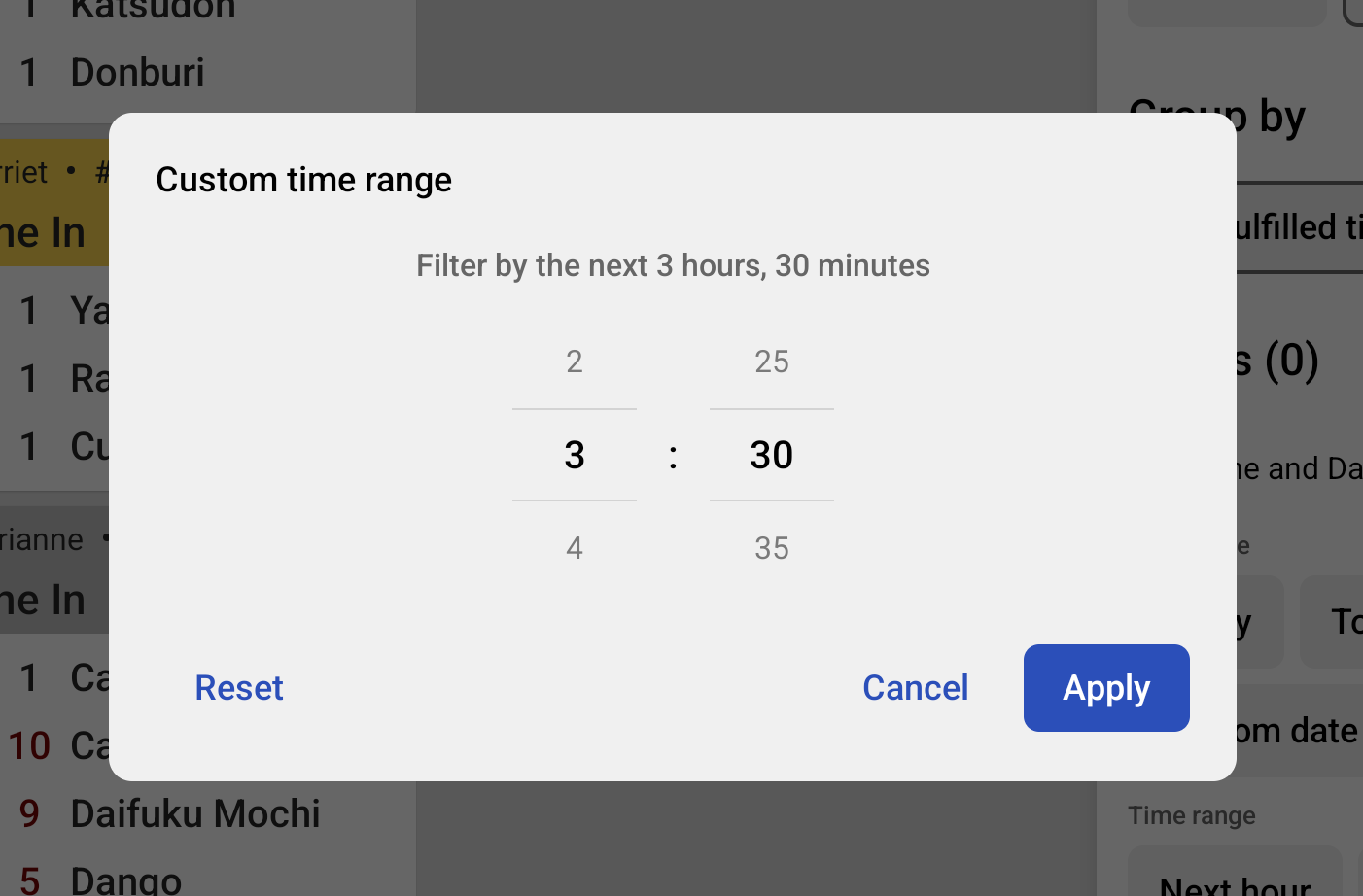
Optionally, if you select the Custom time option under the Filters category, the Custom time range dialog opens. You must choose an hour and minute value, then select Apply. The Custom time range dialog closes.
-
Select Done. The pane closes and your sorting and filtering choices are applied to the KDS tickets, and reflected in the Sort and filter button.
Note
You can select the X on the top right of the pane or anywhere outside of the pane to cancel any changes.