|
Note |
|
You can only configure delays for Toast online orders. If you do not have Toast Online Ordering, select the Upgrade now button on the Toast online ordering section on Toast Web to upgrade. |
Toast locations use quote times to provide guests with an estimate for the amount of time it takes to prepare the guest’s online order for takeout or delivery. You can add delays to show the latest and most accurate quote times to guests. Quote times are displayed on your location’s Toast Online Ordering website, on the Local by Toast app, on the online ordering dashboard, and on third-party apps.
The configured delay webhook allows you to receive real-time updates when a location adds or updates their configured delays. Delays are five minute increments that locations can add to the quote time.
In this example:
-
A location sets a quote time of 40 minutes for a takeout order.
-
The location adds a 10 minute delay.
The delay holds the order for 10 minutes before it is sent to the kitchen. The total quote time is now 50 minutes.
|
Note |
|
The configured delay webhook does not send updates for locations that use the SmartQuote quote time strategy. For more information, see Quote time strategy overview. |
|
Note |
|
The configured delay webhook only sends updates for orders with a dining behavior of TAKEOUT. For more information, see Dining options. |
You can configure delays for takeout orders on Toast Web and on the Toast POS.
To configure a delay
-
Go to Takeout & delivery > Toast online ordering and scroll down to the Toast online ordering section.
-
In the Toast online ordering section, select the Takeout dropdown menu.
-
From the Add delay dropdown menu, select the delay increment. You can add a delay in five-minute increments, up to 120 minutes.
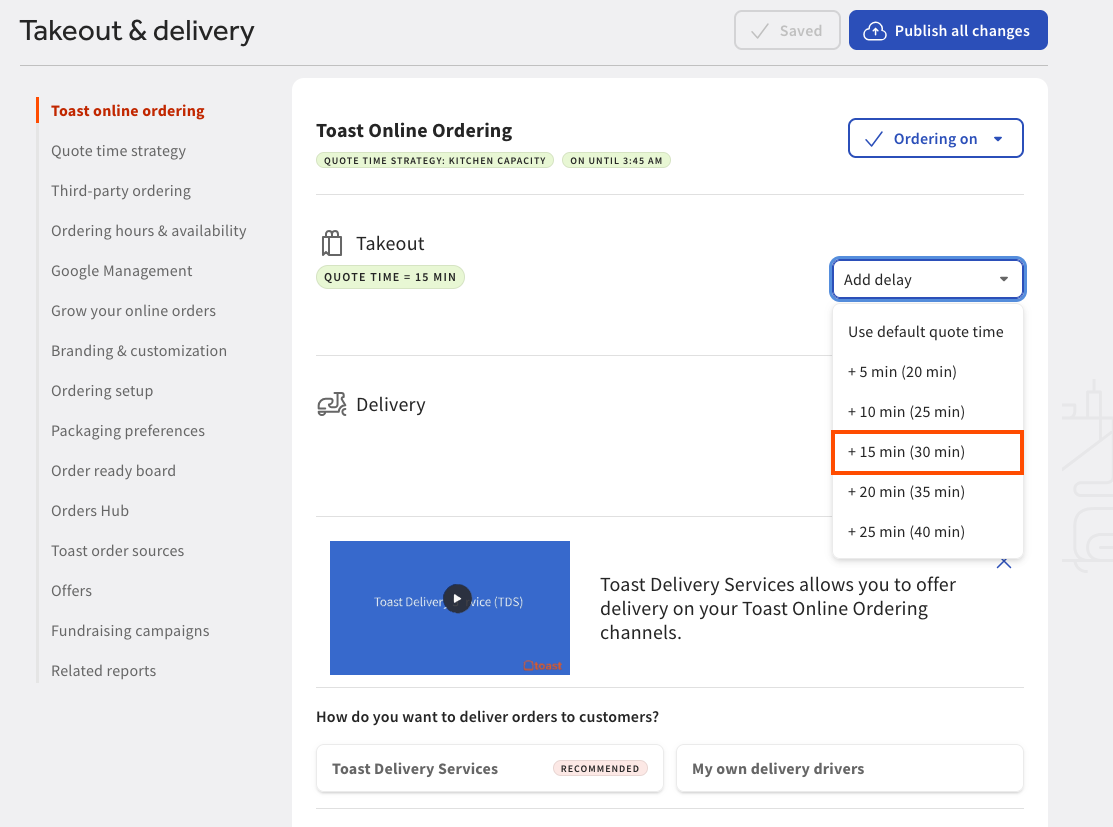
-
Select the Publish all changes button to save and publish your changes. The change is reflected on the Online ordering page on the Toast POS.
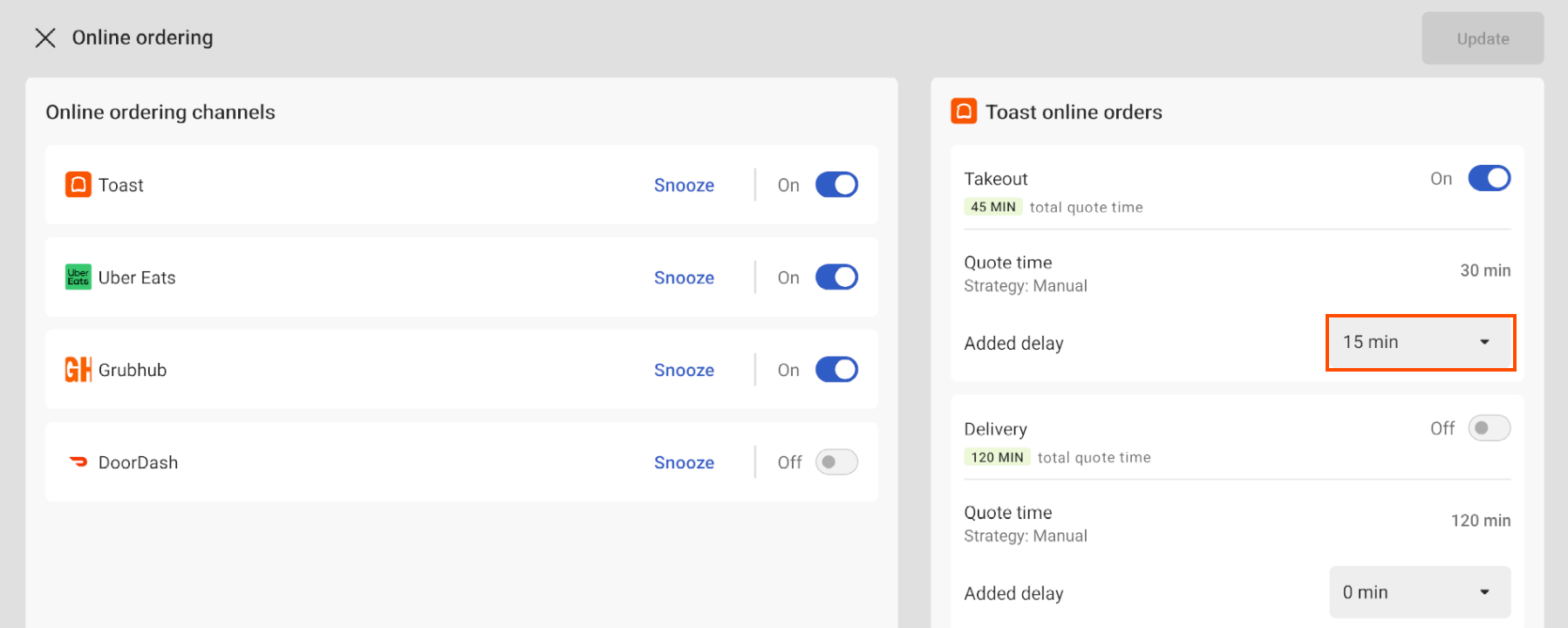
The configured delay webhook sends a webhook notification.
You can configure delays on both the Payment Terminal screen and the Orders Hub screen on the Toast POS.
To configure a delay
-
On the Toast POS home screen, open the Payment Terminal screen or the Orders Hub screen.
-
Select the Manage online ordering button to open the Online ordering screen.
-
On the Online ordering screen, go to the Toast online orders pane.
-
Go to the Added delay dropdown menu and select the delay increment. You can add a delay in five-minute increments, up to 120 minutes.
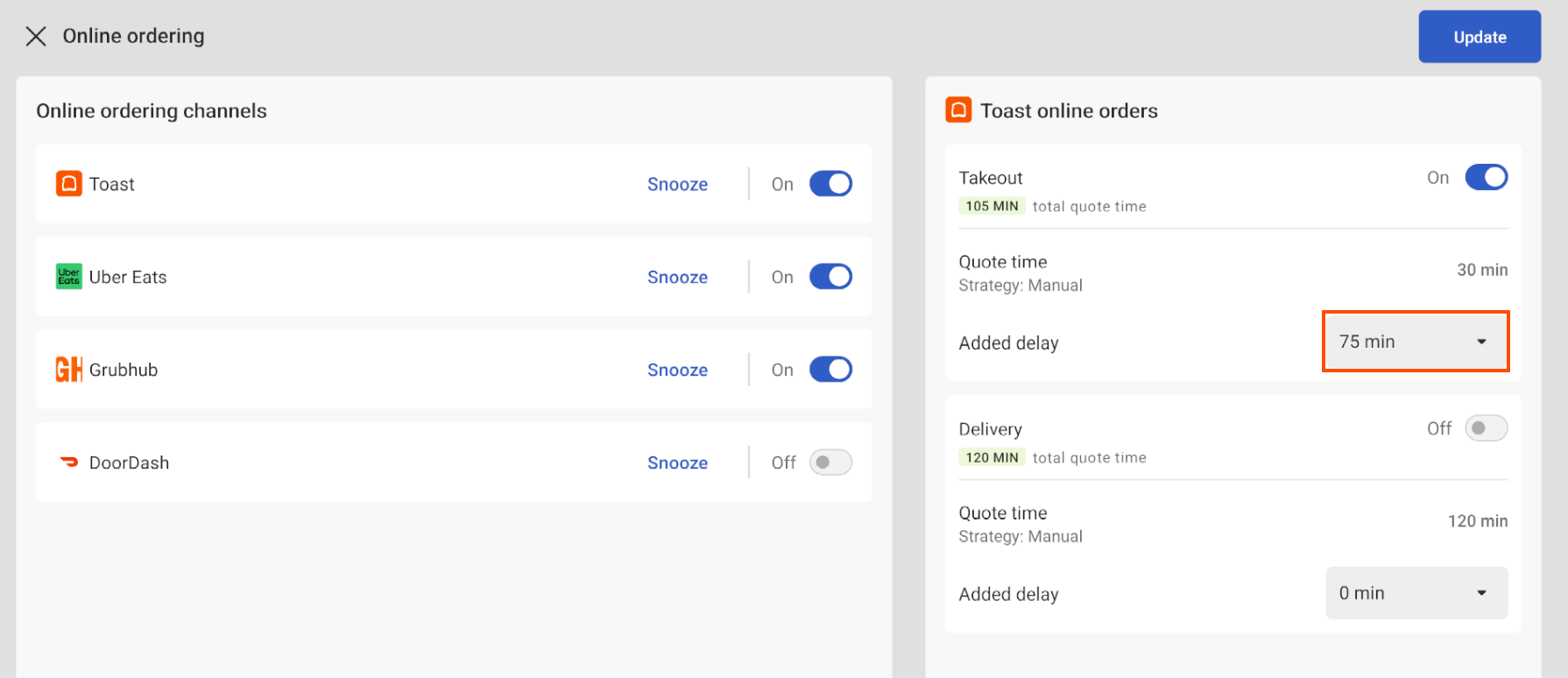
-
Select the Update button. The change is reflected on the Toast online ordering section on Toast Web.
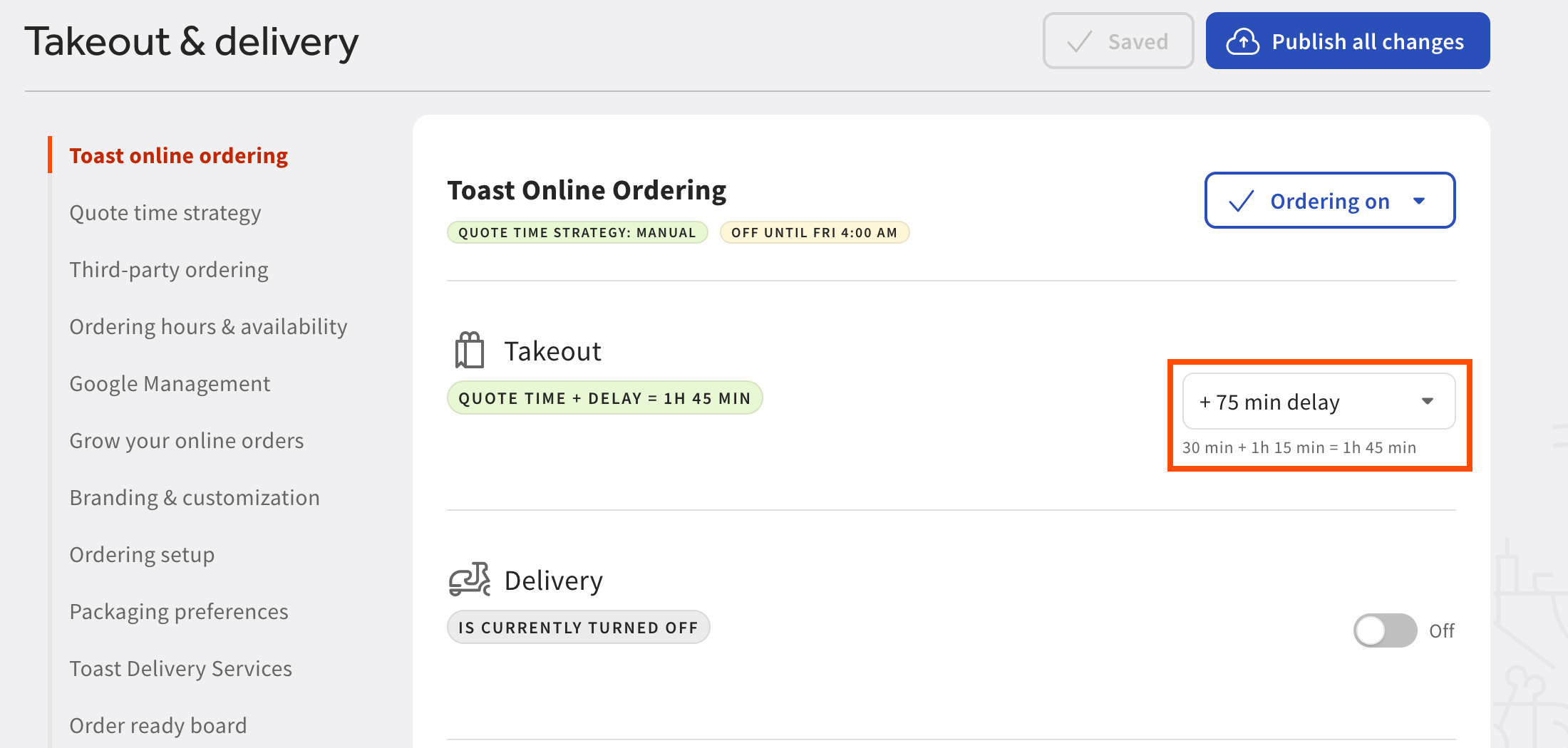
The configured delay webhook sends a webhook notification.
Attributes in the configured_delay_updated event’s
payload include:
| Value | Description |
|---|---|
|
|
The date and time the update event occurred, represented as an ISO-8601 string in UTC format. data type: string |
|
|
data type: string |
|
|
data type: string |
|
|
A unique Toast platform identifier for the webhook event. data type: string format: UUID |
|
|
A field containing the details of the delay update,
including the Toast platform unique identifier (GUID) for the
location that made the update, and Delays are in increments of five minutes up to 120 minutes. |
Payload for a configured_delay_updated event
{
  "timestamp": "2026-08-20T13:25:10.438Z",
  "eventCategory": "configured_delay",
  "eventType": "configured_delay_updated",
  "guid": "ddf70bb0-f8ac-4d73-a08b-da01c309c133",
  "details": {
    "restaurantGuid": "03fa6b36-1fcb-4d05-bb37-a9893eae4654",
    "takeout": {
      "configuredDelayMinutes": 75
    }
  }
}