This section describes the loyalty transaction workflow in the Toast POS app. Restaurant employees use the POS to look up existing loyalty accounts and apply rewards for guests.
|
Note |
|
The Toast POS app used by location employees does not support creating new loyalty accounts. Guest sign-up is only available on the guest facing display (GFD) and kiosk POS modes. For information about the sign-up workflow, see GFD workflow for new loyalty member sign-up and Kiosk workflow for new loyalty member sign-up. |
-
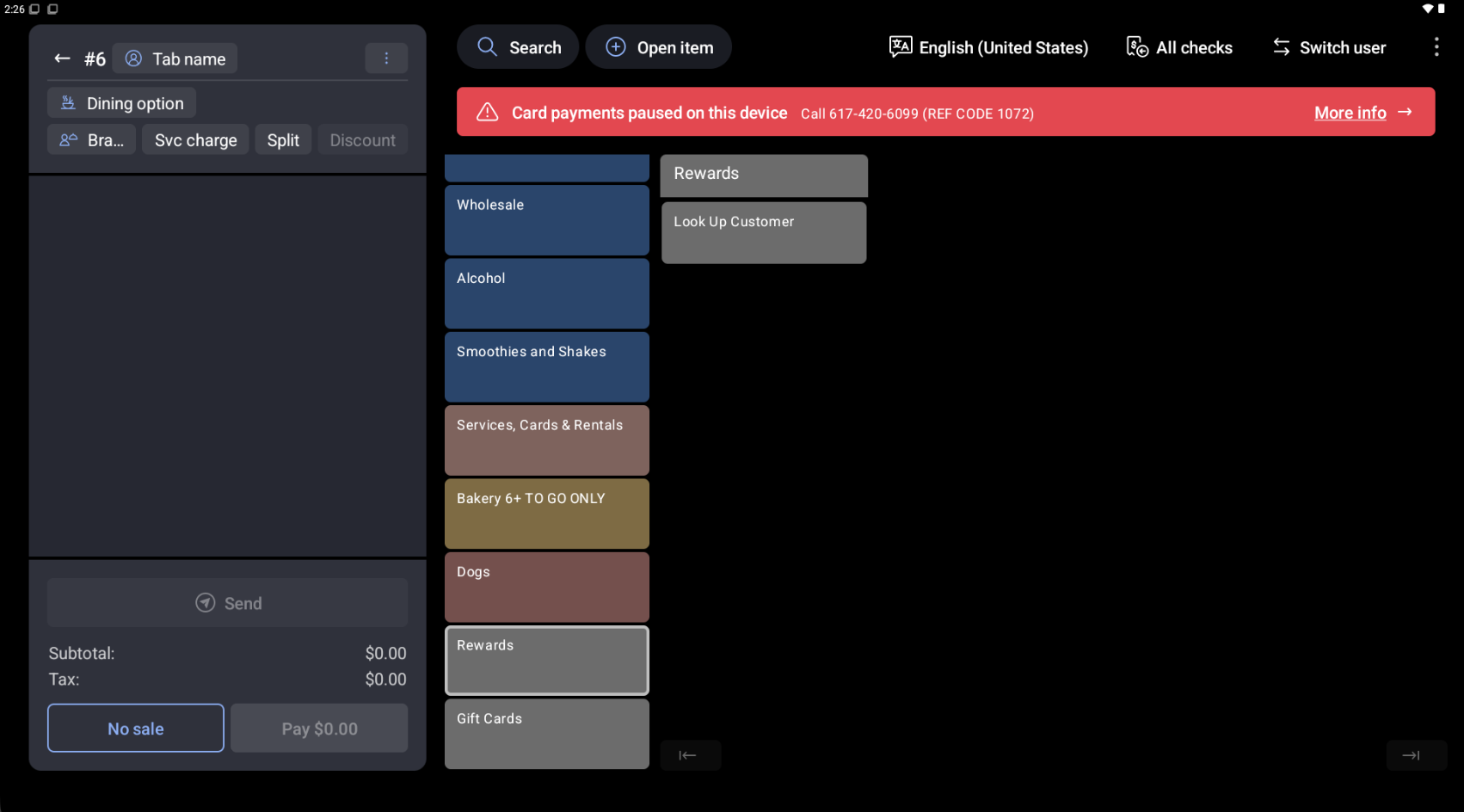
A restaurant employee opens a check and adds items to the order. The Rewards button is listed as a menu group on the order screen.
-
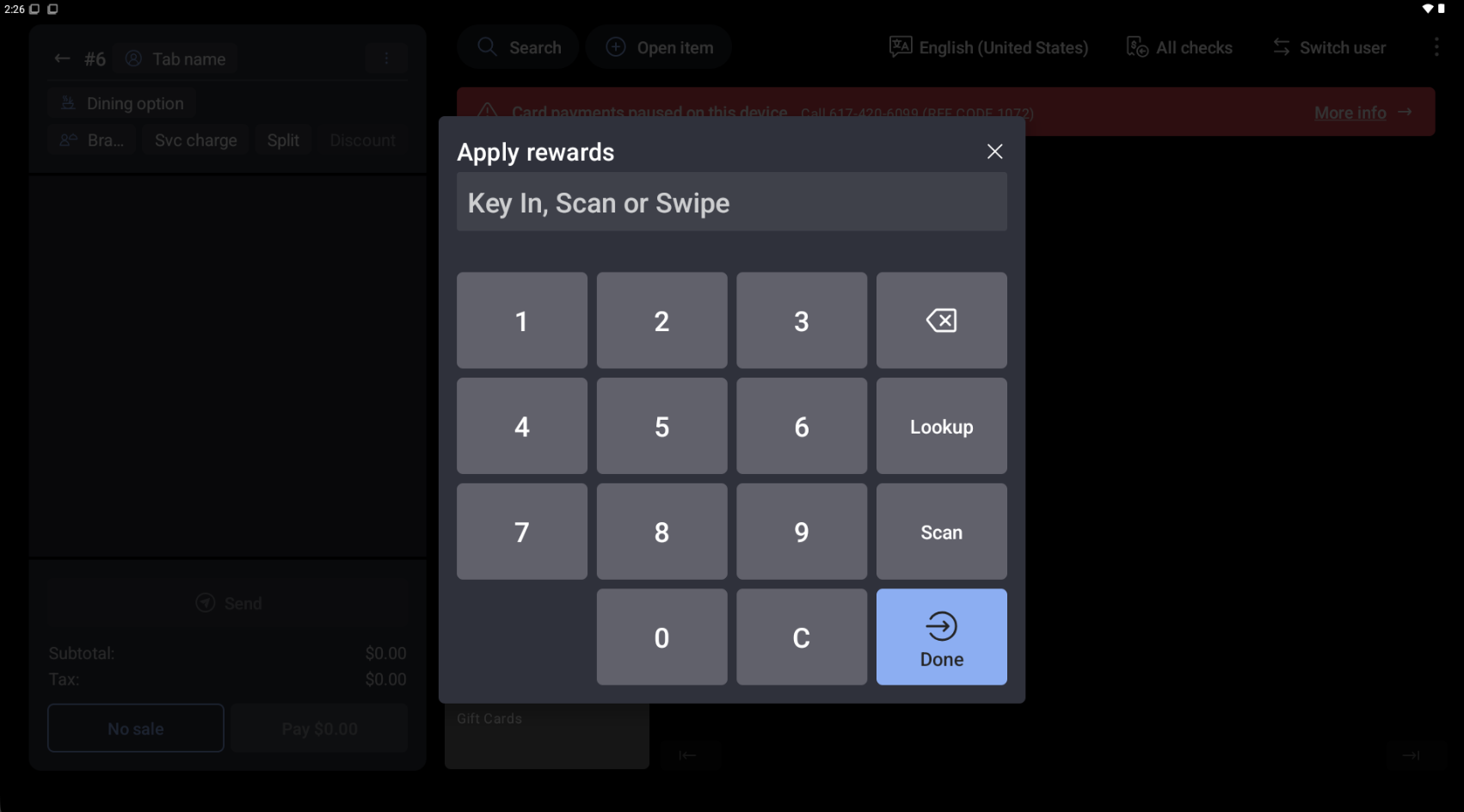
The employee selects Rewards, then selects Look Up Customer. The Lookup dialog opens.
-
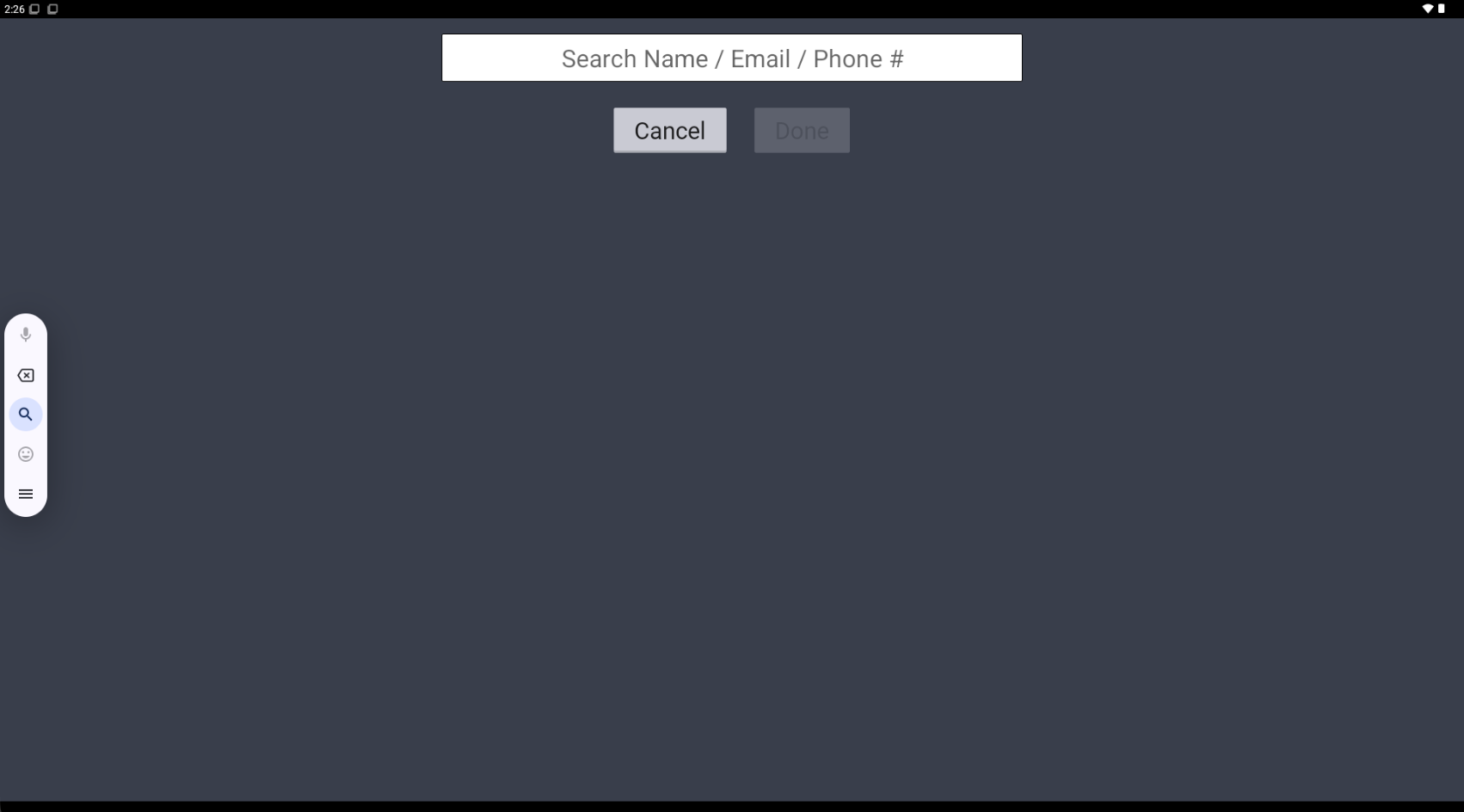
The employee can search for the guest's loyalty account by phone number, email address, or name. The employee can also use a card swipe or barcode scan if the guest has a physical loyalty card.
-
The employee submits the search. The Toast platform sends a
LOYALTY_SEARCHrequest to your loyalty program integration. -
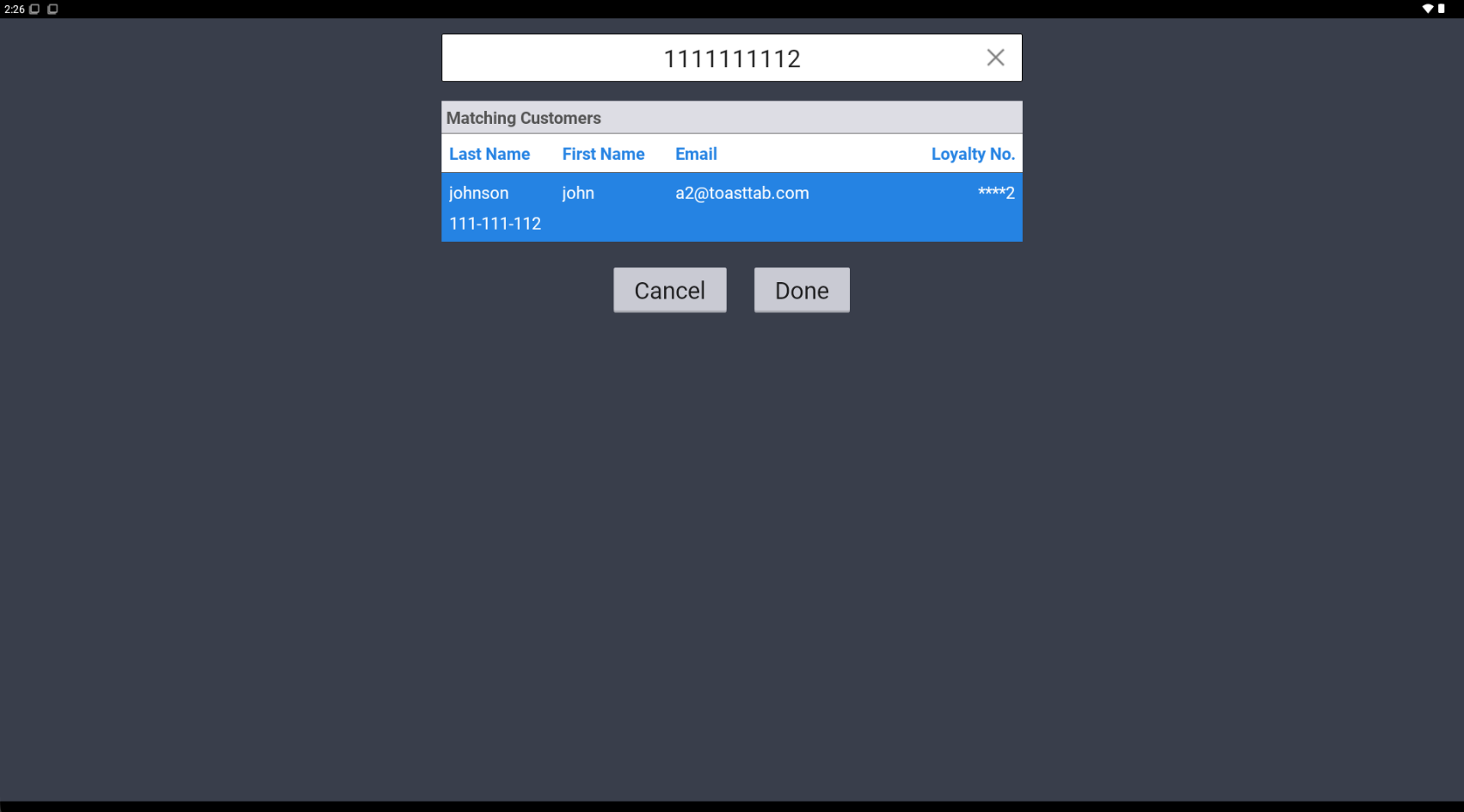
Your loyalty program integration searches for accounts matching the search criteria and responds. If your integration finds one or more accounts, the POS app displays the matching accounts. If multiple accounts are found, the employee selects the correct account.
If your integration returns an HTTP
404response code with atransactionStatusofERROR_ACCOUNT_INVALID, the POS displays a message that no account was found. The employee cannot proceed with loyalty transactions. To create a new account, the guest must use a guest-facing display or a kiosk device if one is available. -
After the employee selects an account, the Toast platform sends a
LOYALTY_INQUIRErequest to your loyalty program integration. Your integration responds with the guest's available rewards and account information. -
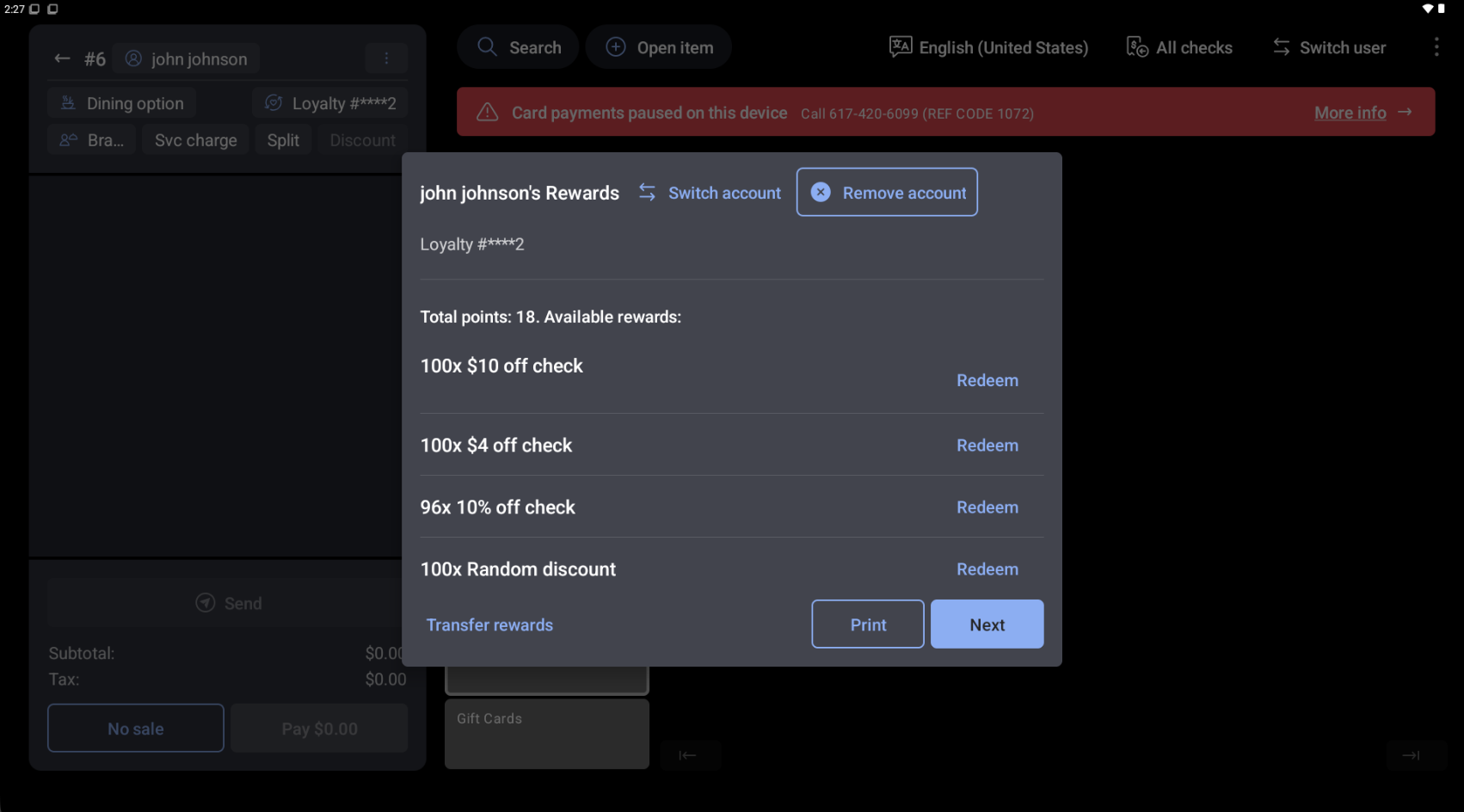
The POS displays a list of available rewards. The employee can scroll through the list to see all offers. Rewards are displayed alphabetically by name.
-
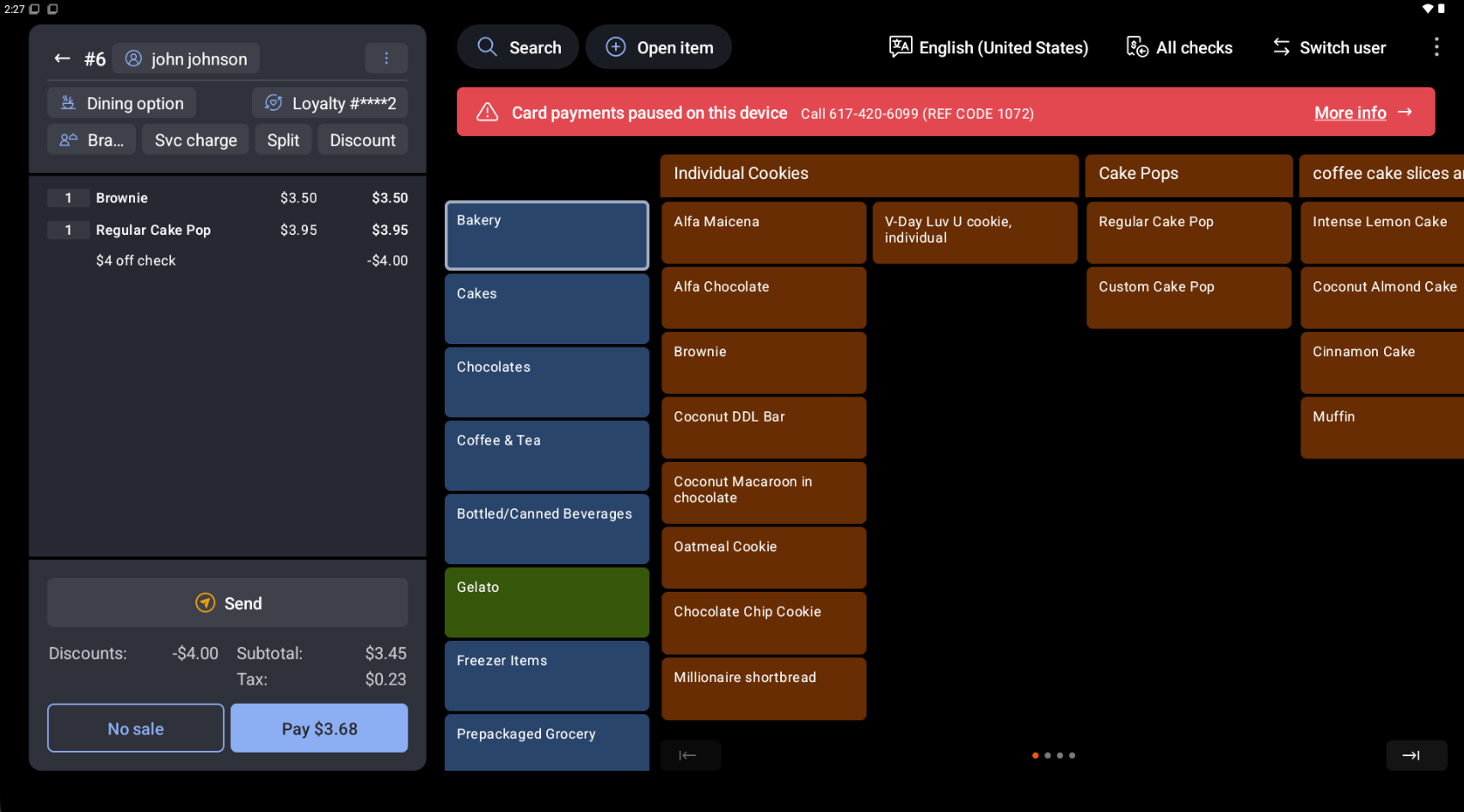
The employee selects Redeem next to the rewards the guest wants to apply. Offers that are not eligible for redemption on the current check are disabled and the Redeem button is not shown.
Important
Your integration is responsible for determining which offers are eligible for redemption, using the
applicableboolean value in theOfferobject. For more information about the Offer object, see Toast API reference documentation.The reward is added to the check as a discount.
-
The employee can continue adding items to the check or proceed to payment. The employee returns to the rewards screen (using the Look Up Customer button) to see if additional offers are now eligible based on items added to the check.
-
When the payment process starts, the Toast platform sends a
LOYALTY_REDEEMrequest to confirm the redemption. Your integration should validate and confirm the redemption. -
After payment is completed, the Toast platform sends a
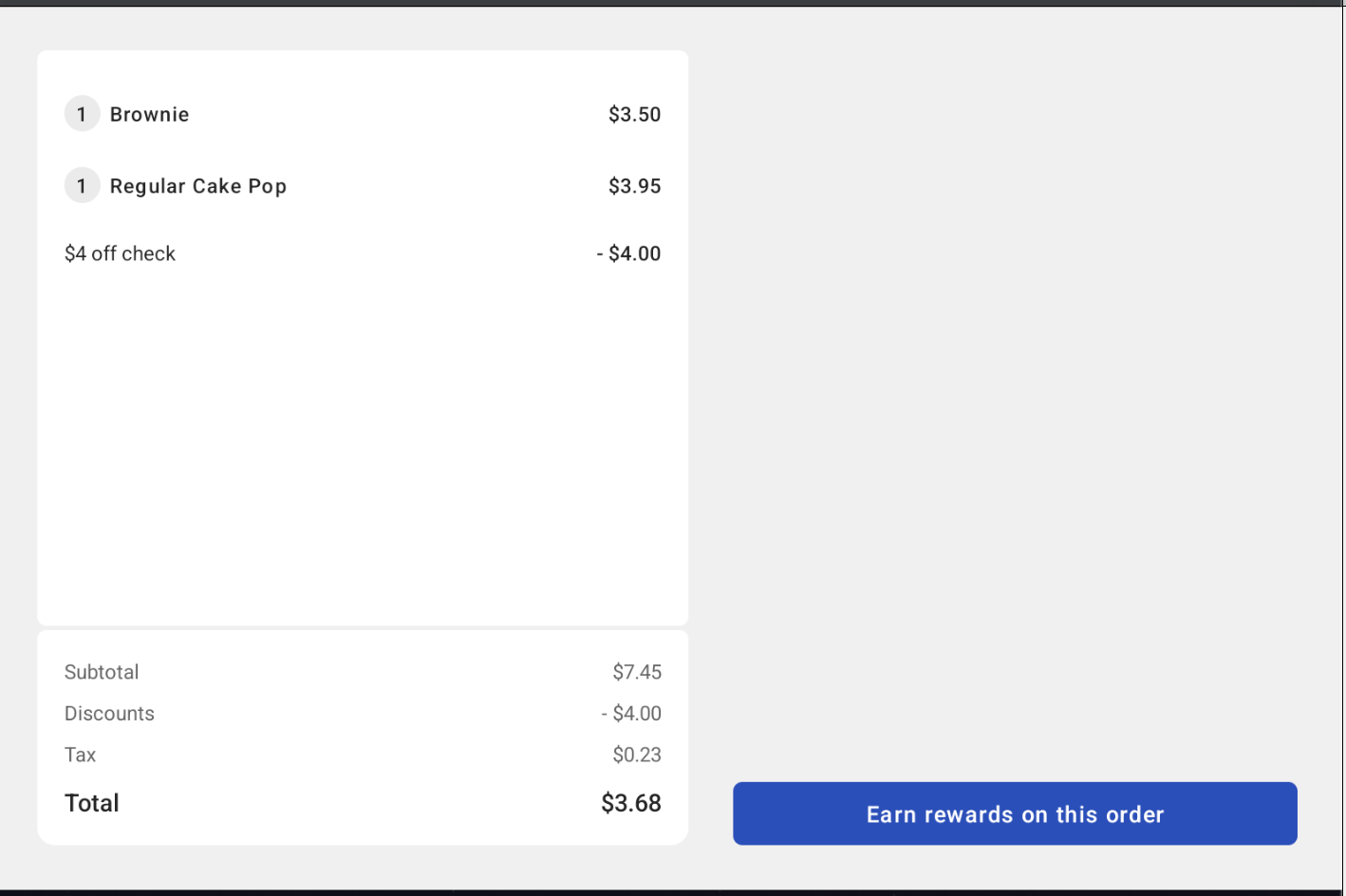
LOYALTY_ACCRUErequest. Your integration should credit the guest's account with points or rewards earned from this transaction.If the location uses a guest facing display (GFD), the guest sees their rewards confirmation on the GFD screen.
For information about the LOYALTY_SEARCH,
LOYALTY_INQUIRE, LOYALTY_REDEEM, and
LOYALTY_ACCRUE transaction types, see Transaction types.