|
Note |
|
You must register each domain and subdomain that will accept Apple Pay payments. |
You can configure your Apple Pay integration in the Toast developer portal. In the developer portal, you can register and validate your domains, and host the Apple Pay static domain verification file. The Merchant domains section on the Payment methods page lists all your domains and subdomains and their verification statuses (if applicable). From the Merchant domains section, you can also choose to delete a domain or subdomain.
|
Note |
|
The |
To register and verify an Apple Pay merchant domain in the Toast developer portal
-
Access the Toast developer portal.
-
Select the Payment methods tab to open the Payment methods page.
-
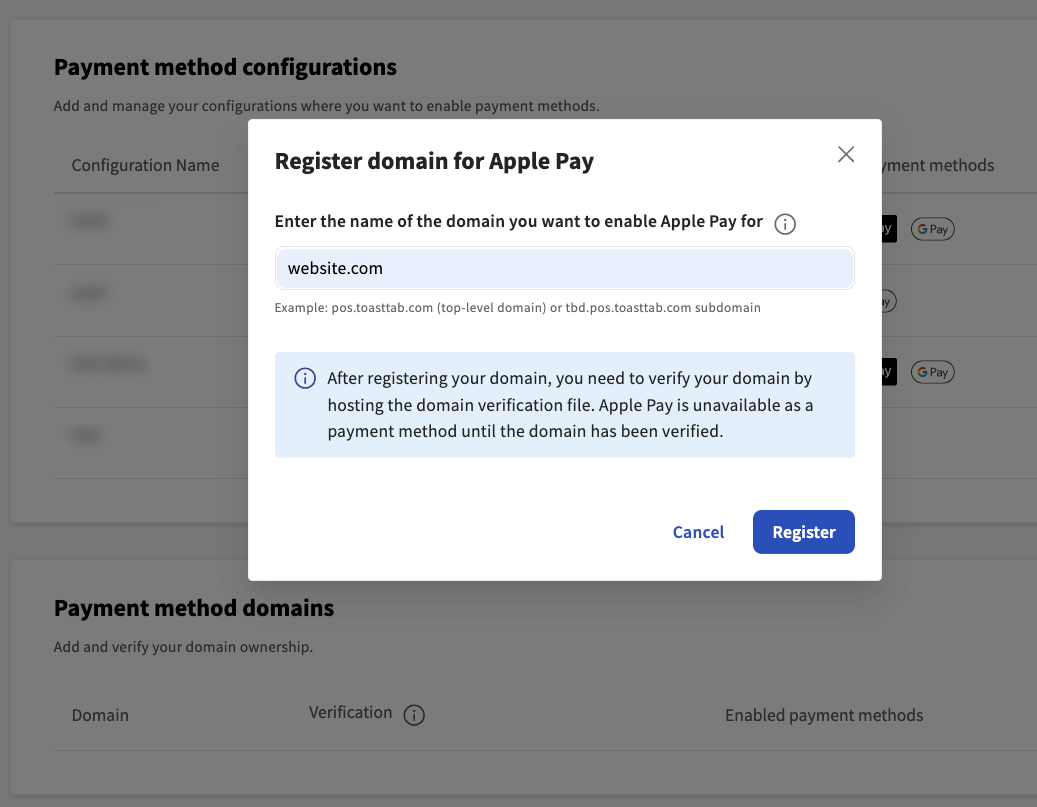
Go to the Merchant domains section. Select the + Add a new domain button to open the Register domain for Apple Pay dialog.
-
Enter the domain name in the text field.
-
Select the Register button. After you register your domain, the Toast platform creates a payment method domain record. A payment method domain record is the record of your registered domains in the Toast platform. The domain record lists all digital wallets available for use.
-
Go back to the Payment method domains section on the Payment methods page. Your newly registered domain is listed in the Merchant domains table.
-
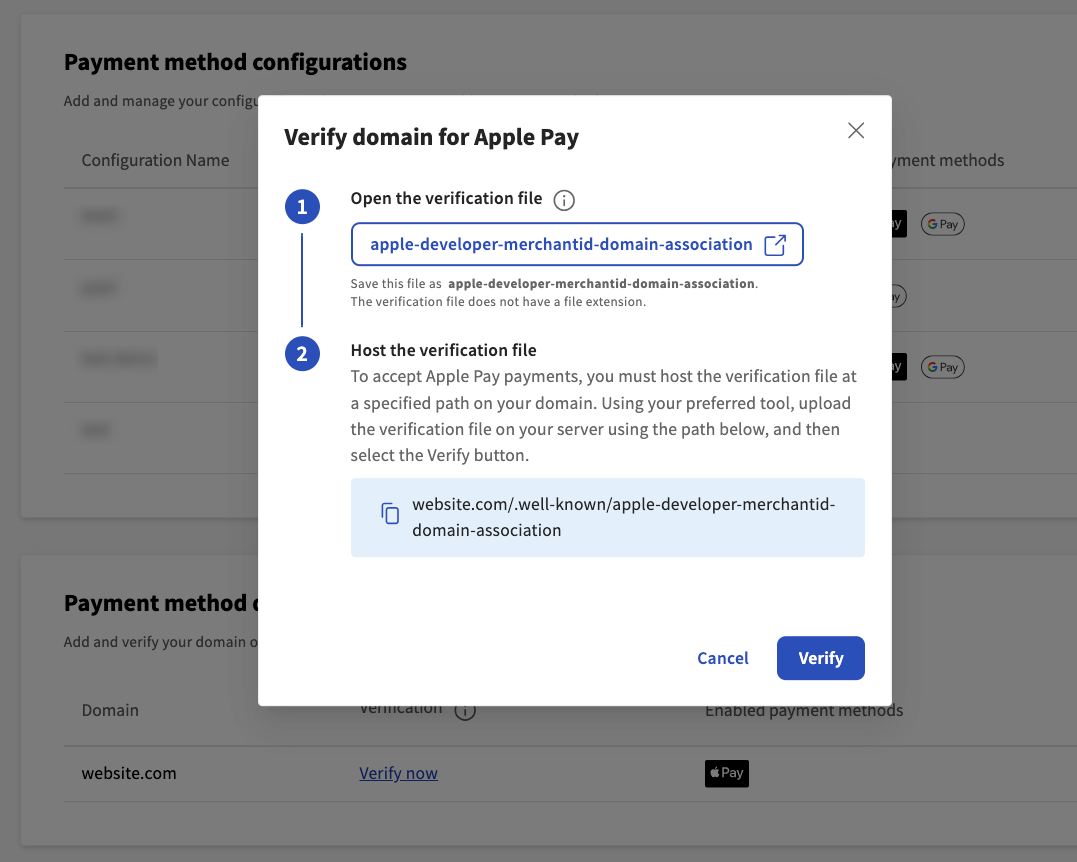
Select the Verify now link next to the domain name to open the Verify domain for Apple Pay dialog.
-
In the Verify domain for Apple Pay dialog, complete the following actions:
-
Open and save the static verification file at a publicly accessible location on your domain. The static domain verification file needs to be available on each domain and subdomain used for Apple Pay transactions.
-
Host the static verification file at the specified path on your domain. For more information, see Hosting the static domain verification file.
Important
Host the static domain verification file as raw plain text. Do not apply additional formatting, extensions, or content to the file itself.
-
-
Select the Verify button to verify your domain or the Cancel button to close out of the dialog.
If the verification was successful, the domain displays Apple Pay as an enabled payment method under the Enabled payment methods column in the Merchant domains table. If the verification was unsuccessful, an error message appears on the Verify domain for Apple Pay dialog. You will be unable to process Apple Pay transactions until Apple successfully validates the file. Make sure that the static verification file is correctly hosted on your domain.
After you have registered your domains and subdomains in the Toast developer portal, the next step is for the Apple Pay service to verify that the web domains belong to you. This requires you to host the static domain verification file on all your domains and subdomains. By hosting the static domain file, you are confirming that you own and control the domains where Apple Pay transactions will be initiated.
wget https://www.toasttab.com/.well-known/ME_prod_toast
Host the production version of the file on the web on the domain
you use for your Apple Pay ordering interface. The URL path for the file
must be:
/.well-known/apple-developer-merchantid-domain-association.
Below is an example of a hosted static domain verification file:
https://[example-domain.com]/.well-known/apple-developer-merchantid-domain-association.
|
Note |
|
You can use the production version of the static domain verification file for both sandbox and production environments. |
In the Merchant domains section, you can delete a domain by selecting the Trash icon next to the domain name. This opens the Delete domain dialog. In the Delete domain dialog, select the Delete button to delete the domain.
If you choose to delete a merchant domain, the deletion is permanent and the domain cannot be recovered. You will not be able to accept Apple Pay payments. To enable Apple Pay for the domain, you will need to re-register and verify the domain again.