|
Note |
|
The calculated guest count feature is in limited release. |
An order’s guest count specifies the number of guests served by the menu items in the order. Employees can manually enter an order’s guest count on the Toast POS app. Because of manual entry, an order’s guest count could be inaccurate. With calculated guest count, the Toast platform adds a system-generated estimated guest count to each order based on the menu items in the order.
The calculated guest count is the sum of the guest count weights of all items and modifiers in an order. For example, consider an order containing:
-
A side salad modifier with a guest count weight of 0.5
-
A cheeseburger item with a guest count weight of 1
-
A steak entrée item with a guest count weight of 2
The calculated guest count is 3.5. For more information about configuring guest count weights for menu items and modifiers, see Guest count weight.
|
Tip |
|
If an order contains a menu item or modifier that doesn't have a guest count weight configured, the calculated guest count excludes that item. For example, for an order containing an item whose guest count weight is 1 and another item with no weight configured, the calculated guest count is 1. |
The Toast platform reports the calculated guest count value alongside the manually-entered guest count information. It never replaces the manually-entered value.
You can also ask Toast IQ to help set up and configure calculated guest count and guest count weights for you.
The Toast platform adds a calculated guest count only to orders that move to the Completed status after you enable the feature for the location. Enabling this feature doesn't update orders that are already completed.
|
Note |
|
To enable calculated guest count for a location, you must have the Web Setup > 6.6 Restaurant Operations Setup access permission. |
To enable calculated guest count for a single location
-
Go to Reports > Settings > Metric configurations. The Metric configurations page opens.
-
Toggle the Calculated guest count setting to On.
-
Select the Save button. In the Reports will change dialog, select the Confirm & save button.
-
At the top right of the Metric configurations page, select the Publish all changes button. In the Confirm publish dialog, select the Publish button.
For multi-location organizations, you can enable calculated guest count for some or all locations in your management group using overrides.
To enable calculated guest count for specific locations in a restaurant group
-
Go to Reports > Settings > Metric configurations. The Metric configurations page opens.
-
Toggle the Calculated guest count setting to On.
-
Select the +Add override button.
-
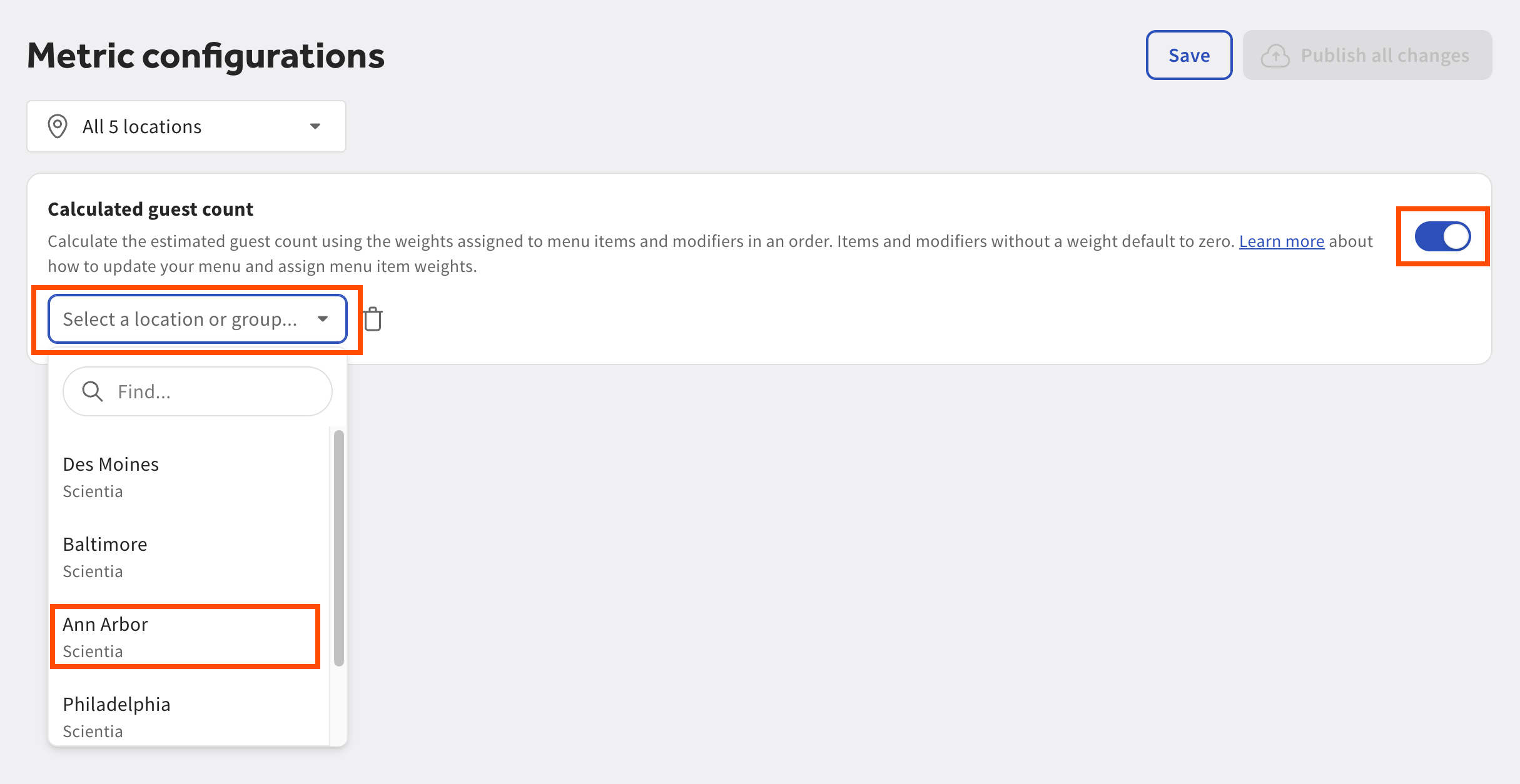
In the Select a location or group... dropdown menu, select the location where you want to add an override. In this example, you select the Ann Arbor location.
-
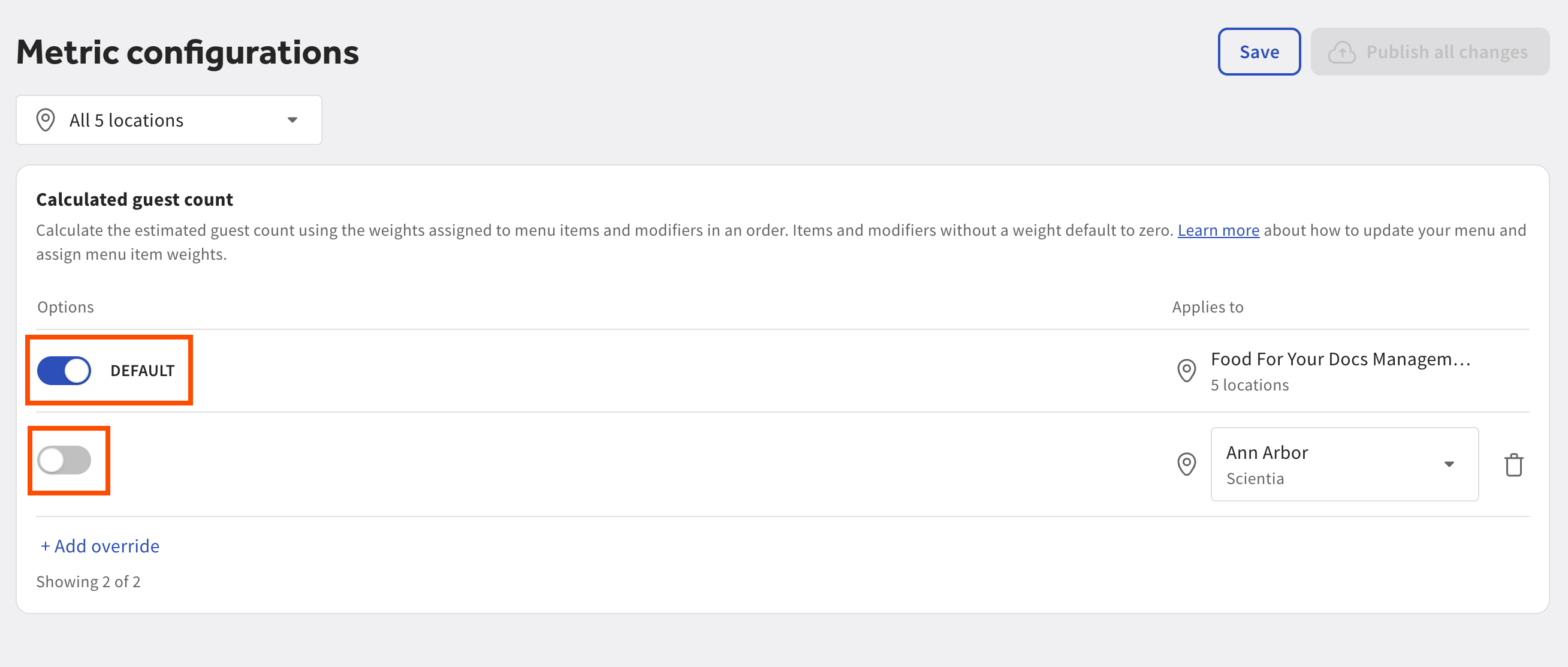
Toggle the calculated guest count option to Off for the Ann Arbor location. The calculated guest count option for the restaurant group is toggled On by default.
-
Select the Save button. In the Reports will change dialog, select the Confirm & save button.
-
At the top right of the Metric configurations page, select the Publish all changes button. In the Confirm publish dialog, select the Publish button.
You've enabled calculated guest count for all locations in the restaurant group except for Ann Arbor. You can add more than one override.
|
Note |
|
If you enable calculated guest count and later disable it, orders that are completed while the feature is disabled don't include a calculated guest count field. Order reports created for that time period show a gap in calculated guest count data. |
When you enable calculated guest count, the Toast platform automatically looks at the published menu configuration for all applicable locations to check whether all items and modifiers have a guest count weight assigned. The platform reports missing configuration with a warning, but doesn't prevent you from enabling or using the calculated guest count feature.
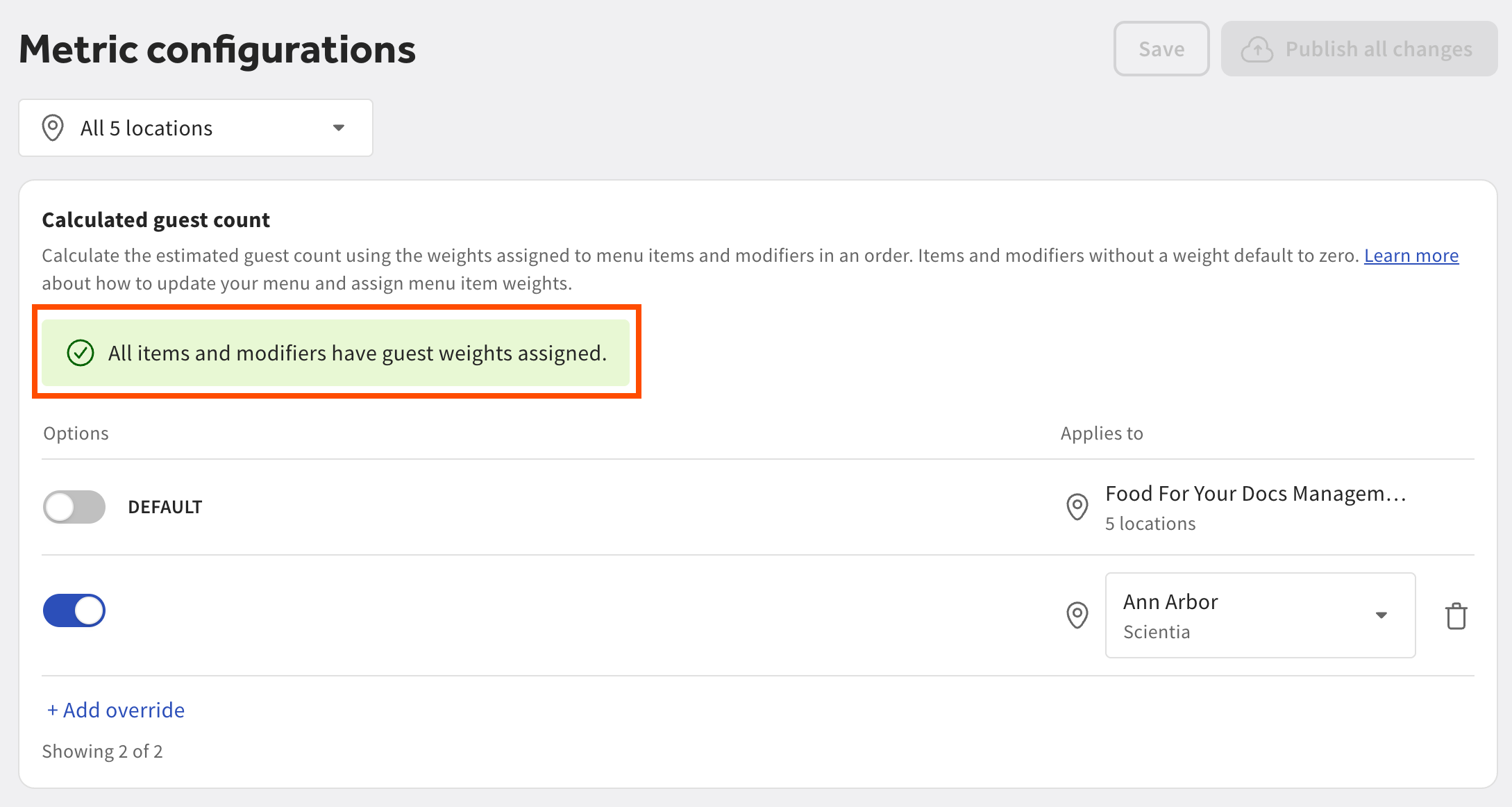
If all items and modifiers in the location's published menu have guest count weight values configured, you see a message with a green check mark confirming that the expected configuration exists.
|
Tip |
|
If you edit your menu configuration, check the Metric configurations page after you publish your changes to confirm that the guest count weight values configuration is still valid. The Toast platform re-runs the validation check on the location's published menu every time you visit the page. |
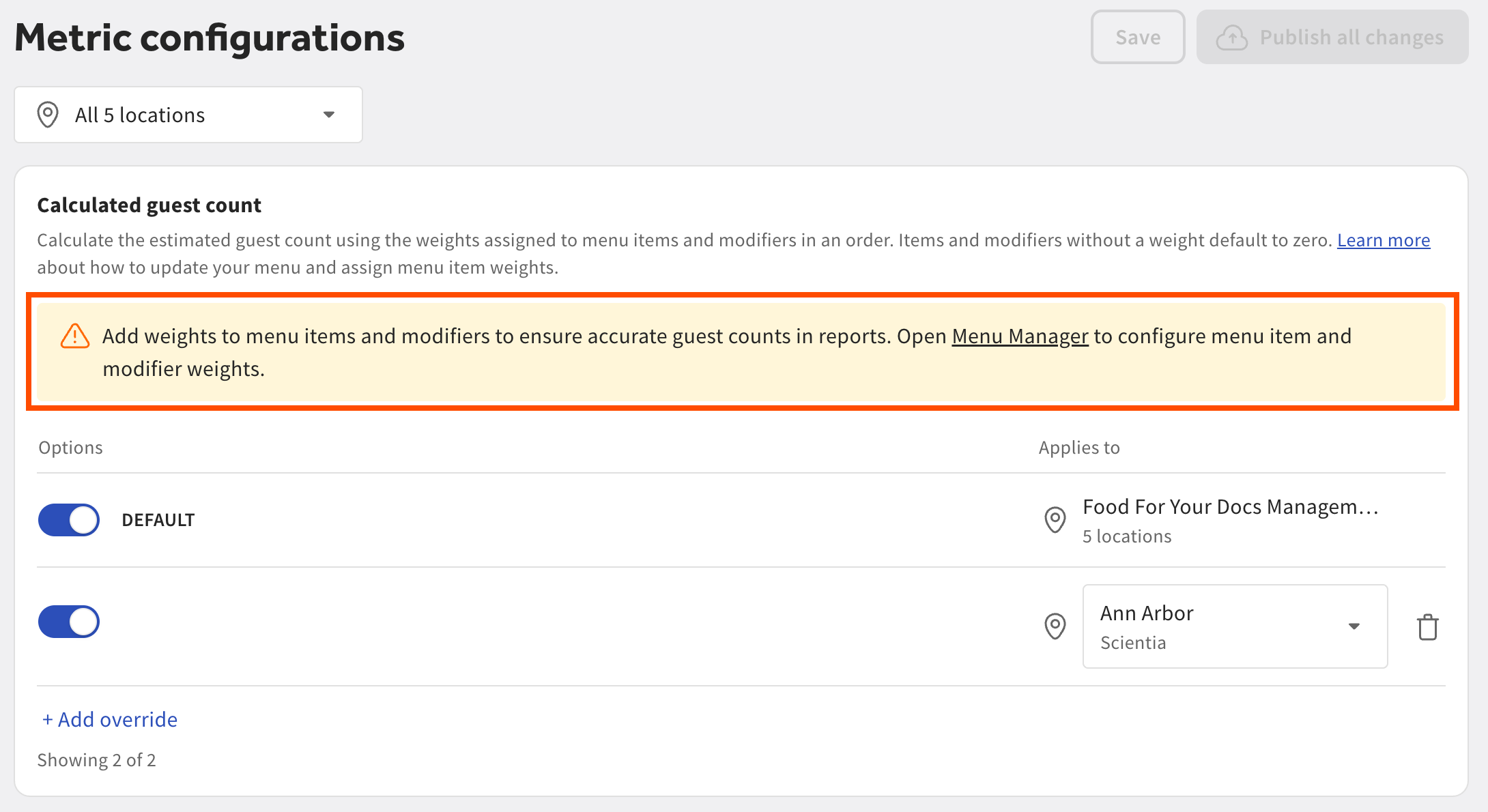
If one or more items or modifiers in the location's published menu don't have guest count weight values configured, you see a message with a warning icon indicating that there's missing configuration. The message includes a link to the Menu manager page where you can configure guest count weight values.
|
Tip |
|
Missing configuration doesn't prevent the Toast platform from reporting calculated guest count. If the calculated guest count field in an order contains no value, it means that none of the menu items in that order have a guest count weight configured, or that the order was completed before you enabled calculated guest count for that location. If an order's calculated guest count is zero, it means that all the menu items in the order have a guest count weight of zero. |
When an order moves to the Completed status, the Toast platform automatically adds the calculated guest count to the order details.
|
Note |
|
If you edit a completed order, the Toast platform recalculates the calculated guest count using the current guest count weights for all menu items and modifiers in the order. If any guest count weights changed after the order was first completed, the order's calculated guest count changes. |
Access the calculated guest count information in any of the following ways:
-
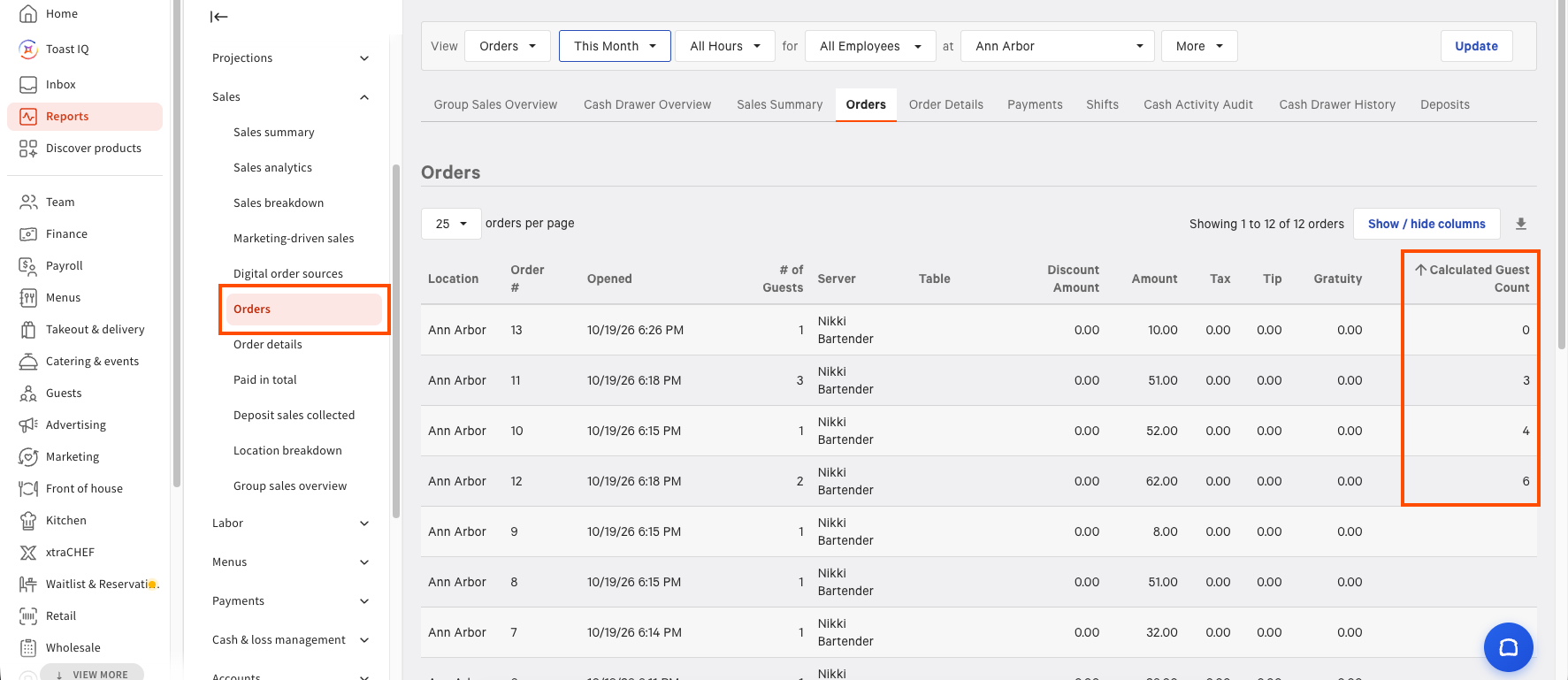
In Toast Web, go to Reports > Sales > Orders. The Calculated Guest Count column shows the value for each order.
-
The Calculated Guest Count column might be empty for an order for one of the following reasons:
-
None of the menu items or modifiers in that order have a guest count weight configured.
-
The order reached the Completed status before you enabled the calculated guest count feature.
-
-
The calculated guest count column has a value of 0 if all the menu items and modifiers in the order have guest count weights of 0.
-
-
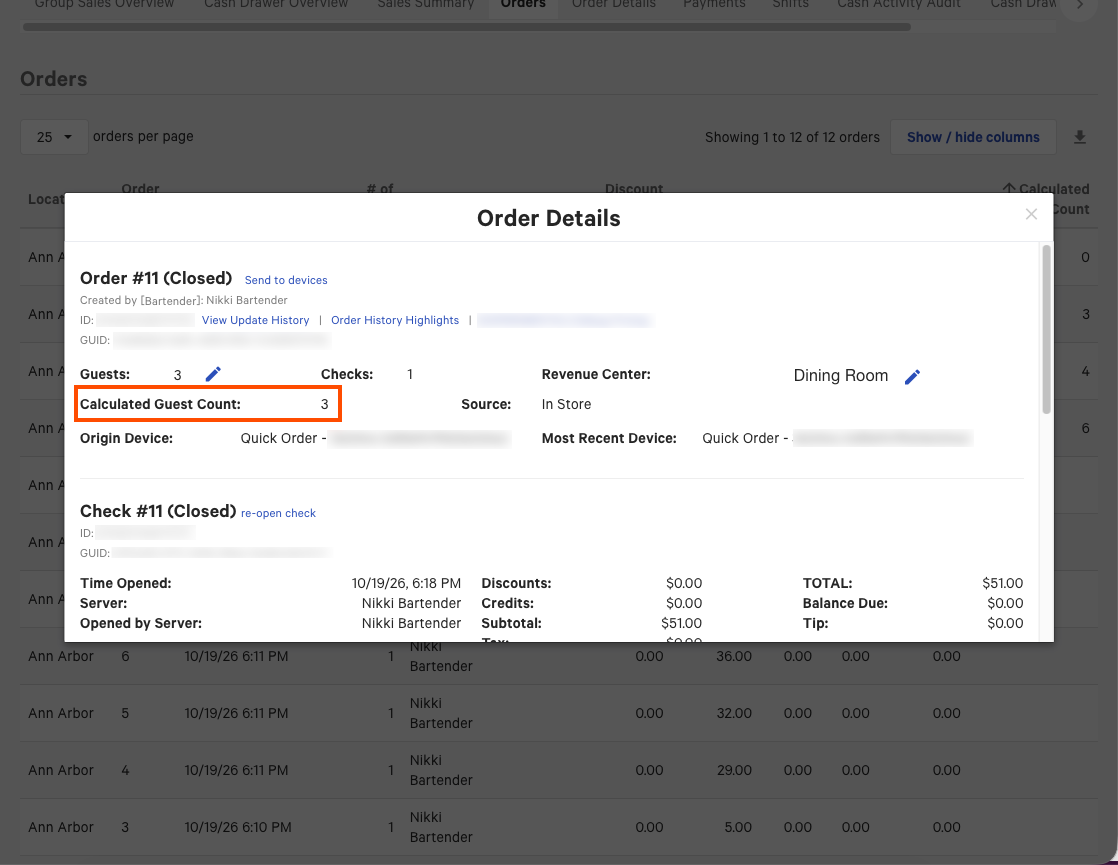
In Toast Web, go to Reports > Sales > Orders. Select an order to open the Order Details view. The Calculated Guest Count field displays the value for that order. If an order doesn't have the Calculated Guest Count field despite the feature being enabled, it means that none of the menu items or modifiers in the order have guest count weights configured.
-
To view total and average calculated guest count information:
-
In Toast Web, go to Reports > Sales > Sales summary.
-
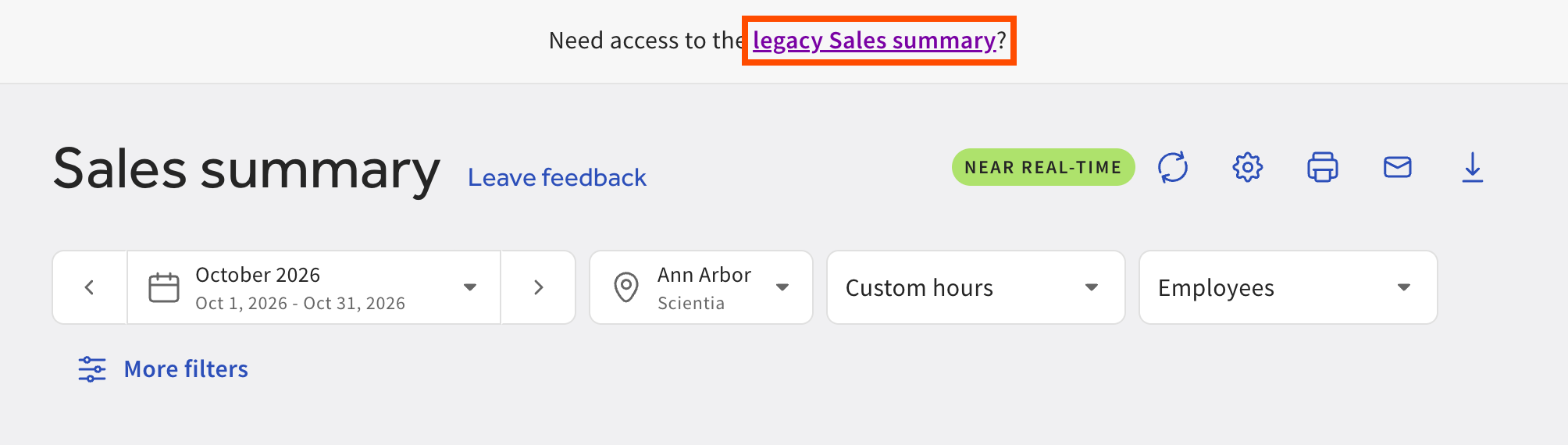
At the top of the page, select the legacy Sales summary link in the banner. The Sales Summary report page opens.
-
Select the Load Report button.
-
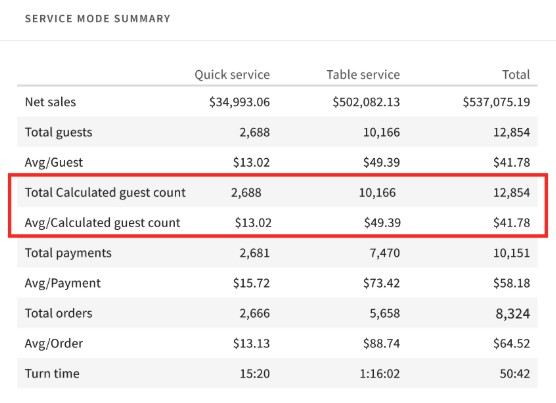
Scroll to the Service Mode Summary section. The table displays the Total Calculated guest count and Avg/Calculated guest count rows.
-