|
Note |
|
You must enable the calculated guest count feature before configuring guest count weights. See Enabling calculated guest count for instructions. |
Configure guest count weights for menu items and modifiers in Toast Web in one of the following ways:
-
In the Full menu view in the menu manager.
-
In the Items or Modifiers view in the menu manager.
-
In the item or modifier detail side pane in the Full menu view in the menu manager.
-
Using the bulk import tool.
|
Tip |
|
Don't set a guest count weight for combo menu items. The modifiers in the combo, such as the entrée, side, and drink, have their own guest count weights and the calculated guest count includes those individual weights. |
|
Note |
|
You must have the required set of menu manager permissions to configure guest count weight. For more information, see Menu manager permissions. |
To configure an item's or modifier's guest count weight from the Full menu view in the menu manager
-
Go to Menus > Menu management > Menu manager. The Menu manager page opens.
-
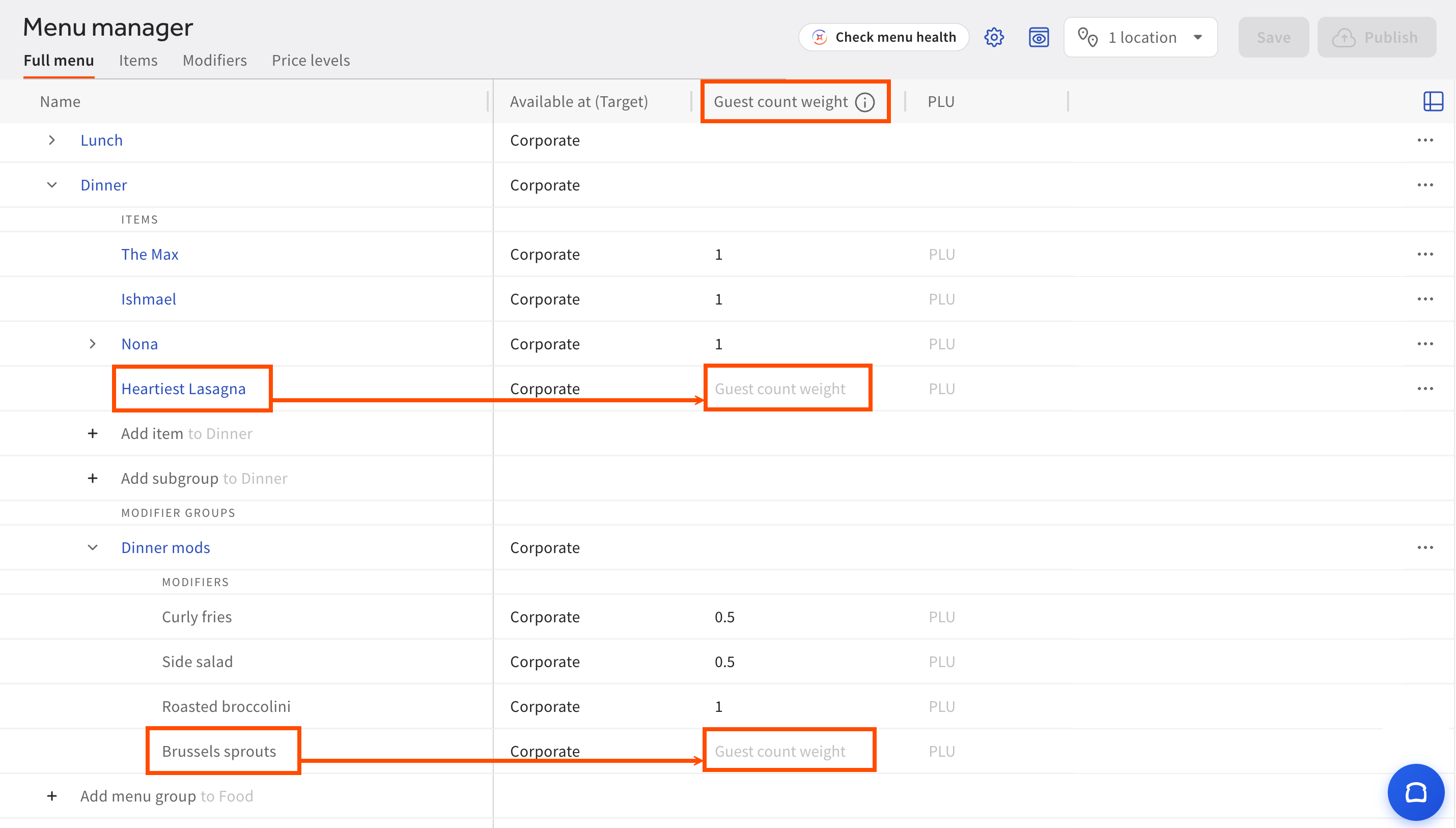
In the Full menu view, expand the menu to find the item or modifier you want to edit.
-
Select the Guest count weight field corresponding to the item or modifier and enter the desired number.
-
At the top right of the Menu manager page, select the Publish button.
-
In the Confirm publish dialog, select the Publish button.
|
Note |
|
You must have the required set of menu manager permissions to configure guest count weight. For more information, see Menu manager permissions. |
To configure guest count weight from the Items or Modifiers view in the menu manager
-
Go to Menus > Menu management > Menu manager. The Menu manager page opens.
-
Select one of the following:
-
If you're editing an item, select the Items view.
-
If you're editing a modifier, select the Modifiers view.
-
-
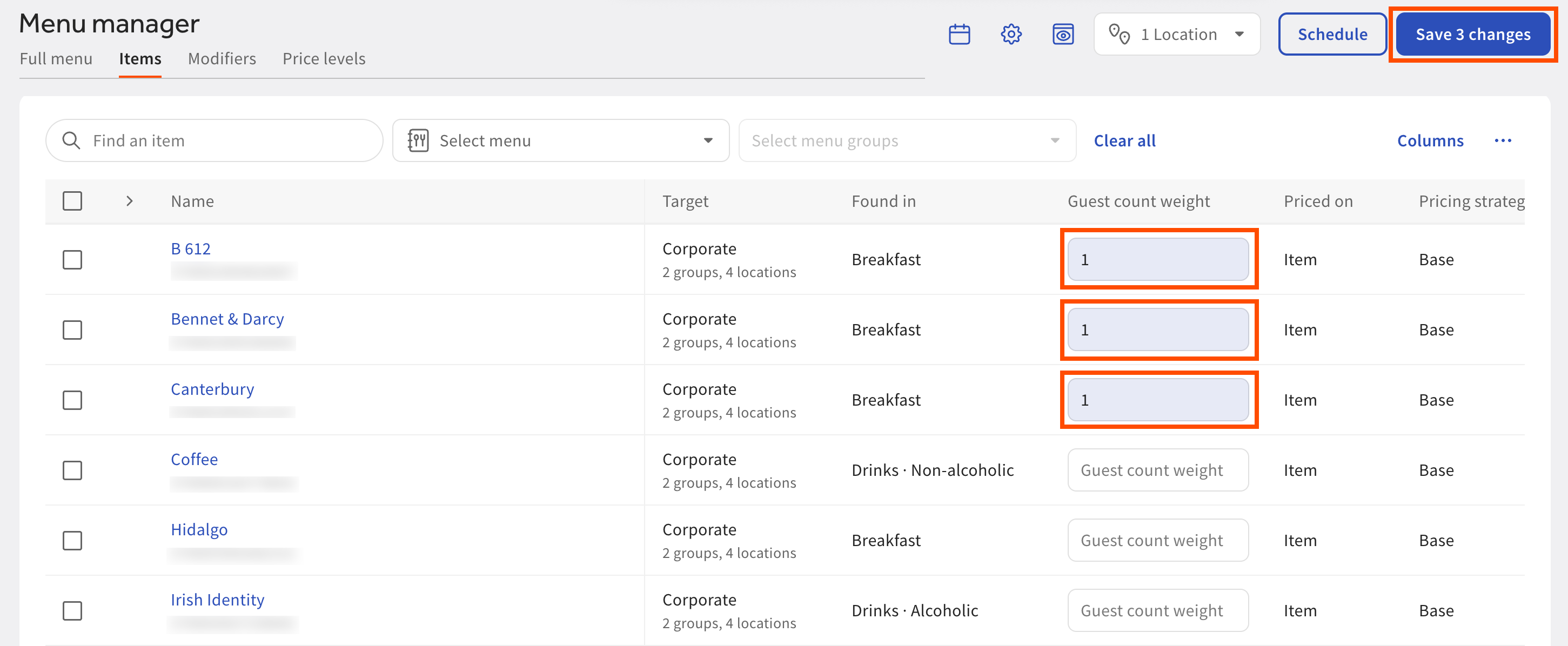
In the Guest count weight column corresponding to the item or modifier you want to edit, enter the desired number. You might need to scroll horizontally to see the Guest count weight column. You can add guest count weight values for multiple items or modifiers from this view. In this example, you add guest count weight values for three menu items.
-
At the top right of the Menu manager page, select the Save button. In this example, the button text is Save 3 changes because you edited three items by adding a guest count weight value.
-
In the Save changes now? dialog, select the Yes, save now button if you want to save the changes immediately. If not, select Schedule for later.
-
Select the Full menu view. At the top of the Menu manager page, select the Publish button.
-
In the Confirm publish dialog, select the Publish button.
|
Note |
|
You must have the required set of menu manager permissions to configure guest count weight. For more information, see Menu manager permissions. |
To configure an item's or modifier's guest count weight from the Full menu view side pane in the menu manager
-
Go to Menus > Menu management > Menu manager. The Menu manager page opens.
-
In the Full menu view, expand the menu to find the item or modifier you want to edit.
-
Select one of the following:
-
If you're editing an item, select the item to open the side pane.
-
If you're editing a modifier, select the right-facing arrow next to the modifier name to open the side pane.
-
-
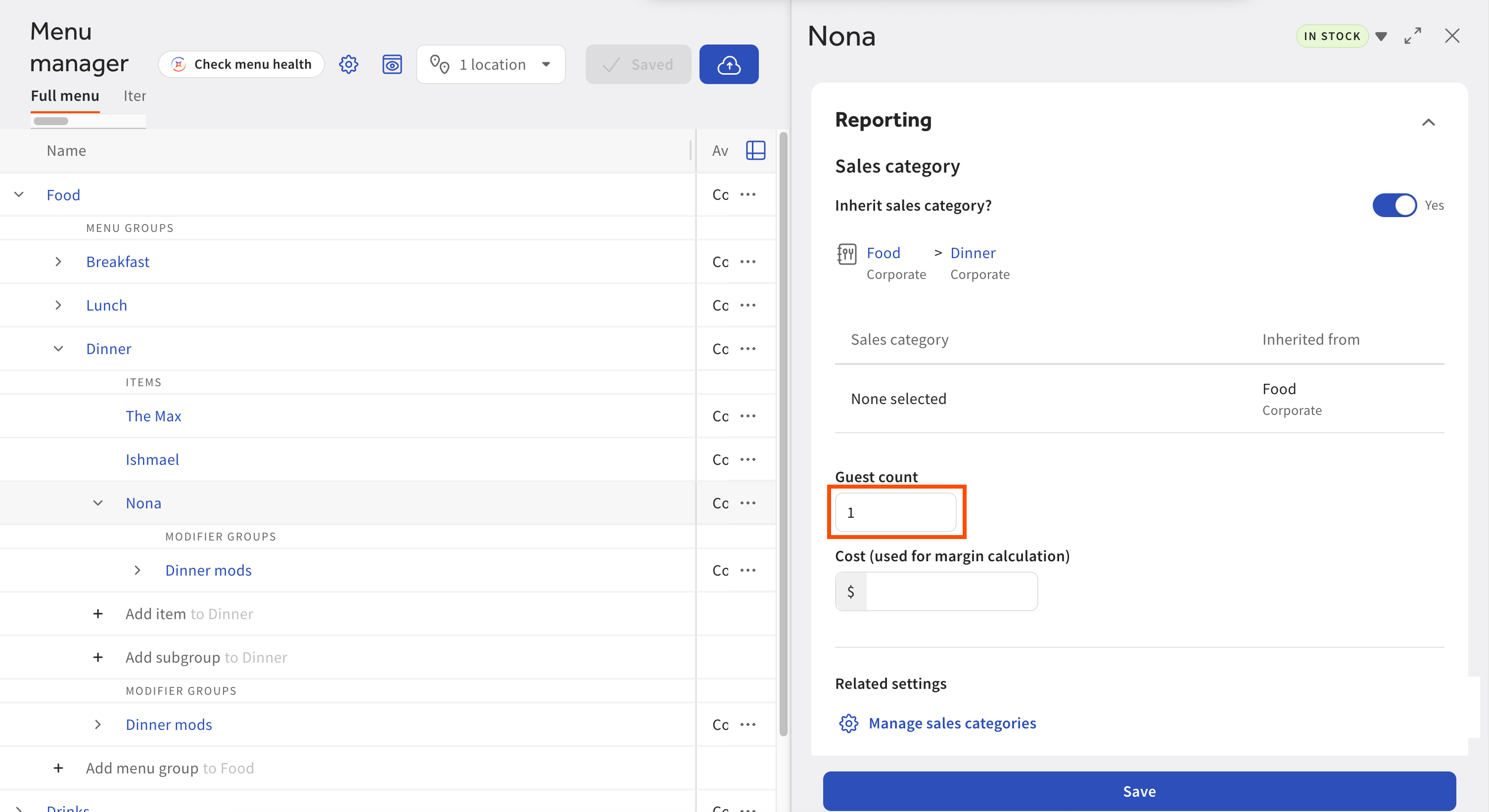
In the side pane, scroll to the Reporting section.
-
In the Guest count field, enter the desired number.
-
At the bottom of the side pane, select the Save button.
-
Close the side pane. At the top right of the Menu manager page, select the Publish button.
-
In the Confirm publish dialog, select the Publish button.
To configure guest count weights using the bulk import tool
-
Go to Menus > Bulk management > Bulk import tool. The Bulk import tool page opens.
-
Follow the instructions on the Bulk import tool overview page, and use the Advanced template to complete the import. Enter guest count weight information in the template's Guest Count Weight field.