You can use the menu manager's export function to export pricing data for menu items and modifiers, allowing you to audit your pricing configurations for those entities. The export supports all pricing configurations for menu items and modifiers, and will export data for base prices as well as advanced prices like menu-specific prices, time-specific prices, and location-specific prices.
The exported CSV file can also function as the starting point for a spreadsheet you can use to bulk edit prices for menu items and modifiers. You edit the exported CSV to make it compatible with the import requirements, make your pricing edits, and then re-import the file using the bulk menu import tool. Pricing edits made using this workflow are limited to base and location-specific prices. For more information, see Using the export spreadsheet as the basis for bulk editing prices.
The export process creates a CSV file and sends an email with a link to that file to your email address. Select the link in the email to download the CSV file.
When exporting, you can choose to export data for menu items, modifiers, or both. If you export both, you can use the Entity type column to determine which rows in the export spreadsheet are for menu items and which are for modifiers.
If you have any location, menu, or menu group filters enabled on the Items and Modifiers views, you can choose whether those filters are applied to the export or are ignored during the export.
|
Note |
|
Currently, search terms are ignored during exports. |
To export pricing data for menu items and modifiers
-
Choose Menus > Menu management > Menu manager to open the Menu manager page.
-
From the Show section, choose Items or Modifiers.
Note
The export function is only available from Items or Modifiers view. It is not available from Full menu or Price levels view.
-
(Multi-location only) Optionally, select the locations whose menu data you want to export from the locations control.
-
Optionally, use the filtering controls to limit the list of menu items and modifiers to a specific menu or menu group.
-
From the overflow menu at the top of the menu item or modifier list, select the Export data.
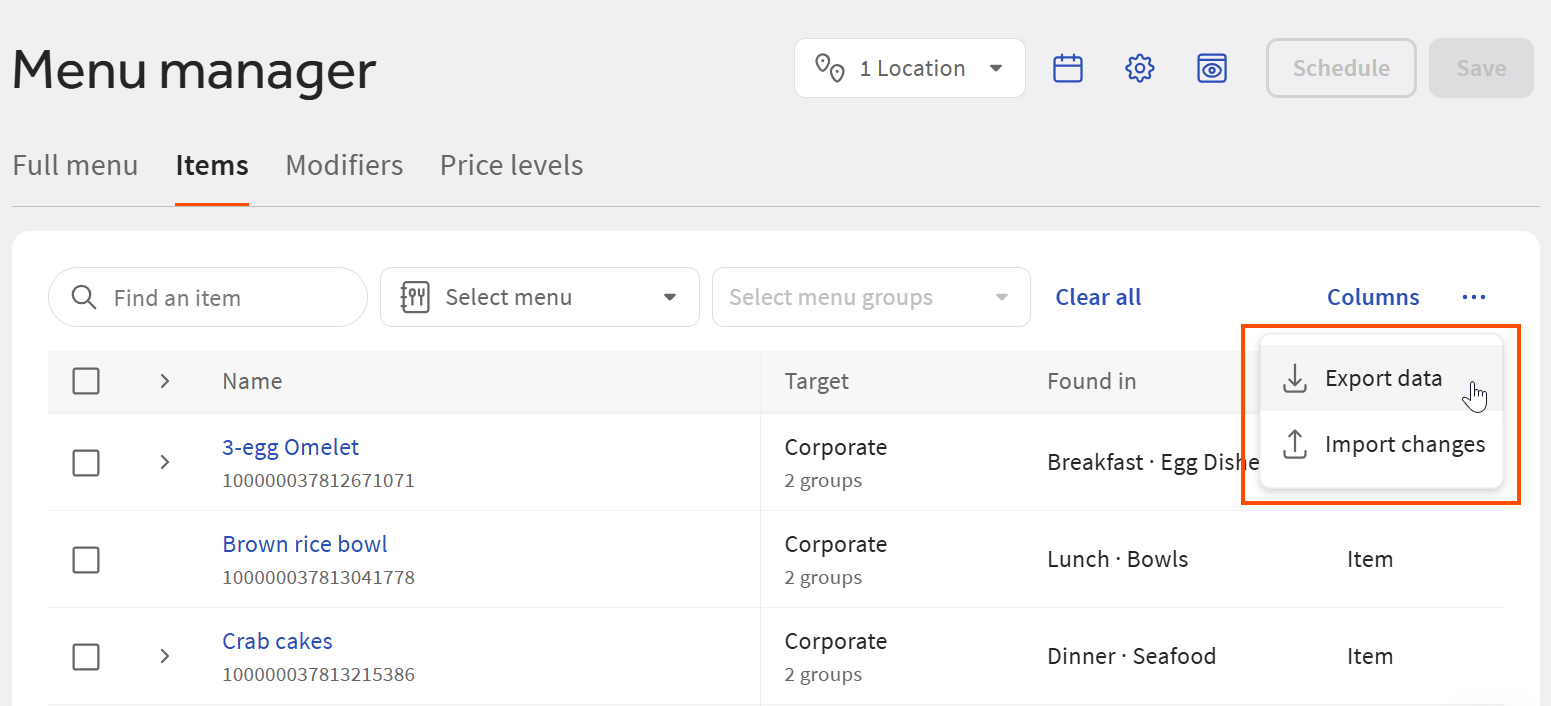
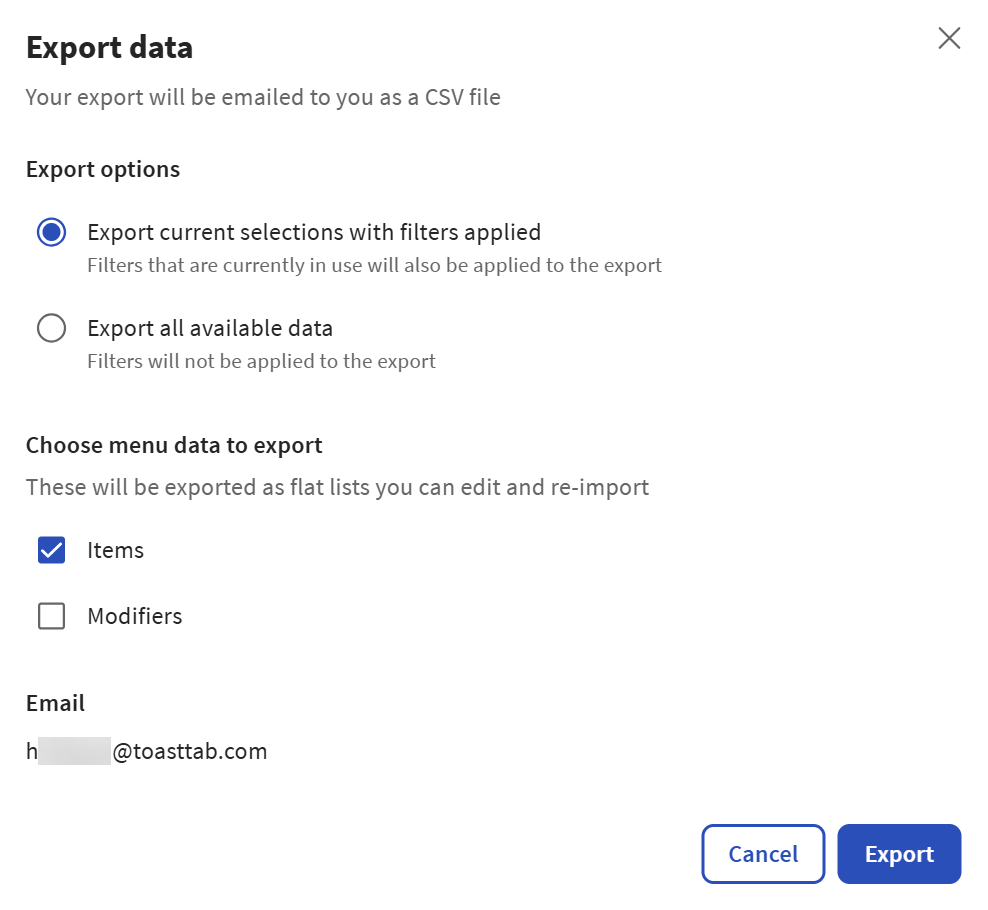
The Export data dialog opens.
-
From the Export options section, choose one of the following:
-
Export current selections with filters applied: The export applies the location, menu, and menu group filters you have specified for the Items and Modifiers views to the exported data.
-
Export all available data: The export ignores any filters you have specified on the Items and Modifiers views and exports all data.
-
-
From the Choose menu data to export section, choose the type of menu entity you want to export. You can choose Items, Modifiers, or both.
-
The Email section shows the email address you have on record with Toast. The export process sends an email to this address, with a link to the exported CVS file, when the file is ready for download. In the email, select the Download link. A Save As dialog opens.
-
Specify a name and a location to save the CSV file and select Save. By default, the CSV file is named
menu_export_[date].csv.
Each row in the exported spreadsheet represents a single, resolved price for a menu item or modifier. For example, consider a menu item that uses location-specific pricing and has prices for Boston, New York City, and Atlanta locations. For this menu item, there will be three rows in the exported spreadsheet, one for the Boston price, a second for the New York City price, and a third for the Atlanta price.
For modifiers, each row represents a single, resolved price for the modifier and its item reference. This includes properties from the item reference and the modifier override name or price, if they exist.
If a menu item is versioned, there are rows in the exported spreadsheet for each version's prices. For example, version A has two time-specific prices, while version B has three time-specific prices. The spreadsheet will include two rows for version A's prices and three rows for version B's.
When determining which item reference to use when resolving prices for a modifier, the export process does the following:
-
If only one version of the item reference exists, the export process uses that version, even if its target does not match the target of the modifier.
-
If more than one version of the item reference exists, the export process uses the version whose target matches the modifier. If none of the versions have a target that matches the modifier target, the export process omits that modifier from the export spreadsheet.
You can use the exported CSV file as the starting point for creating a new import spreadsheet, where you can modify base and location-specific prices in bulk and then re-import them using the bulk menu import tool. Currently, this workflow supports modifying menu items and modifiers with the following pricing configurations:
-
Base prices
-
Location-specific prices that use the base pricing strategy
-
Location-specific prices that use the menu-specific pricing strategy
-
Location-specific prices that use the time-specific pricing strategy
You must remove rows from the export spreadsheet for prices that
don't fall into the pricing categories listed above. Leaving them in
causes the import to fail. You can keep and edit prices for rows where
the value of the Pricing strategy column is
BASE or LOCATION_SPECIFIC. All other rows must
be removed.
In addition to prices, some of the other columns in the spreadsheet can be edited for import while others are informational only. For example, you can edit the Name and PLU columns but you cannot edit the Sales category name or Pricing strategy columns. Do not edit the informational columns. Doing so causes the import to fail. For information on which columns can be edited and which cannot, see Export spreadsheet columns.
To create additional rows for new price configurations, you can
copy an existing BASE or LOCATION-SPECIFIC row
and then edit it as needed. For example, to create an additional
location-specific price for a new location, you can copy an existing
LOCATION-SPECIFIC row and then edit it for the new
location.
Some of the columns require you to enter Toast-generated identifiers. For information on where you can find those identifiers, see Specifying Toast identifiers.
|
Note |
|
The bulk menu import tool was created before the menu manager export feature was developed. The bulk menu import tool has an existing set of import templates that you can copy and then fill out to make bulk changes to your menus data. The CSV file created by this export feature functions similarly to those templates but it has already been filled out for you using your existing menus data. |
To bulk edit and re-import menu item and modifier prices
-
Open the CSV file in an editor of your choice.
Note
If you want to keep the original CSV file intact, make a copy of the file and do your editing in the copy.
-
Remove any rows where the value of the Pricing strategy column is one of the following:
-
MENU_SPECIFIC -
OPEN_PRICE -
PRICE_LEVEL -
SIZE -
TIME_SPECIFIC
-
-
Edit the remaining rows as needed. Note that some columns can be edited while others are informational only and cannot be edited. For information on which columns you can edit and the acceptable values for each column, see Export spreadsheet columns.
-
Save your CSV file.
-
Choose Menus > Menu management > Menu manager to open the Menu manager page.
-
From the Show section, choose Items or Modifiers.
Note
The export function is only available from Items or Modifiers view. It is not available from Full menu or Price levels view.
-
From the overflow menu at the top of the menu item or modifier list, select the Import changes.
The Bulk import tool opens.
-
Follow the instructions in Uploading the bulk import CSV file to upload your CSV file to your Toast location using the bulk import tool.
-
If you encounter import failures, see Fixing import failures for information on resolving them.
The export spreadsheet has three columns related to menu-specific prices, Menu multiLocation ID, Menu name, and Menu price. These columns support two menu-specific pricing scenarios:
-
Menu items and modifiers that use the
MENU_SPECIFICpricing strategy (the Pricing strategy column set toMENU_SPECIFIC). -
Menu items and modifiers that use the
LOCATION_SPECIFICpricing strategy and those location-specific prices use theMENU_SPECIFICpricing strategy (the Pricing strategy column set toLOCATION_SPECIFICand the Location-Specific Pricing strategy column set toMENU_SPECIFIC).
The same is true of the five columns related to time-specific prices, Time price GUID, Time price, Time price days, Time price start, and Time price end. These columns support:
-
Menu items and modifiers that use the
TIME_SPECIFICpricing strategy (the Pricing strategy column set toTIME_SPECIFIC). -
Menu items and modifiers that use the
LOCATION_SPECIFICpricing strategy and those location-specific prices use theTIME_SPECIFICpricing strategy (the Pricing strategy column set toLOCATION_SPECIFICand the Location-specific pricing strategy column set toTIME_SPECIFIC).
To determine how the columns are used in any given row, inspect the Pricing strategy and Location-specific pricing strategy columns.
|
Note |
|
For more information on location-specific prices that use advanced pricing strategies, see Stacking pricing strategies. |
As described in One row per resolved price, there may be more than one row for an individual menu item or modifier in the export spreadsheet, if that menu item or modifier has more than one price associated with it. These rows are imported by the Toast platform in the order they appear in the spreadsheet. If you edit a value in a row, and there are subsequent rows for the same menu item or modifier, those subsequent rows will overwrite the value you edited.
When you import a spreadsheet, the Toast platform replaces the entire existing value with the new value in the import spreadsheet. The import process does not support applying a blank or empty value to an existing value. If you import a menu item or modifier that contains a blank value or empty spaces for a column, that column is not updated and it retains its original value.
The following table describes the export spreadsheet columns. It also provides acceptable values for each column if you use the export spreadsheet as the basis for creating an import spreadsheet where you can bulk edit base and location-specific prices.
Some of the columns in this spreadsheet are informational only. Do
not edit them when creating an import spreadsheet. Informational columns
are marked in the table below. Also, some columns are only applicable if
the export spreadsheet gets reused to create an import spreadsheet. For
example, the Operation column describes the type of import
operation to be performed.
| Column name | Description | ||
|---|---|---|---|
|
Operation (Informational only) |
The type of operation to be performed. This value
is always |
||
|
Operation ID (Informational only) |
A unique ID for the operation associated with this row in the spreadsheet. The export process assigns an operation ID of 1 to the first row in the spreadsheet and increments for each additional row. |
||
|
Entity type (Informational only) |
The type of menu entity represented in this row. Values include:
|
||
|
Version ID or operation ID (Informational only) |
Internal IDs assigned and used by the Toast platform. |
||
|
Number (Informational only) |
The multi-location ID for the item or modifier. |
||
|
Name |
The name of the menu item or modifier. Must follow these rules:
|
||
|
PLU |
The price lookup code assigned to the menu item or modifier. Must follow these rules:
|
||
|
Price |
A string representing the menu item or modifier's base price. The base price is used:
Price strings must follow these rules:
Examples of valid price strings: null "" ".12" "1" "10" "100" "100.00" ".1" "100.0" "100." "-.1" "(100.0)" Examples of invalid price strings: "$100" "$a" "." "€1" "10.." "..100" "10.0." "abc" "100.0$0" "$10a.00" "$" |
||
|
Available at (target) name (Informational only) |
The name of the location or location group defined in the Target GUID column. |
||
| Target GUID |
The Toast
|
||
|
Editable by (owner) name (Informational only) |
The name of the location or location group defined in the Owner GUID column. |
||
|
Owner GUID |
The Toast
|
||
|
Menu group(s) (Informational only) |
For menu items, this column contains the names of the menu group(s) that the menu item belongs to. This information provides additional context for menu items that are used in multiple groups. It is possible to reuse a menu group as a modifier group. For example, a Sides menu group could be reused as a Sides modifier group. In this scenario, all of the menu items in the group become modifiers and the Menu group(s) column displays the name of the reused menu group for those modifiers. |
||
|
Sales category name (Informational only) |
The name of the sales category defined in the Sales category multiLocation ID column. |
||
|
Sales category multiLocation ID (Informational only) |
The multi-location ID for the sales category assigned to this menu item or modifier. |
||
|
POS name |
The name of the menu item or modifier as displayed on the Toast POS app. Must follow these rules:
|
||
|
Kitchen name |
The name of the menu item or modifier as displayed on kitchen tickets and KDS devices. Must follow these rules:
|
||
|
Pricing strategy (Informational only) |
The pricing strategy for this menu item or modifier. Possible values include:
|
||
|
Location-specific target ID |
The Toast
Note that the location-specific target ID must be the same as, or an ancestor of, the target assigned to the menu item or modifier itself. The target for the menu item or modifier is defined in the Target ID column. For more information, see Restaurant groups and sub-groups. For more information, see Specifying Toast identifiers. |
||
|
Location-specific "applies To" name (Informational only) |
Name of the location group or location defined in the Location-specific target ID column. |
||
|
Location-specific prep time |
Reserved for future use. Do not edit this column's values. |
||
|
Location-specific prep station multiLocation IDs |
Reserved for future use. Do not edit this column's values. |
||
|
Location-specific pricing strategy |
If the menu item or modifier uses location-specific pricing, those location-specific prices can have their own pricing strategy. The Location-specific pricing strategy column defines the pricing strategy for the location-specific prices. Possible values include:
For more information, see Stacking pricing strategies. |
||
|
Location-specific base price |
A string representing a location-specific base price. Used:
Price strings must follow these rules:
Examples of valid price strings: null "" ".12" "1" "10" "100" "100.00" ".1" "100.0" "100." "-.1" "(100.0)" Examples of invalid price strings: "$100" "$a" "." "€1" "10.." "..100" "10.0." "abc" "100.0$0" "$10a.00" "$" |
||
|
Menu multiLocation ID |
The multi-location ID for the menu the price applies to. The Menu multiLocation ID, Menu name, and Menu price columns are used to support two different menu-specific pricing scenarios. For more information, see Menu-specific and time-specific price columns.
|
||
|
Menu name |
The name for the menu defined in the Menu multiLocation ID column. The Menu multiLocation ID, Menu name, and Menu price columns are used to support two different menu-specific pricing scenarios. For more information, see Menu-specific and time-specific price columns. |
||
|
Menu price |
The menu-specific price for the menu item or modifier. Menu price strings must follow these rules:
Examples of valid price strings: null "" ".12" "1" "10" "100" "100.00" ".1" "100.0" "100." "-.1" "(100.0)" Examples of invalid price strings: "$100" "$a" "." "€1" "10.." "..100" "10.0." "abc" "100.0$0" "$10a.00" "$" The Menu multiLocation ID, Menu name, and Menu price columns are used to support two different menu-specific pricing scenarios. For more information, see Menu-specific and time-specific price columns. |
||
|
Time price GUID (Informational only) |
The Toast GUID for this time-specific price. Unlike other Toast GUIDs, time-specific price GUIDs are not visible in Toast Web. They are only visible in the export spreadsheet. This means that, to create a new time-specific price for import, you must first create the price in Toast Web, export the spreadsheet to get a row with the price's GUID filled in for you, and then complete the row in the spreadsheet. The Time price GUID, Time price, Time price days, Time price start, and Time price end are used to support two different time-specific pricing scenarios. For more information, see Menu-specific and time-specific price columns. |
||
|
Time price |
The time-specific price for the menu item or modifier. Time price strings must follow these rules:
Examples of valid price strings: null "" ".12" "1" "10" "100" "100.00" ".1" "100.0" "100." "-.1" "(100.0)" Examples of invalid price strings: "$100" "$a" "." "€1" "10.." "..100" "10.0." "abc" "100.0$0" "$10a.00" "$" The Time price GUID, Time price, Time price days, Time price start, and Time price end are used to support two different time-specific pricing scenarios. For more information, see Menu-specific and time-specific price columns. |
||
|
Time price days |
A comma-separated list of the days that the time-specific price applies. Day names must be in capital letters. For example: MONDAY,WEDNESDAY,FRIDAY The Time price GUID, Time price, Time price days, Time price start, and Time price end are used to support two different time-specific pricing scenarios. For more information, see Menu-specific and time-specific price columns. |
||
|
Time price start |
The start time for this time-specific price, in the
format
The Toast platform validates the start and times for time-specific prices during menu data imports. A row will fail if it has a start or end time that conflicts with an existing time-specific price. The Time price GUID, Time price, Time price days, Time price start, and Time price end are used to support two different time-specific pricing scenarios. For more information, see Menu-specific and time-specific price columns. |
||
|
Time price end |
The end time for this time-specific price, in the
format
The Toast platform validates the start and times for time-specific prices during menu data imports. A row will fail if it has a start or end time that conflicts with an existing time-specific price. The Time price GUID, Time price, Time price days, Time price start, and Time price end are used to support two different time-specific pricing scenarios. For more information, see Menu-specific and time-specific price columns. |