Your guests can use a house account as a payment method to pay for Toast orders.
To allow your guests to pay using a house account, you need to turn on the Take house account payments on a POS setting in Toast Web.
To enable house accounts as a payment method
-
Go to Finance > Payments > House accounts > Settings to open the Settings page. Settings link.
-
Switch the Take house account payments on a POS toggle to On.
-
Select the Save button to save your changes and then the Publish all changes button to publish your changes.
Note
If a house account has been enabled as a payment method on the Toast POS app, employees can access this feature without manager approval.
Guests who have a house account and the Take house account payments on a POS setting set to On can choose to pay for a Toast order with a house account.
|
Note |
|
Phone number inputs are not available in the United Kingdom (UK). |
To pay for an order with a house account
-
On the Toast POS home screen, select an order screen.
-
Place the order and then select the Pay button to open the payment screen.
-
On the payment screen, select the House account button. This opens the Customer search - House account dialog.
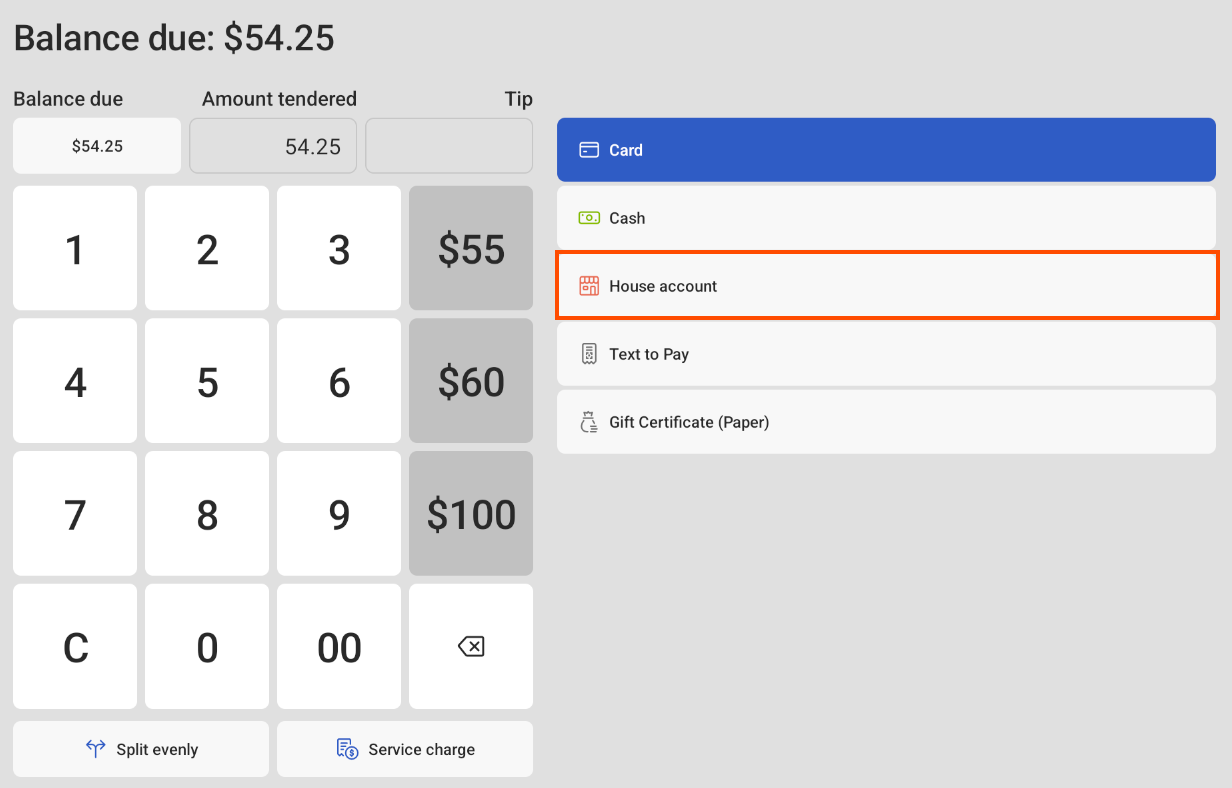
-
In the Customer search - House account dialog, enter the guest's first or last name, email address, house account number, or phone number to search for the house account. Partial information can be used to search.
-
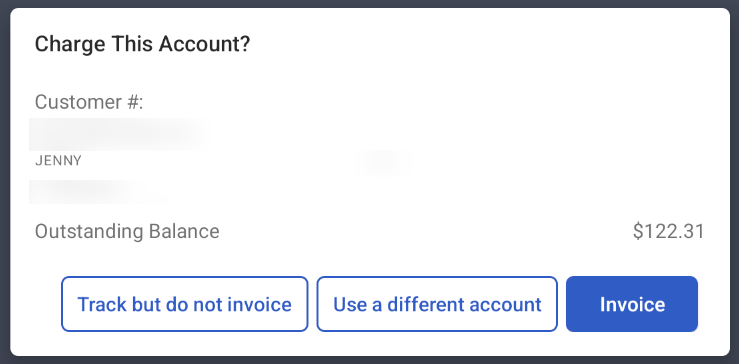
Select the Select button to choose the house account. This opens the Charge this account dialog.
-
In the Charge this account dialog, select how you want to charge the order:
-
Switch account: Use this option if the guest is going to pay for the order using another house account.
-
Track (do not charge): Use this option if the guest is going to pay for the order but not use the house account.
Note
If you choose to Track (do not charge), the total order spend is calculated into the total spend for the house account.
-
Charge account: Use this option if the guest is going to pay for the order using the house account. This option closes the order on the Toast POS and defers the payment. The order will appear on the house account’s list of activities in Toast Web.
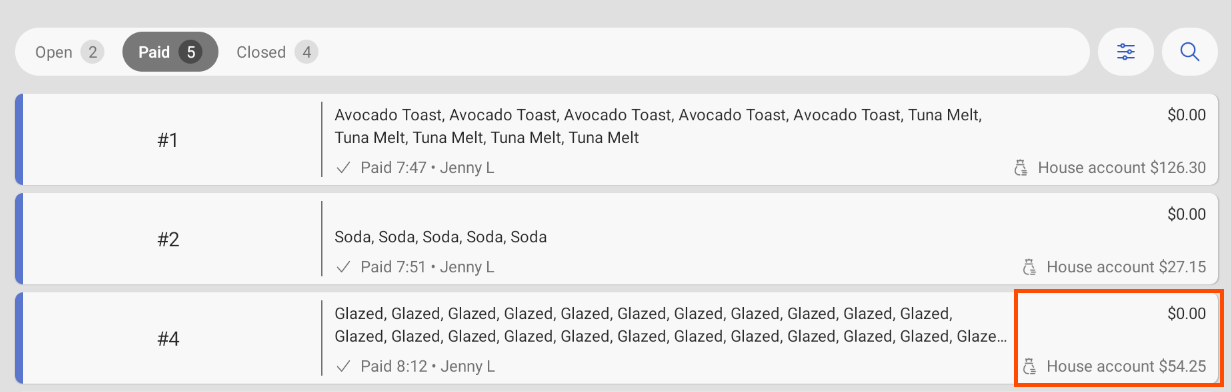
On the Payment Terminal screen on the Toast POS device, checks that have been paid by a house account show the total check amount and the house account icon. For more information, see House accounts.
Note
You can add a tip to a house account transaction. To add a tip, you must configure your digital receipts settings. For more information, see this Toast Support article.
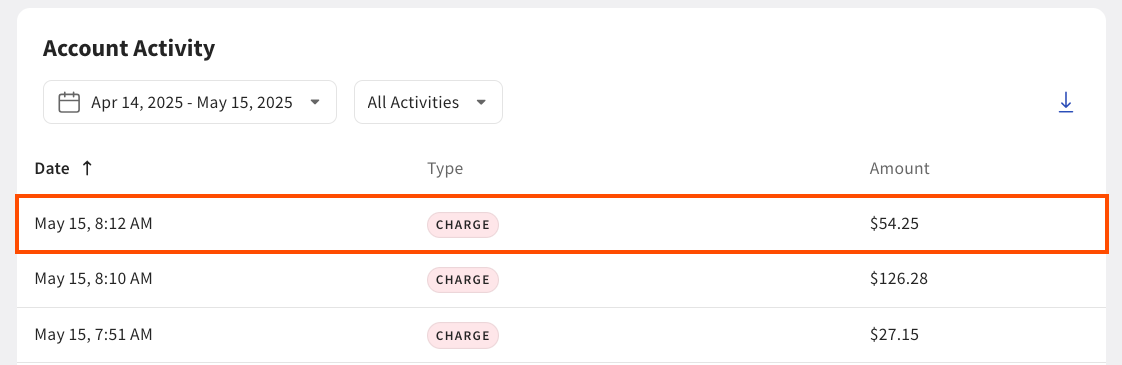
On the House account profile page in Toast Web, you can view the order (transaction) in the Account activity section. The transaction displays CHARGE as the activity type and the amount charged.
-
If a house account has a negative balance, guests can pay for their order using the credit on the house account. When prompted on the Toast POS device, select House account as the payment method. The house account credit is used to pay for the order and no payment is necessary until the balance is positive.
The total of the transaction is deducted from the house account and the outstanding balance is shown on the House account profile page. Transaction details are shown in the Account activity section. The transaction displays CHARGE as the activity type and the amount charged.
You can move a check(s) that was accidentally closed to the wrong house account.
|
Note |
|
If a check is opened and closed on the same day, you can skip steps 1-5 and proceed to step 6. Checks opened and closed on the same day can be moved on the Payment Terminal screen on a Toast POS device. |
To move a closed check to a different house account
-
Go to Reports > Sales > Orders to open the Orders report.
-
Locate the closed order that you want to move to different house account.
-
Select the Re-open check link next to the check number. A confirmation dialog appears asking if you want to reopen the check.
-
Select the OK button to proceed. This reopens the check and sends it to all POS devices.
-
Locate the reopened check on the Toast POS device. The reopened check appears under the Paid tab on the Payment Terminal screen.
-
On the Payment Terminal screen, select the reopened check.
-
Select the Pay $ button to open the payment screen.
-
On the order screen, select the house account on the order details pane.
-
Select the Remove button to remove the house account. This opens the payment screen.
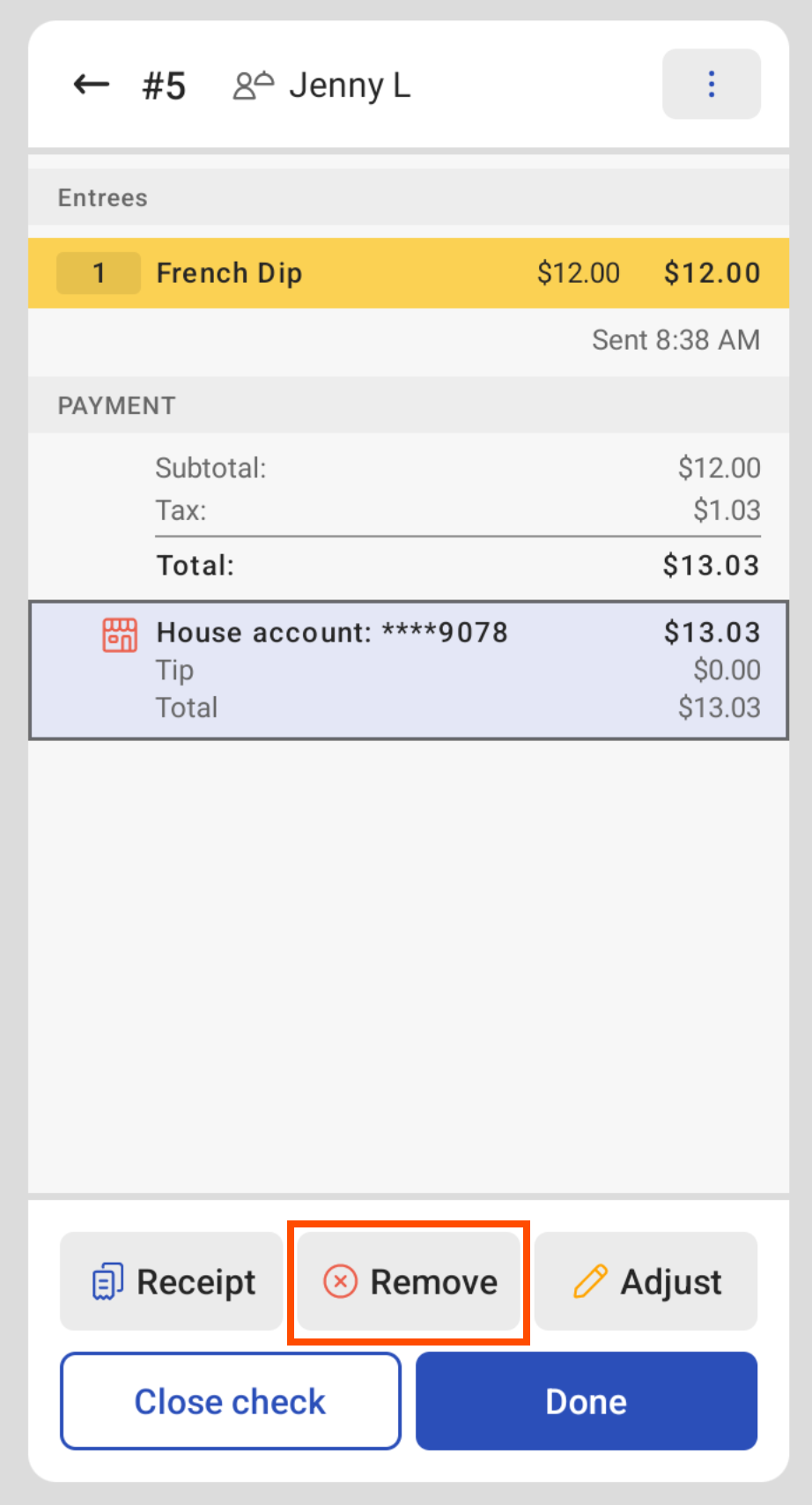
-
On the payment screen, select the House account button to select another house account to complete the payment.
For more information, see Reopening closed checks.