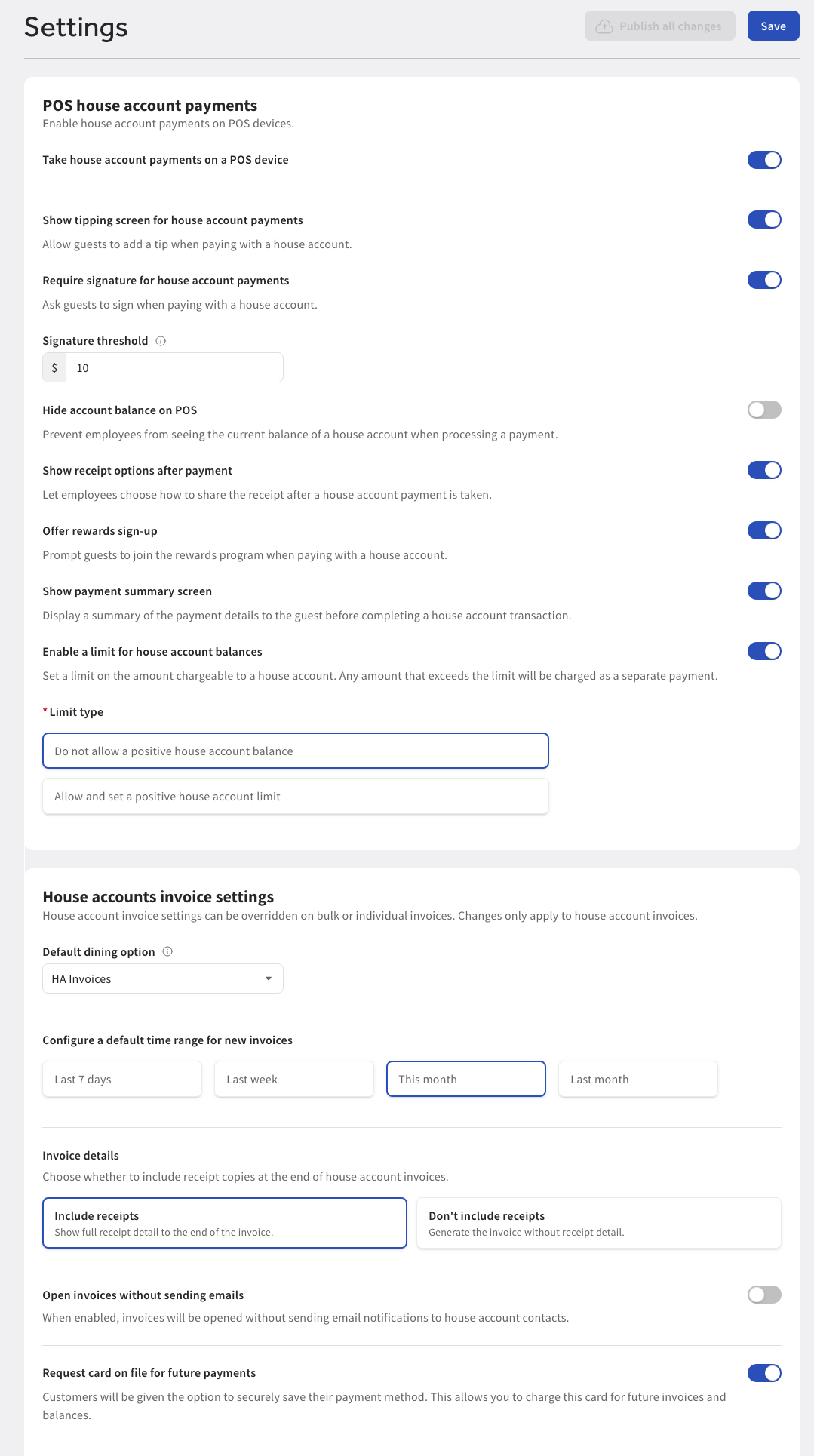
You can configure house account settings on the Settings page in Toast Web. Go to Finance > Payments > House accounts > Settings to open the Settings page. On the Settings page, you can configure the following:
-
POS house account payment settings:
-
Choose to enable house accounts as a payment method on a POS device. For more information, see Enabling house accounts as a payment method.
Note
This setting must be enabled to show all other settings in this section.
-
Choose to show the tipping screen for house account payments. This setting allows guests to add a tip when paying with a house account.
-
Choose to require guest signatures for house account payments. If configured, set the payment amount that requires a signature.
-
Choose to prevent all employees from viewing a guest’s house account balance when processing a house account payment.
-
Choose to allow employees to select how to share the receipt after processing a house account payment.
-
Choose to prompt employees to ask guests to join available rewards programs when paying with a house account.
-
Choose to show guests a summary of the house account payment before completing the payment.
-
Choose to set a limit on the amount that can be charged to a house account. Any amount that exceeds the set limit is charged as a separate payment.
-
Choose to not allow a positive house account balance.
-
Choose to allow a positive house account balance.
-
-
-
House account invoice settings:
-
Select a default dining option. Choose a dining option to filter POS orders linked to a house account. For more information, see Managing house account invoices.
-
Set a default time range to generate new house account invoices.
-
Choose to include receipts with house account invoices.
-
Choose to create open invoices without sending email notifications to guests.
-
Choose to allow guests to save a payment card to their house account. For more information, see Managing house account information.
-