|
Note |
|
The load balancing feature is only available for new KDS, previously known as grid view. |
You can use load balancing to divide kitchen tickets between prep station KDS devices using the same prep station. For information about load balancing, see Routing using load balancing.
To start using load balancing, you need to:
You can modify or archive load-balancing groups after they are created. For more information, see Editing or archiving load-balancing groups. For an example workflow of a kitchen using load balancing, see KDS workflow using load balancing.
First, create at least two load-balancing groups. Tickets can then be split between the two groups.
To set up load-balancing groups
-
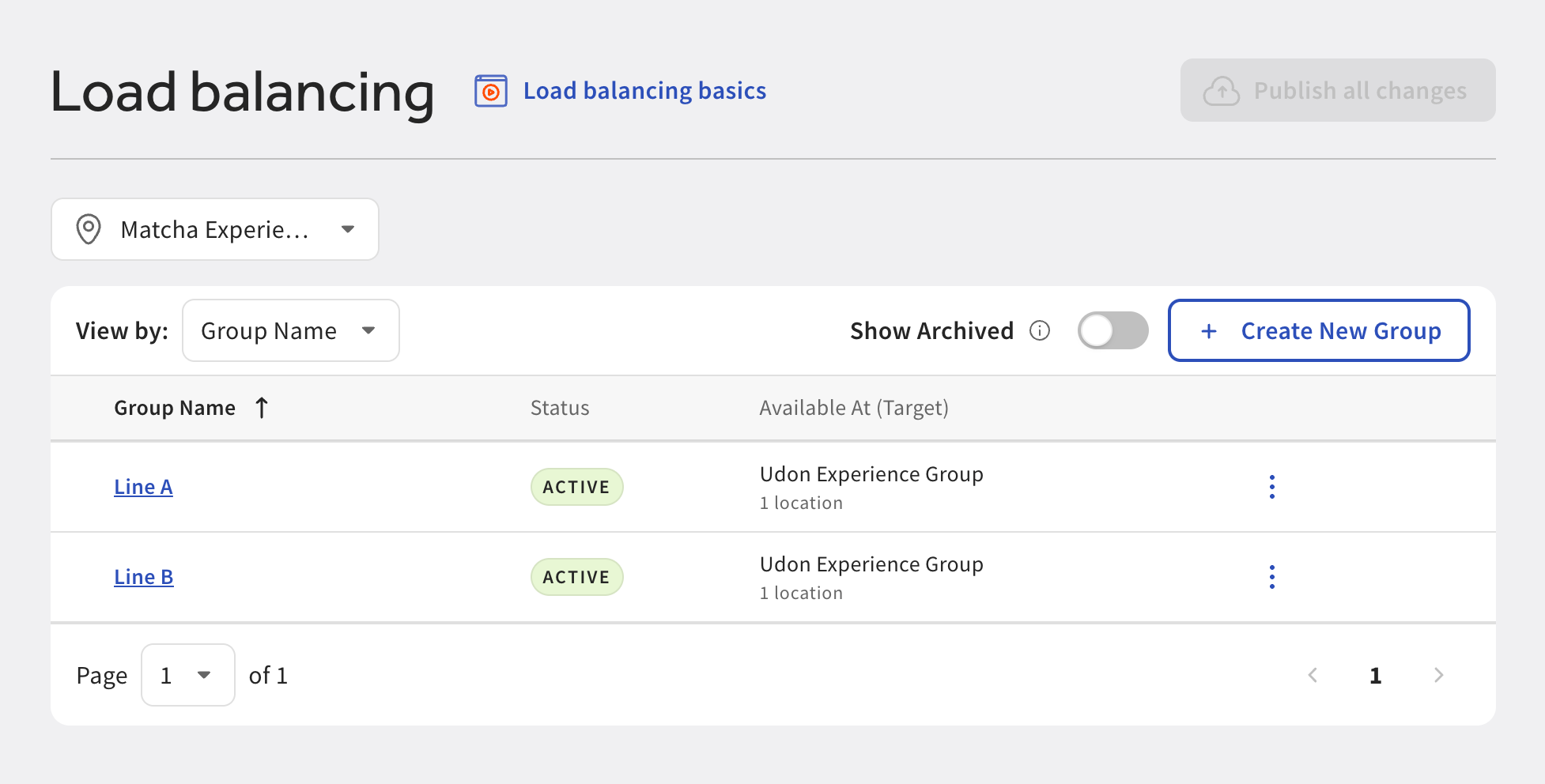
Go to Kitchen > Kitchen stations > Load balancing. The Load balancing page opens.
Note
When initially opening this page, you are prompted to create two load-balancing groups.
-
Select + Create New Group. The Create group pane opens.
-
Add a Group name.
Note
The load-balancing group name appears in two places on the KDS device:
-
On prep station KDS devices, it is part of the prep station name, which includes the prep stations that are assigned to that device.
-
On expediter KDS devices, it is next to the item name after it is claimed by the load-balancing group.
Toast Support recommends keeping the name short.
-
-
If needed, use the Available at (Target) setting to select a target location. For more information about targets, see Targets.
-
Select Create group. The pane closes and the group is added to the list of load-balancing groups.
-
Save and publish your changes.
If needed, turn on start queue. For information about start queue, see Using start queue.
|
Note |
|
Depending on your kitchen setup, you will need the Start queue setting to be either On - Manually turn on for each device or On - All devices at this restaurant. For examples about how you can use start queue with load balancing, see Example load balancing scenarios. |
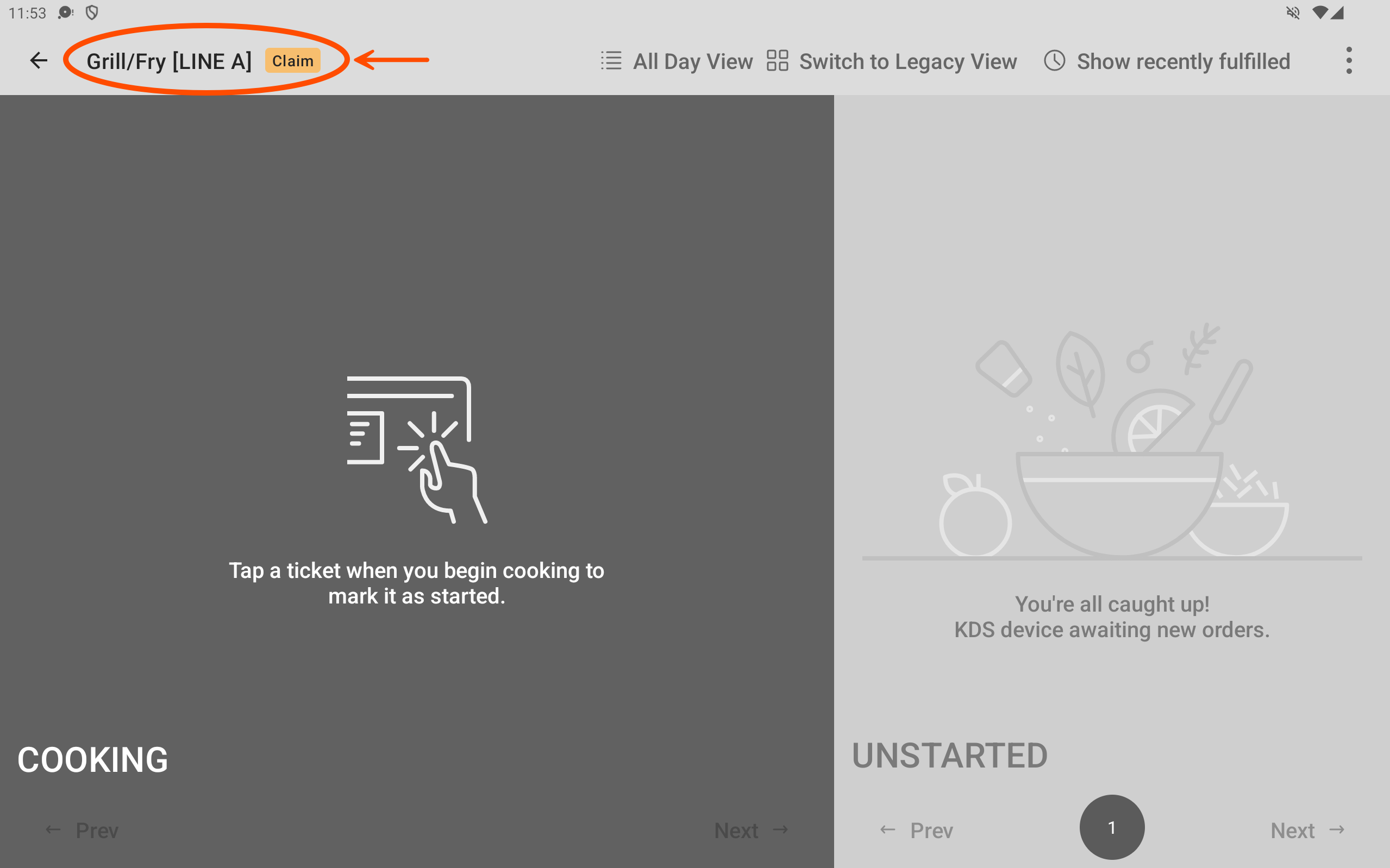
Next, assign a load-balancing group to a prep station KDS device. Depending on your kitchen setup, you can also choose to configure the KDS device to claim tickets for the load-balancing group. That prep station KDS device is now the lead claiming device. Lead claiming devices can claim tickets and are marked with Claim next to the prep station KDS device name.
|
Note |
|
A prep station KDS device that is configured to be a lead claiming device must also use start queue. |
To assign a load-balancing group to a KDS device
|
Note |
|
You can only configure load balancing for prep station KDS devices. |
-
On your KDS device, access the Device Setup screen.
-
Go to the Kitchen Setup section.
-
Select Load Balancing. The load balancing screen opens.
-
Select Load-balancing group. The selection screen opens.
-
Choose the load-balancing group that best fits the KDS device.
-
Select Save. You are returned to the load balancing screen.
-
If you want to make the current KDS a lead claiming device, turn on the Lead claiming device setting.
Note
Toast Support recommends using one lead claiming device for each load-balancing group.
-
Return to the KDS screen.
After you create a load-balancing group, you can choose to edit or to archive it using the overflow menu (the ⋮ icon).
To edit the load-balancing group
-
To open the Edit group pane, choose to:
-
Select the name of the load-balancing group from under the Group Name column, or
-
Select the overflow menu (the ⋮ icon) and select Edit.
The Edit group pane opens.
-
-
Update either the Group name or the Available at (Target) values.
-
Select Save. The Edit group pane closes and the changes are reflected in the load-balancing group table.
-
Save and publish your changes.
To archive a load-balancing group, select the overflow menu (the ⋮ icon) and select Archive. If you are showing archived groups, the Status column shows ARCHIVED.
Archived load-balancing groups are initially hidden, but are shown by selecting the Show Archived toggle. Archiving a group prevents you from choosing it on a KDS device. If you archive a group and publish your changes when a KDS device currently uses that group, load balancing is disabled on that device until you select a new load-balancing group.
|
Note |
|
The Status column shows whether a group is ACTIVE, which means it can be used by KDS devices, or ARCHIVED, which means it cannot be used by KDS devices. |
An archived load-balancing group can be unarchived. To unarchive a load-balancing group, select the overflow menu (the ⋮ icon) and select Unarchive.