If you use a menu item across multiple locations, but need to change the prep stations assigned to the item at specific locations, you can create an override for the prep stations. For example, a menu item applies to the Corporate group. All locations in the group use these prep stations, unless you use an override. For more information, see Overrides.
|
Note |
|
If you inherit prep stations from the menu group or menu, you cannot create overrides. |
To create an override for the prep stations assigned to a menu item, you need permission to edit an item’s assigned prep stations for the location or group that the menu item applies to. For example, you want to add an override to the Sandwich menu item, which applies to the Corporate group. To add an override for a Baltimore location, you need edit permissions for the Corporate group.
To create custom prep stations
-
Go to Menus > Menu management > Menu manager. The Menu manager page opens.
-
From the Show section, choose Full menu.
-
Select the locations whose menu data you want to edit from the locations control.
-
Use the expand icons to locate the menu item you want to edit.
-
Select the name of the menu item. A side pane opens.
-
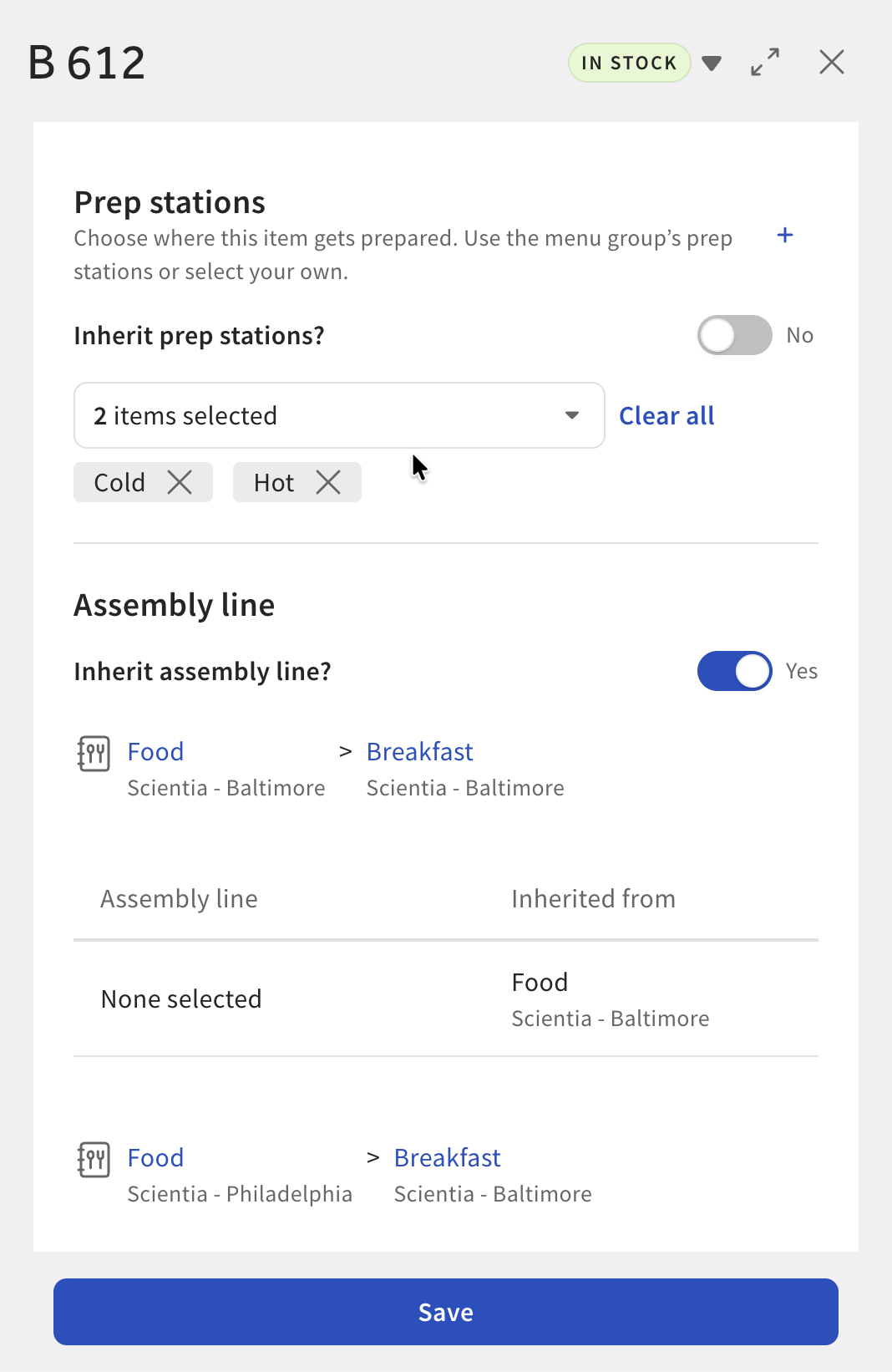
In the Kitchen section, go to the Prep stations setting.
-
Depending on whether custom prep stations have already been created, you can either:
-
Select the + icon.
-
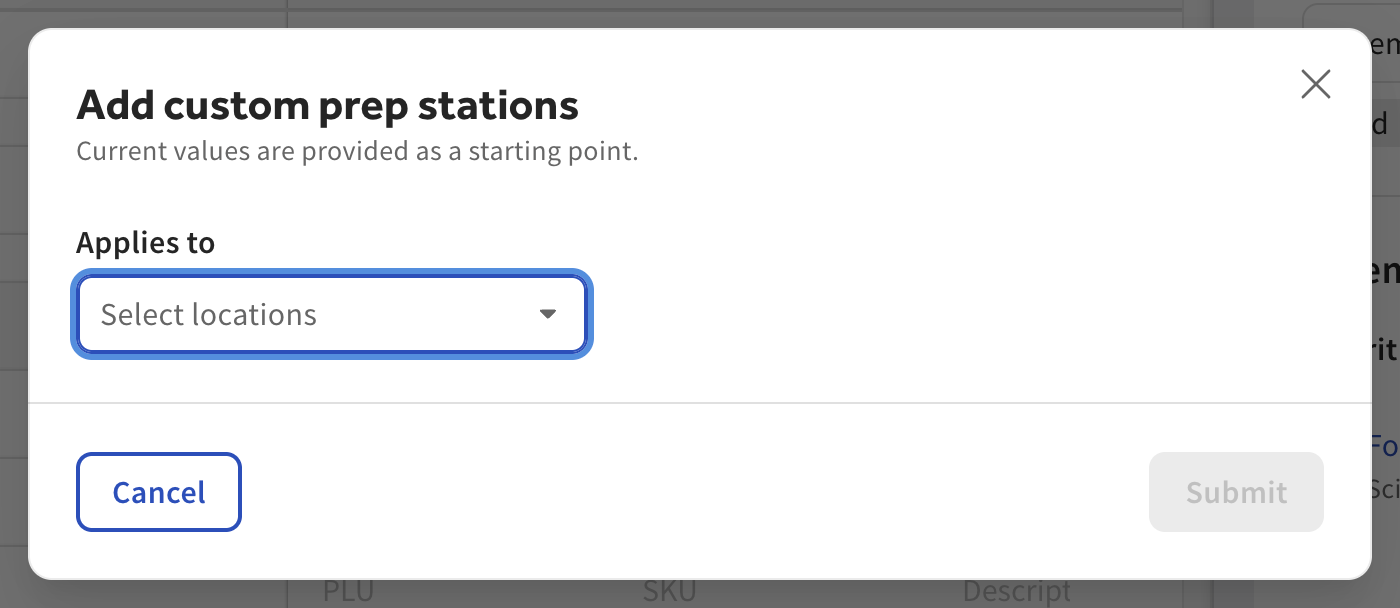
Under the Customize by location table, select + Add custom prep stations.
The Add custom prep stations dialog opens.
-
-
Select the Applies to dropdown menu. The Select location dialog opens.
-
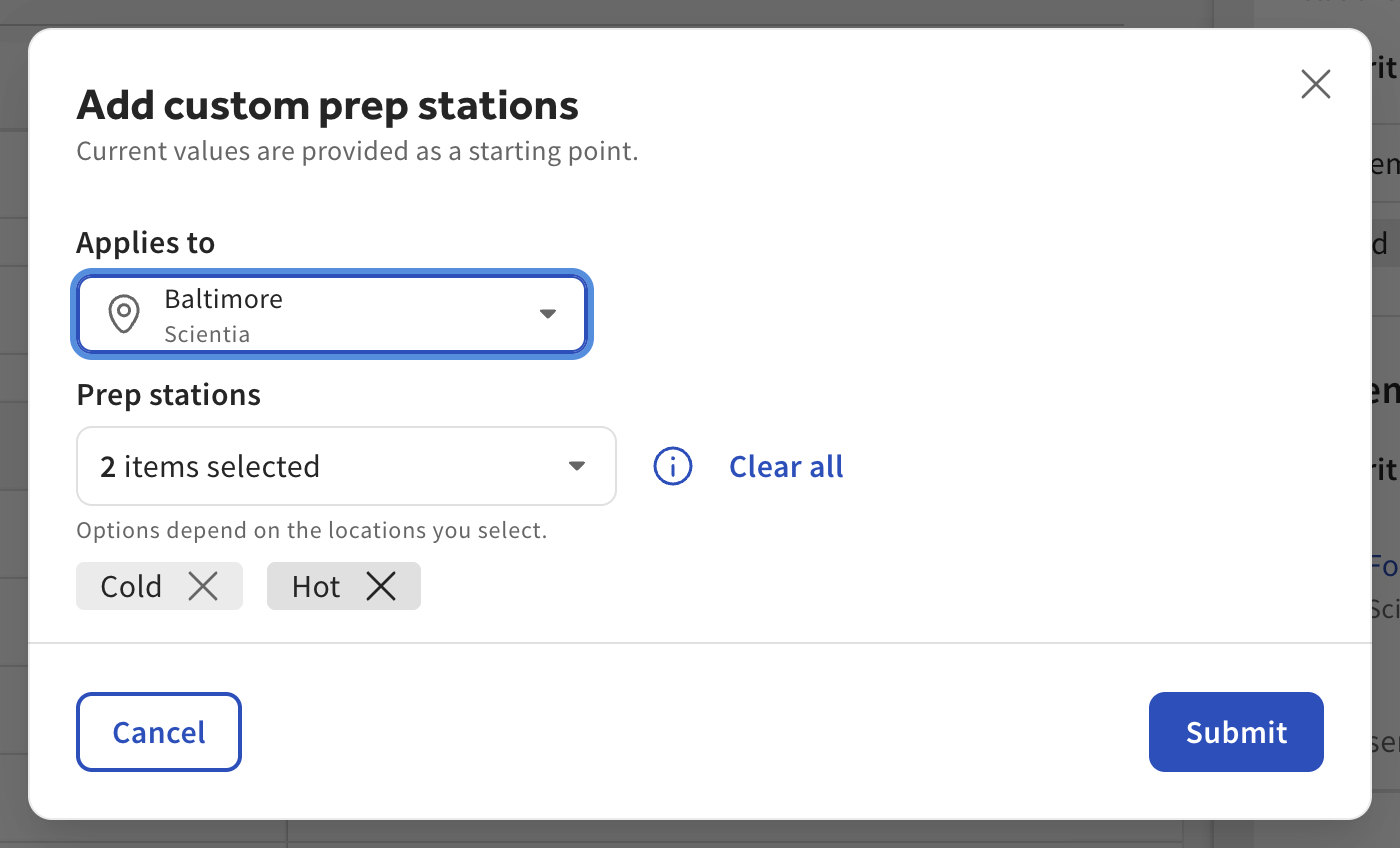
Select the location or group for the custom prep stations. The Select location dialog closes. The Add custom prep stations dialog now displays the prep stations assigned by default.
Note
You can only create one custom prep stations list for each location or group.
-
Edit the prep stations included in the custom prep stations list:
-
To add a prep station, select the Prep stations dropdown menu, and choose the prep stations you want to use. You can use the search bar to find a specific prep station.
-
To remove all prep stations currently assigned, select Clear all.
-
To remove a single prep station, you can either:
-
Below the Prep stations dropdown menu, select the button with the prep station name followed by an X.
-
Clear the checkbox of a prep station in the Prep stations dropdown menu.
-
-
-
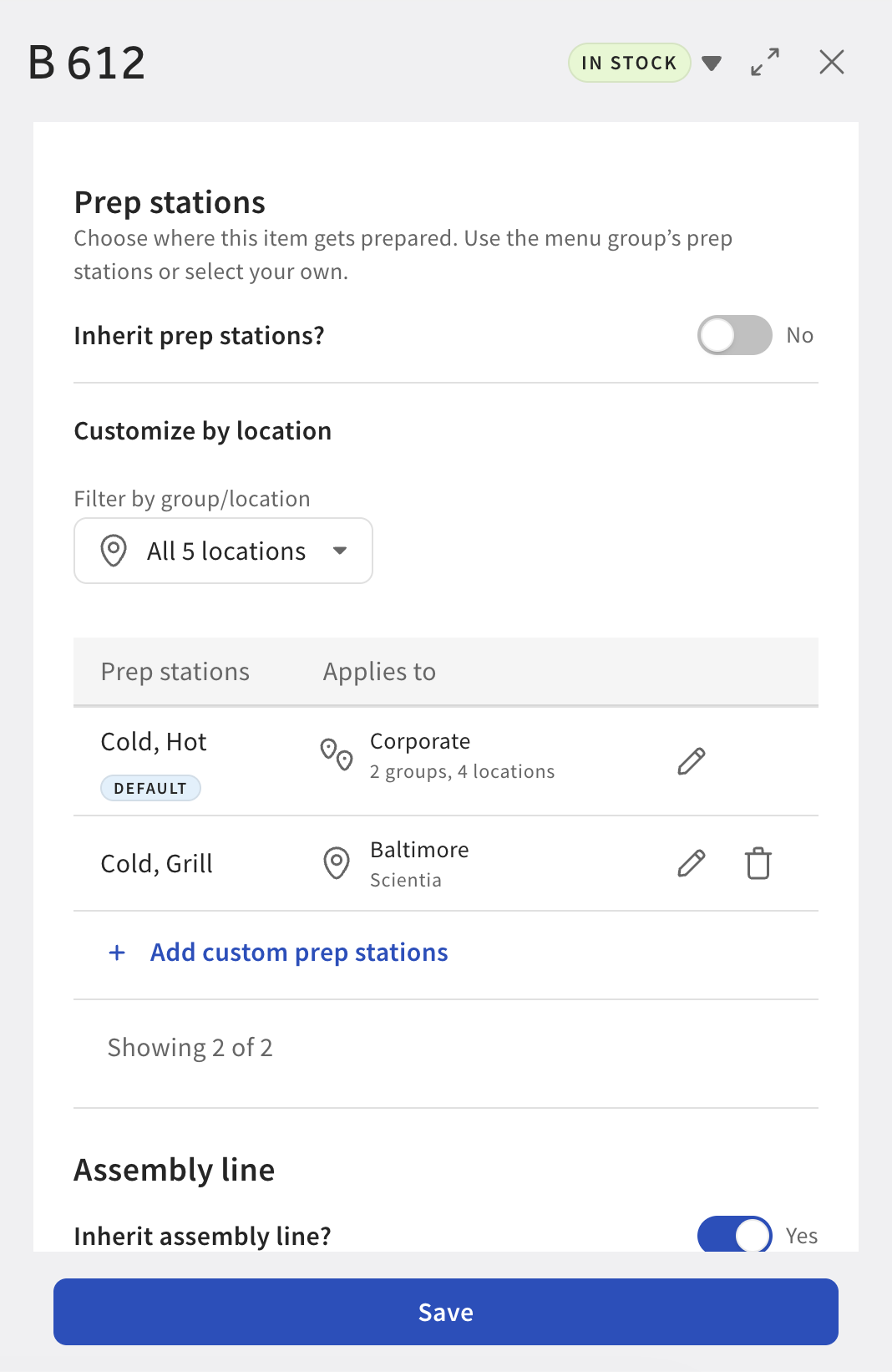
Select Submit. The Add custom prep stations dialog closes. A new entry is added to the Customize by location table.
-
At the bottom of the side pane, select Save.
After you create a custom prep stations list, you can edit its prep stations by selecting the pencil icon.
|
Note |
|
You cannot change which location or location group the custom prep stations apply to. You can only change which prep stations are included in the list. |
To edit custom prep stations
-
Go to Menus > Menu management > Menu manager. The Menu manager page opens.
-
From the Show section, choose Full menu.
-
Select the locations whose menu data you want to edit from the locations control.
-
Use the expand icons to locate the menu item you want to edit.
-
Select the name of the menu item. A side pane opens.
-
In the Kitchen section, go to the Prep stations setting.
Note
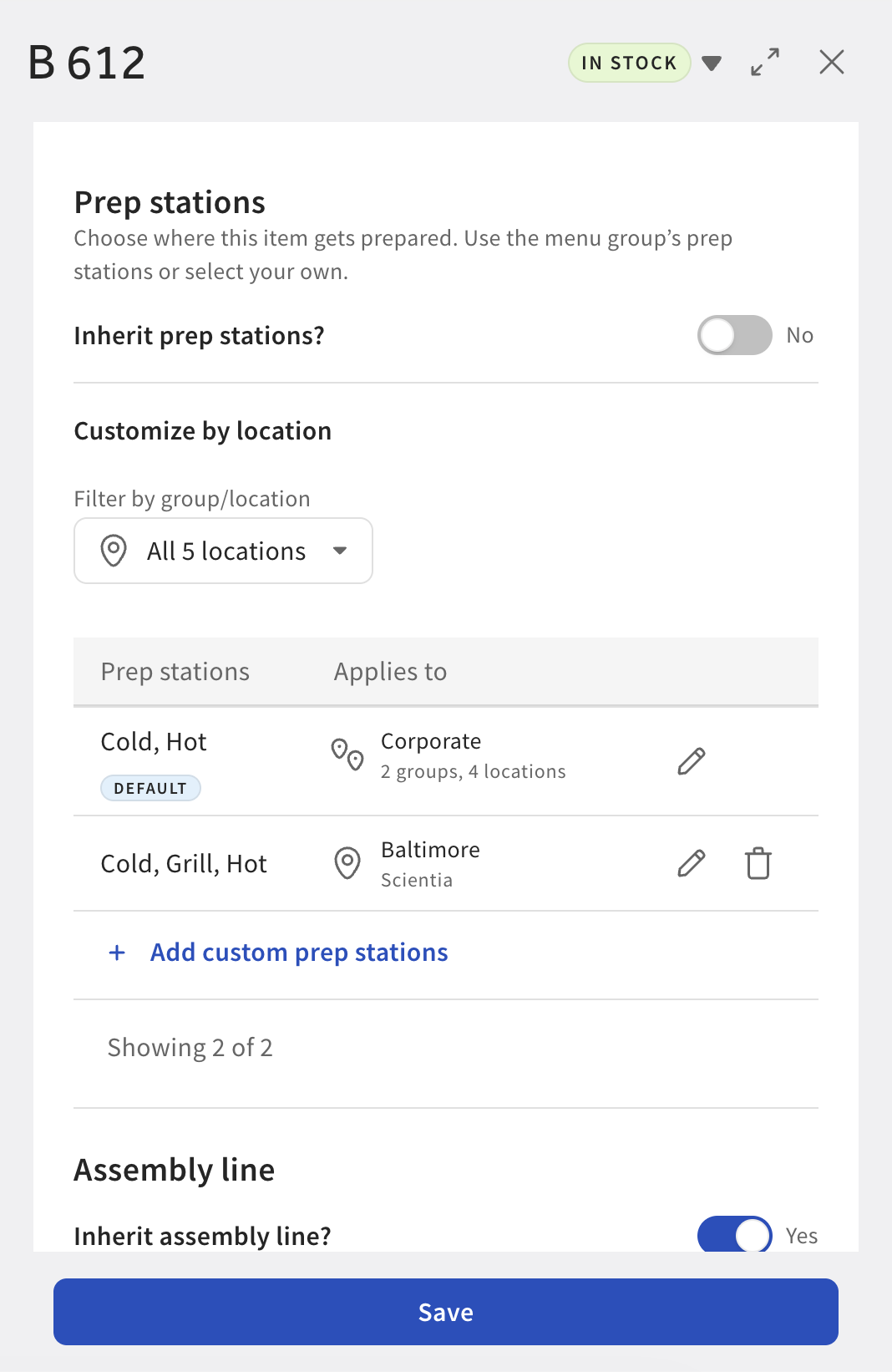
Optionally, use the Filter by group/location dropdown menu to help find a specific custom prep station list.
-
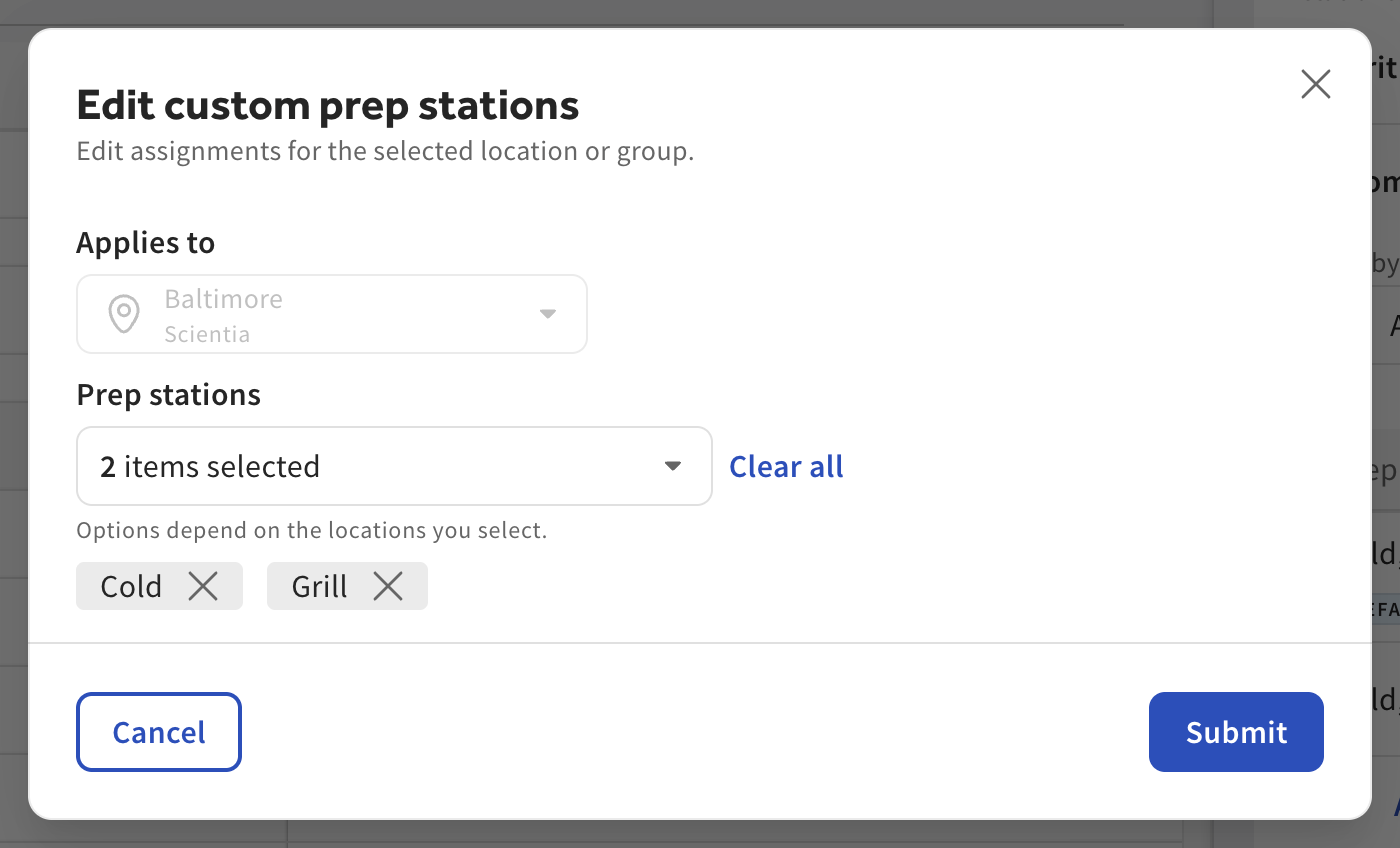
To edit a custom prep stations list, select the pencil icon on the right side of the row. The Edit custom prep stations dialog opens.
-
Edit the prep stations included in the custom prep stations list:
-
To add a prep station, select the Prep stations dropdown menu, and choose the prep stations you want to use. You can use the search bar to find a specific prep station.
-
To remove all prep stations currently assigned, select Clear all.
-
To remove a single prep station, you can either:
-
Below the Prep stations dropdown menu, select the button with the prep station name followed by an X.
-
Clear the checkbox of a prep station in the Prep stations dropdown menu.
-
-
-
Select Submit. The Edit custom prep stations dialog closes. The Customize by location table entry is updated with your changes.
-
At the bottom of the side pane, select Save.
You can delete custom prep stations using the delete icon (trash can) to the right of a custom prep stations row. When you delete custom prep stations, a confirmation message appears asking you to confirm the deletion. This confirmation message specifies the values the location or location group will use after the custom prep stations are deleted. Select Delete to confirm.
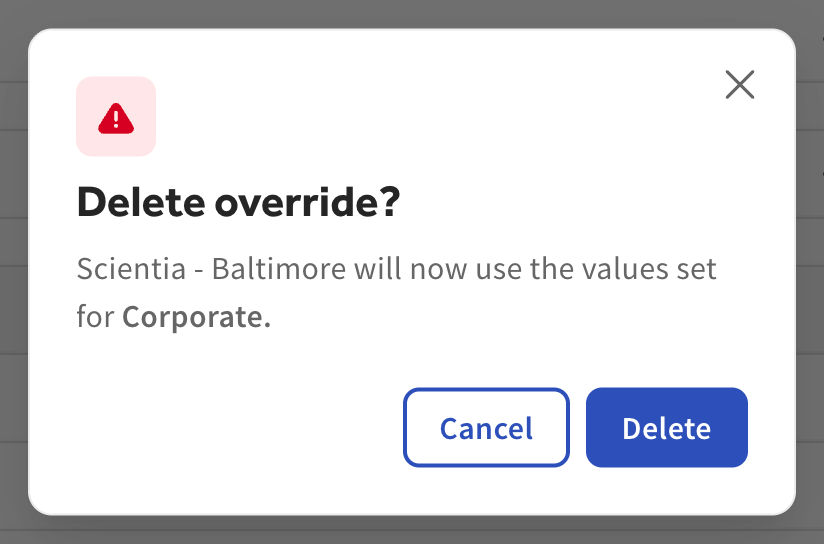
For example, default prep stations apply to the East location group, which includes Baltimore and Philadelphia. If you delete the custom prep stations that apply to Baltimore, the Baltimore location will now use the same prep stations as the East location group.