|
Note |
|
To mark items as required, you must have the Edit Full Menu permission for the location or location group the menu group applies to. |
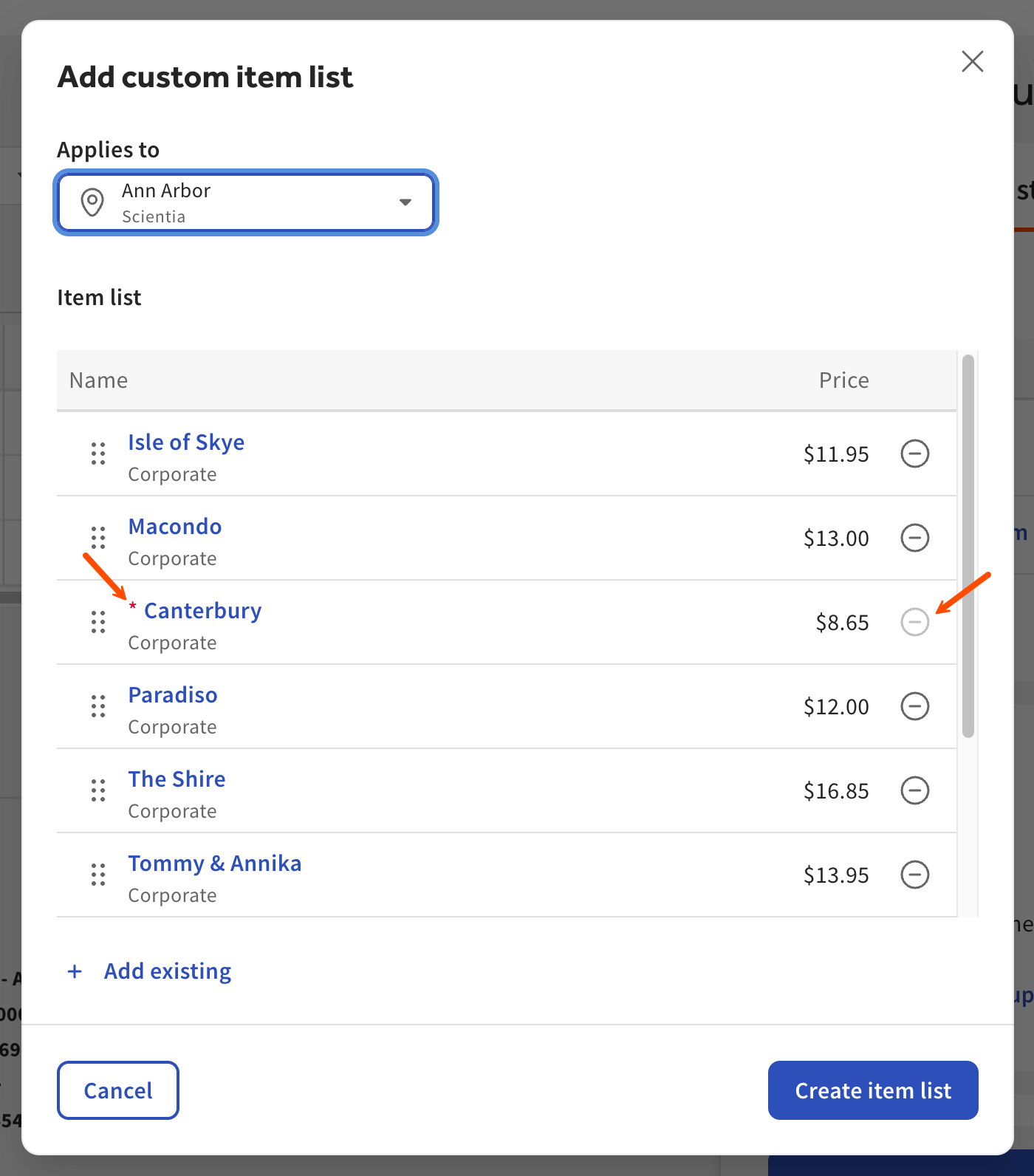
When an item is marked as required, the location or location group assigned to the menu group automatically includes the required item. Required items cannot be removed when creating or editing a custom item list.
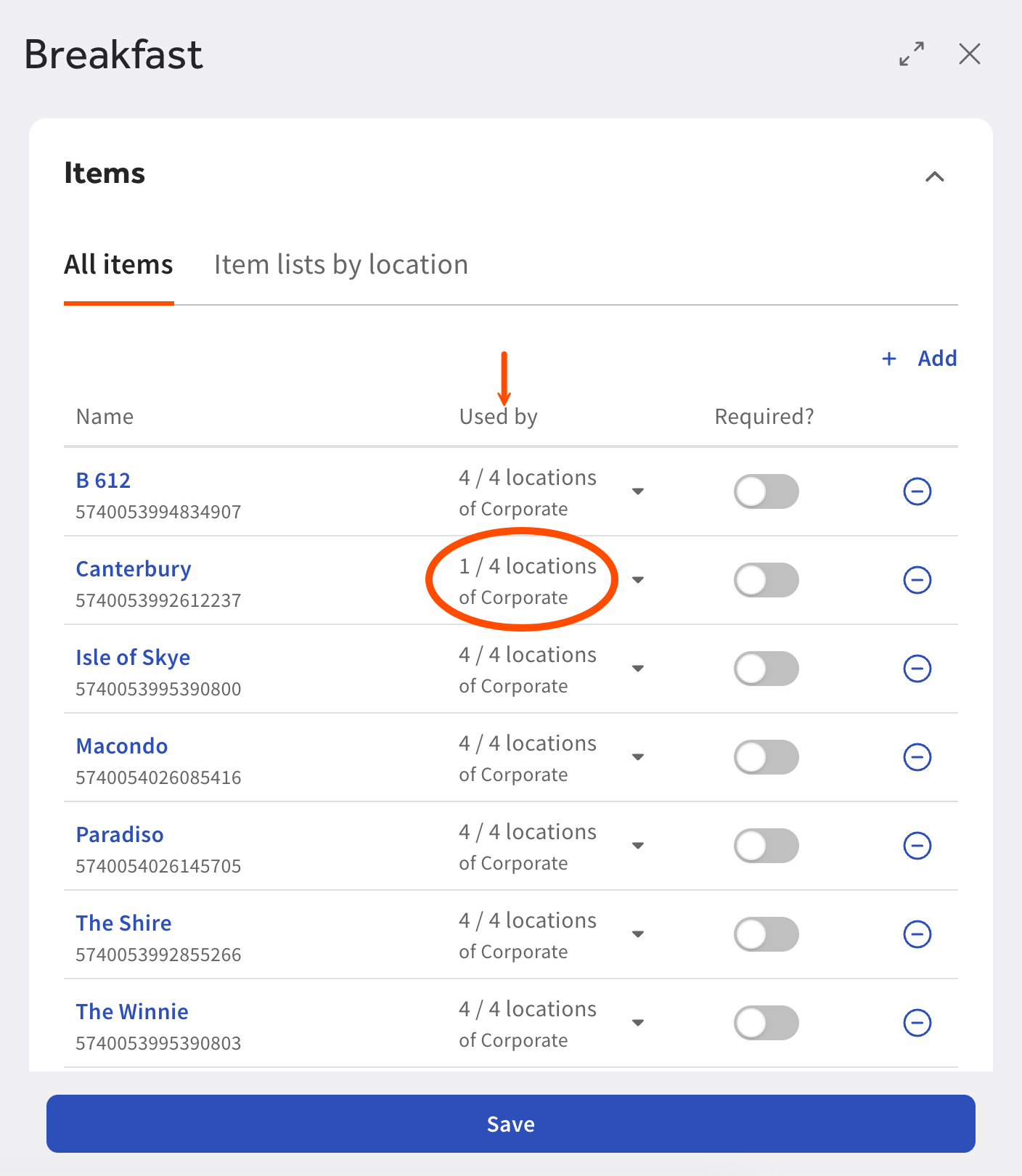
Here is an example of the All items table, before an item is required. The Used by column shows how many locations are currently using this menu item.
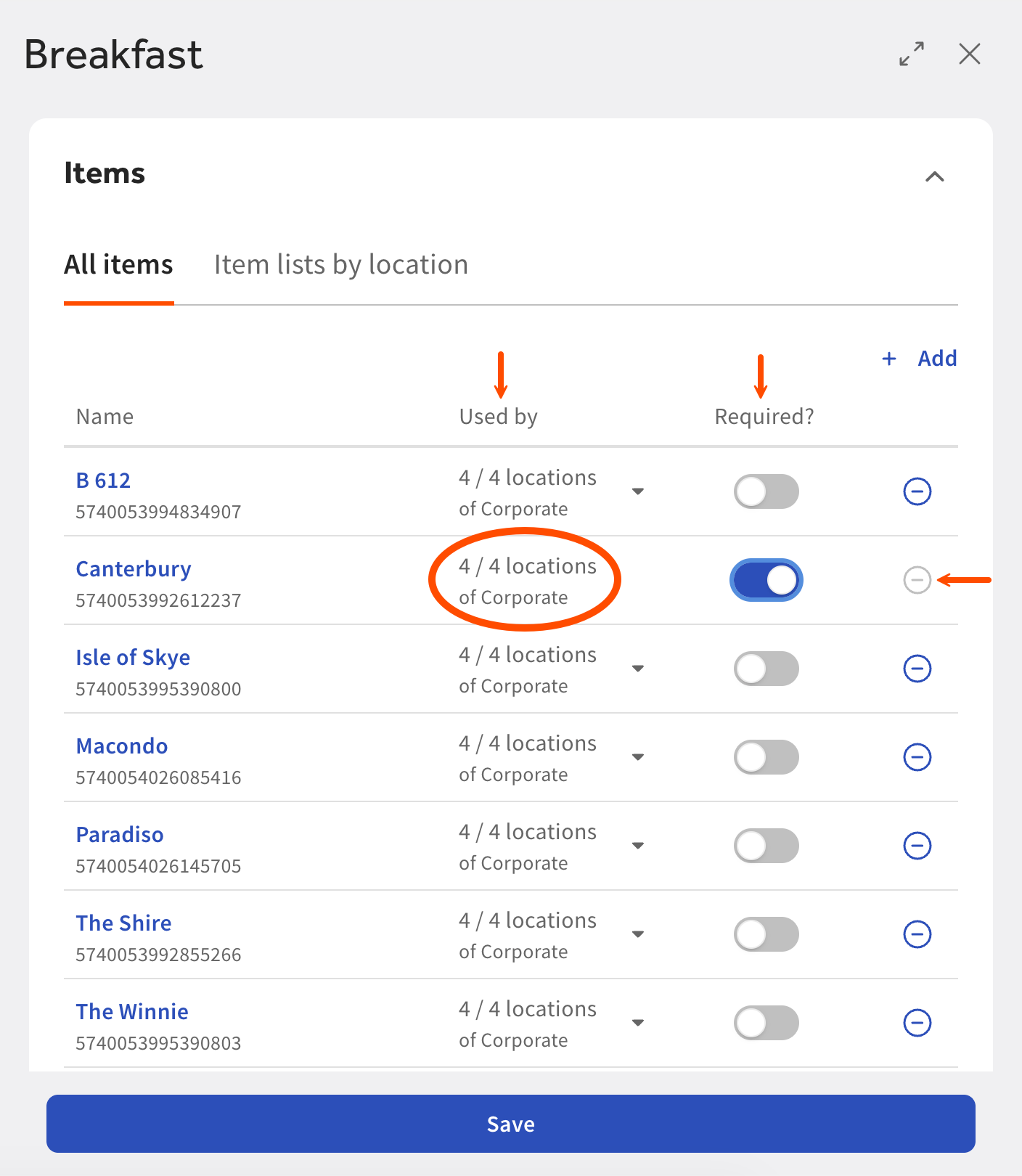
Here is an example of the All items table after an item is marked as required. The Used by column reflects that all locations now use the menu item. You cannot use the remove icon while the menu item is required.
Here is an example of how a required item appears when adding or editing a custom item list. The item is marked by a red asterisk and you can no longer remove the item.
To require items at multiple locations
-
Go to Menus > Menu management > Menu manager. The Menu manager page opens.
-
From the Show section, choose Full menu.
-
Select the locations whose menu data you want to edit from the locations control.
-
Use the expand icons to locate the menu group you want to edit.
-
Select the name of the menu group. A side pane opens.
-
In the Items section, select All items.
-
Next to the item you want required across all locations, select the Required toggle button. The Used by column now reflects that the item is used by all possible locations.
-
At the bottom of the side pane, select Save.